MCAD & ECAD guide
Mechanical CAD and electronics in VSDEL, with pictures — from the first sketch to G-code, and from the schematic to Gerbers. CAD, Board, Schematic and Harness open as engineering workspaces in their own tab, kept in sync with the systems model; the systems model guide covers the model itself. Type in the search box (or press /) to filter every section live.
Engineering workspaces
The CAD, Board, Schematic and Harness tools can open as engineering workspaces: full-window tools in their own browser tab, without the model's explorer and inspector around them, so the canvas gets the window. They work on the same project and branch as the model, and everything stays in sync — an edit in a workspace shows in the model's tab at once, and the other way round.
When to use it. The workspaces are on by default. They suit a session spent laying out a board, capturing a schematic or modelling a part, especially across two screens: the model on one, the workspace on the other. Prefer the tools inside the model's window? Turn them off — see below.
Opening them, or turning them off
- CAD, Board, Schematic and Harness show ↗ and open their workspace in a new tab — one tab per project and workspace: clicking again brings that tab forward and switches it to what you clicked, never a second copy.
- The tools menu at the right of the Structure row says where they open: new tab (the default), this tab, or in the model. Narrow windows always use this tab. If the browser blocks the new tab, the workspace opens here and says so; allow pop-ups for VSDEL to get the tab back.
- To use the tools inside the model's window as before, set that menu to tools: in the model; this browser remembers the choice. When the row is too narrow for every view, ‹ › at its ends scroll it.
- ← Model in the workspace's header goes back: in place when the workspace opened in this tab, else to the model's tab.
- Every workspace has its own address (for example
…/ecad?tab=layout): bookmark it, share it, or reload — you land where you were.
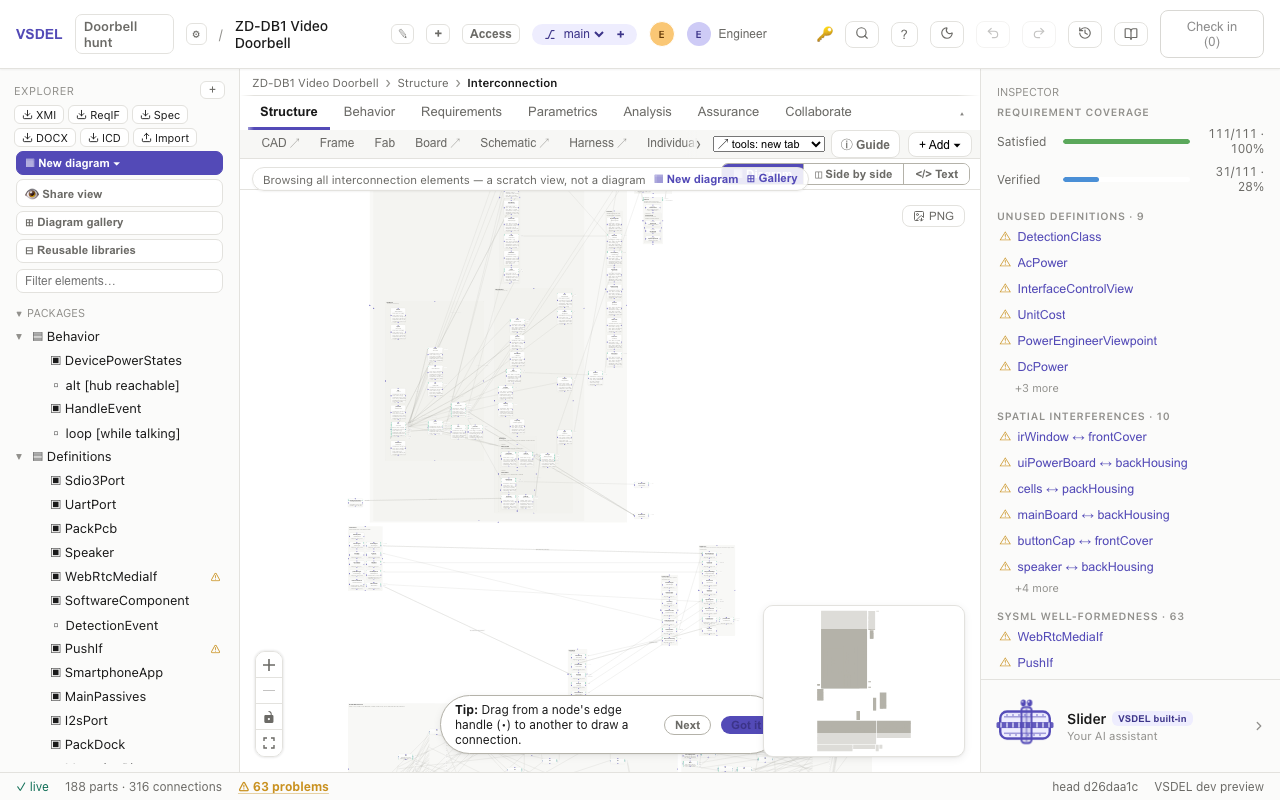
The frame
- Header: ← Model, the project and branch, the task tabs, Search (⌘K), keyboard shortcuts (?), whether your changes are saved (Saved, Saving…, Offline — changes kept here, Not saved) and Check in.
- Ribbon: the task's commands in labelled groups; on a narrow window it scrolls sideways instead of wrapping. Exports sit in one Export menu.
- Docks: the side panels. Drag a dock's edge (or focus it and use the arrow keys) to resize it, and use ‹ › to collapse it to a rail; sizes are remembered. The Model dock on the left holds the SysML tree, collapsed until you want it.
- Status bar: who else is in the project and where, then what the tool is doing — units, the snap grid, the pointer's X and Y, the active layer or material, what's selected and the tool (Route, Pour, Sketch…).
- The first visit shows a three-step tour; skip it any time, it doesn't come back.
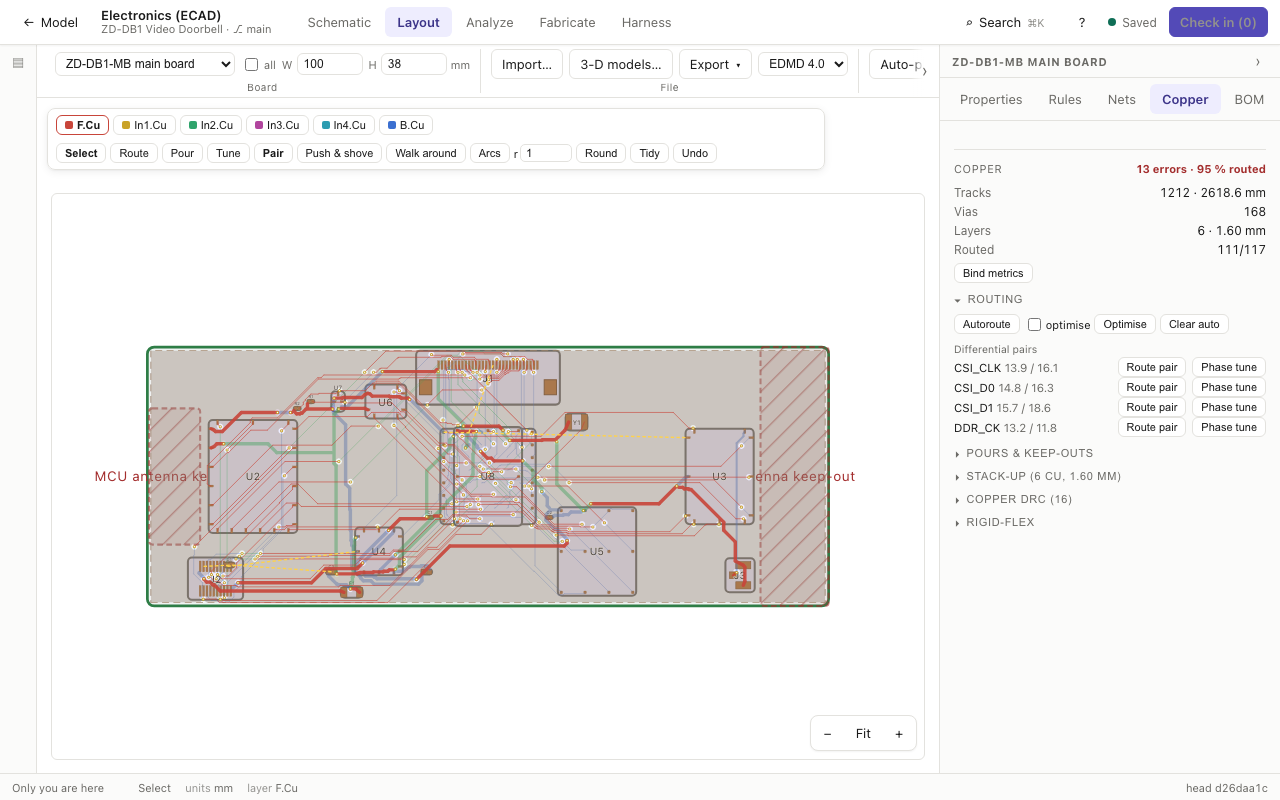
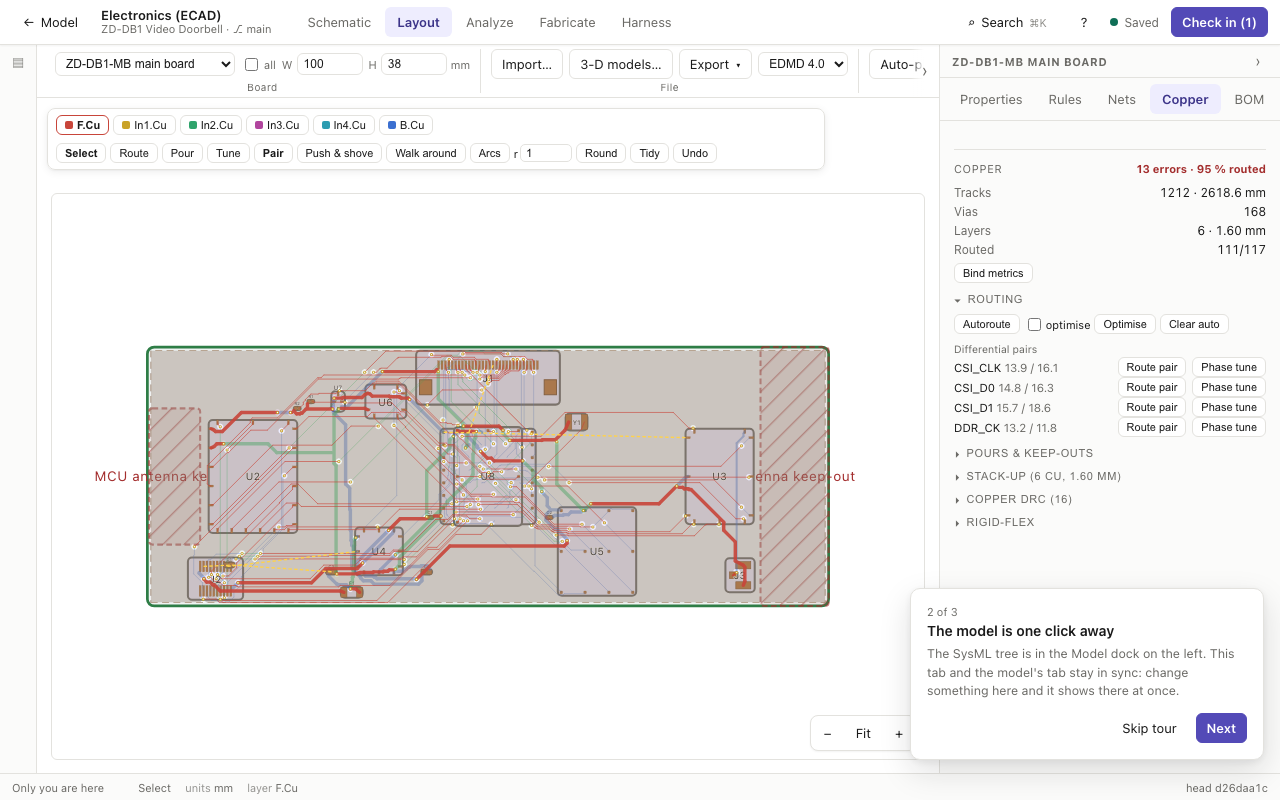
Electronics (ECAD)
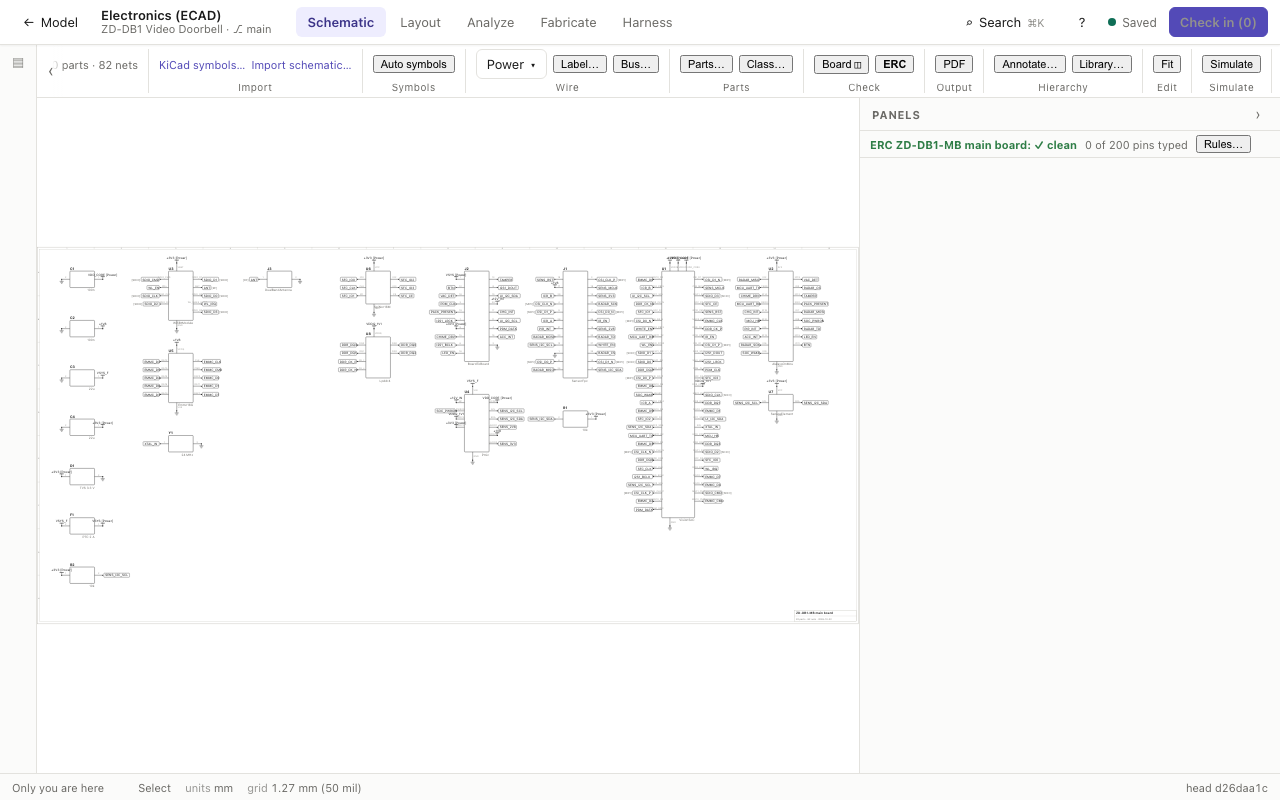
- Schematic: the sheet fills the window; ERC, the part library, annotation, the symbol editor and the parts table dock beside it, and simulation docks below it.
- Layout: placement and routing. The copper tools (Select, Route, Pour, Tune, pair, shove, hug, arcs, round, tidy) float over the board, and the board's panel has tabs — Properties (what you selected, or the board's metrics), Rules, Nets, Copper and BOM. Selecting a part brings Properties forward.
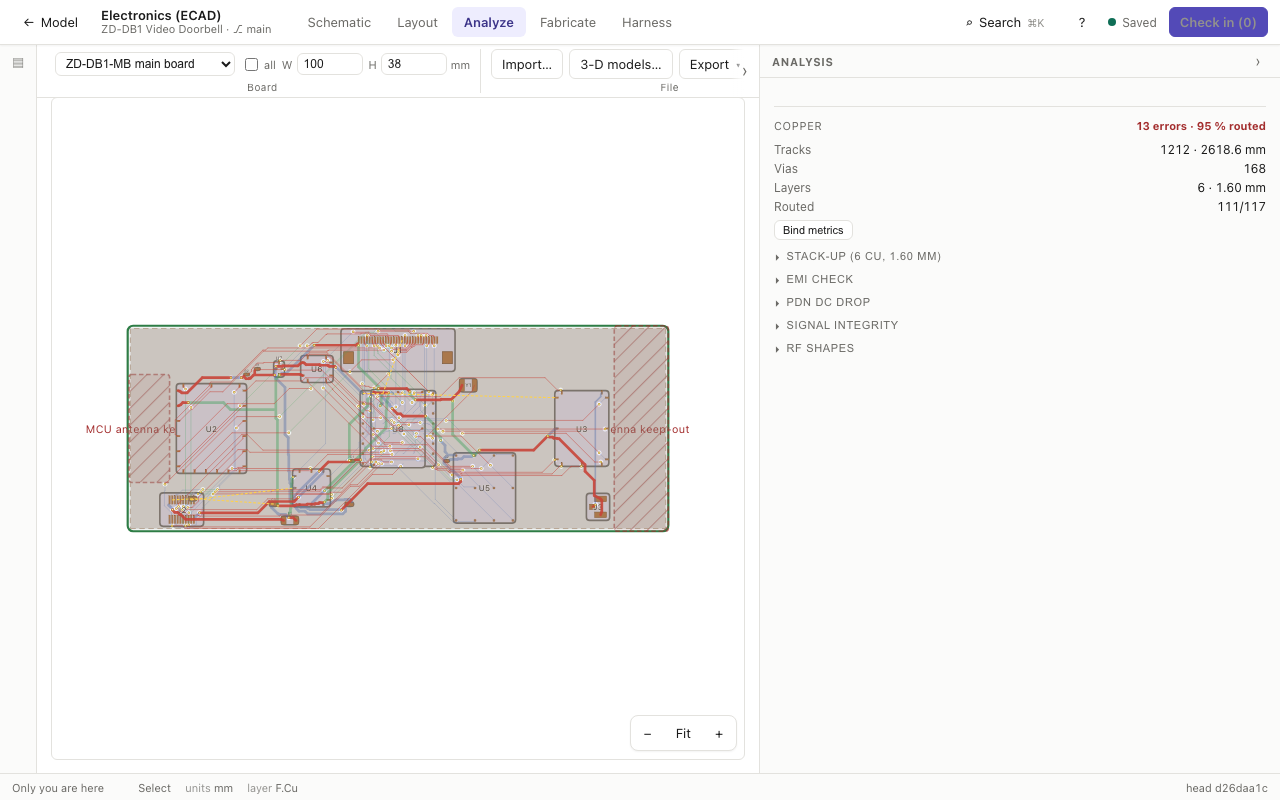
- Analyze: the board with stack-up and impedance, EMI, PDN, signal integrity and RF in a wide panel beside it.
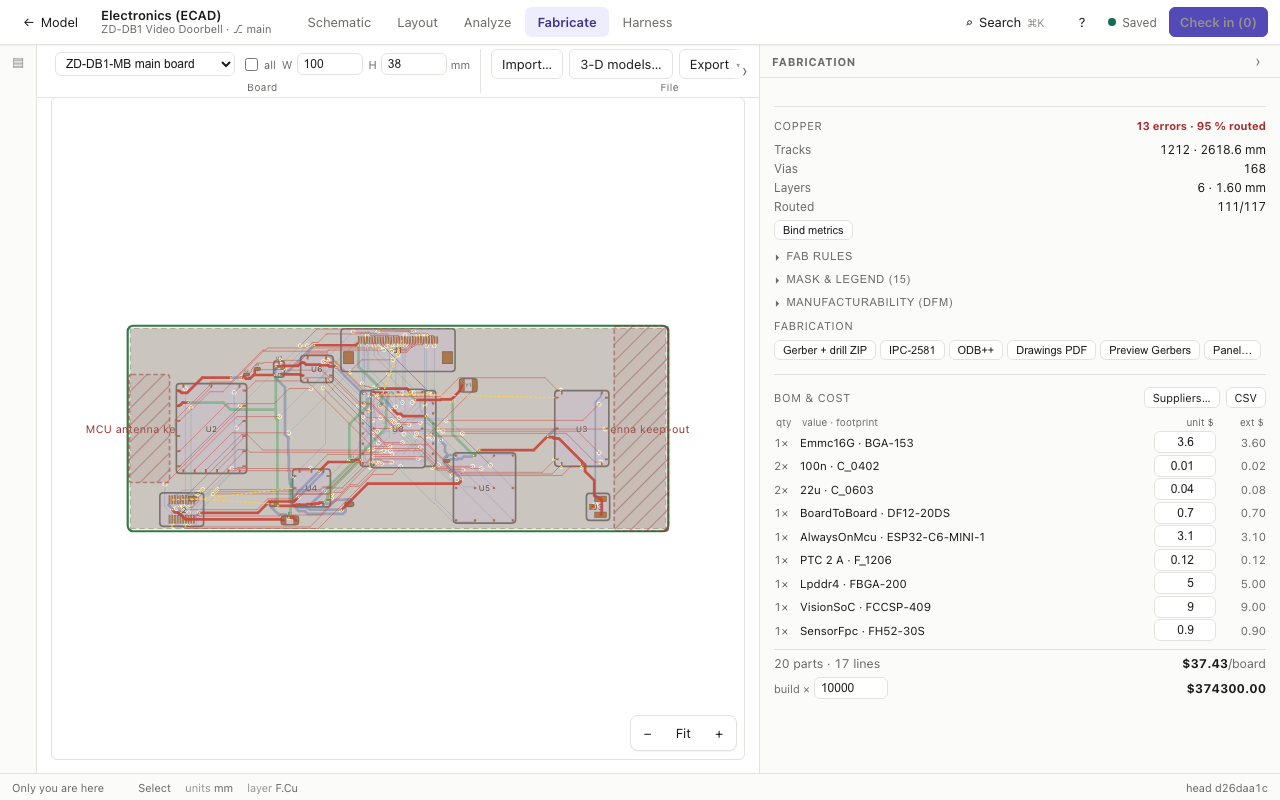
- Fabricate: fab rules, mask and legend, manufacturability, the fabrication outputs, the BOM and budgets.
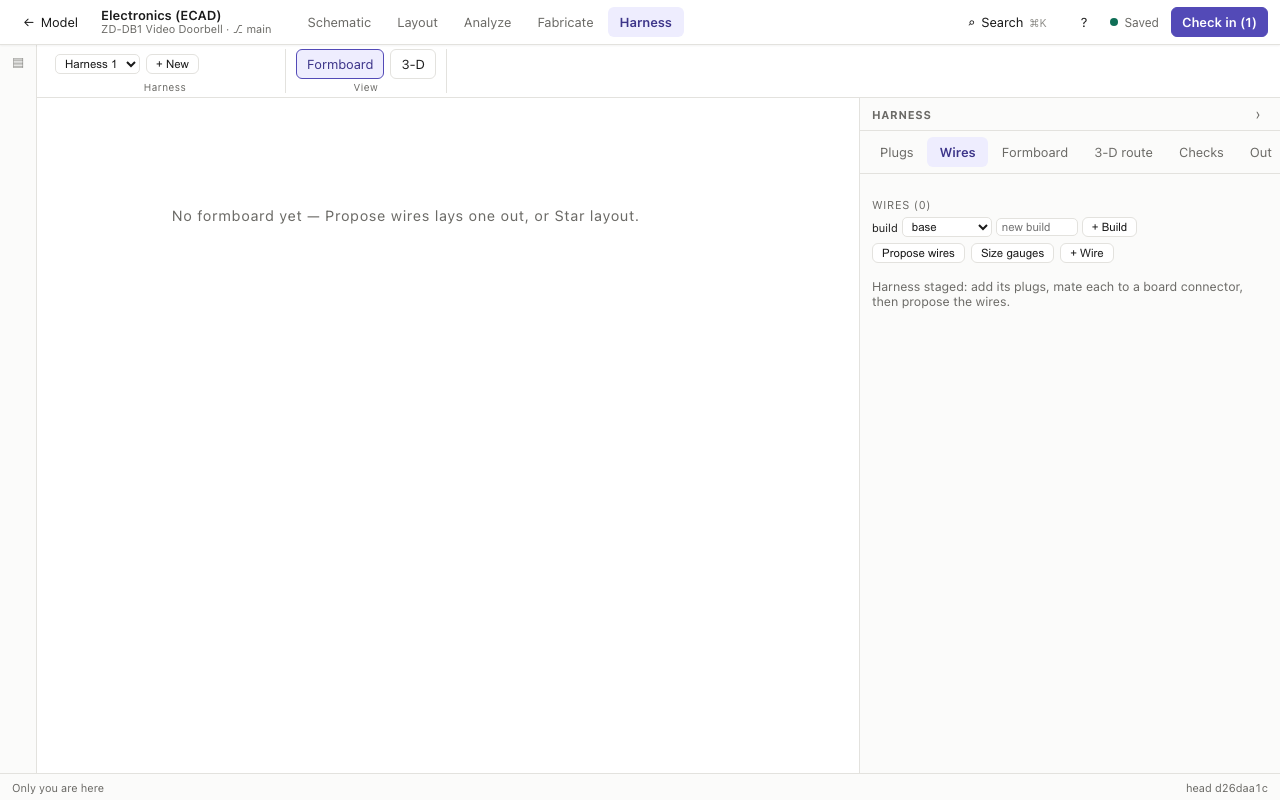
- Harness: the formboard or the 3-D routes fill the window; plugs, wires, formboard, 3-D route, checks and output are tabs of the panel beside it, and the view switch is on the ribbon.
- One board across the tasks: the board you choose in Layout is the one Schematic and Analyze open, and the URL carries it (
&board=), so a shared link opens the same board.
Mechanical (MCAD)
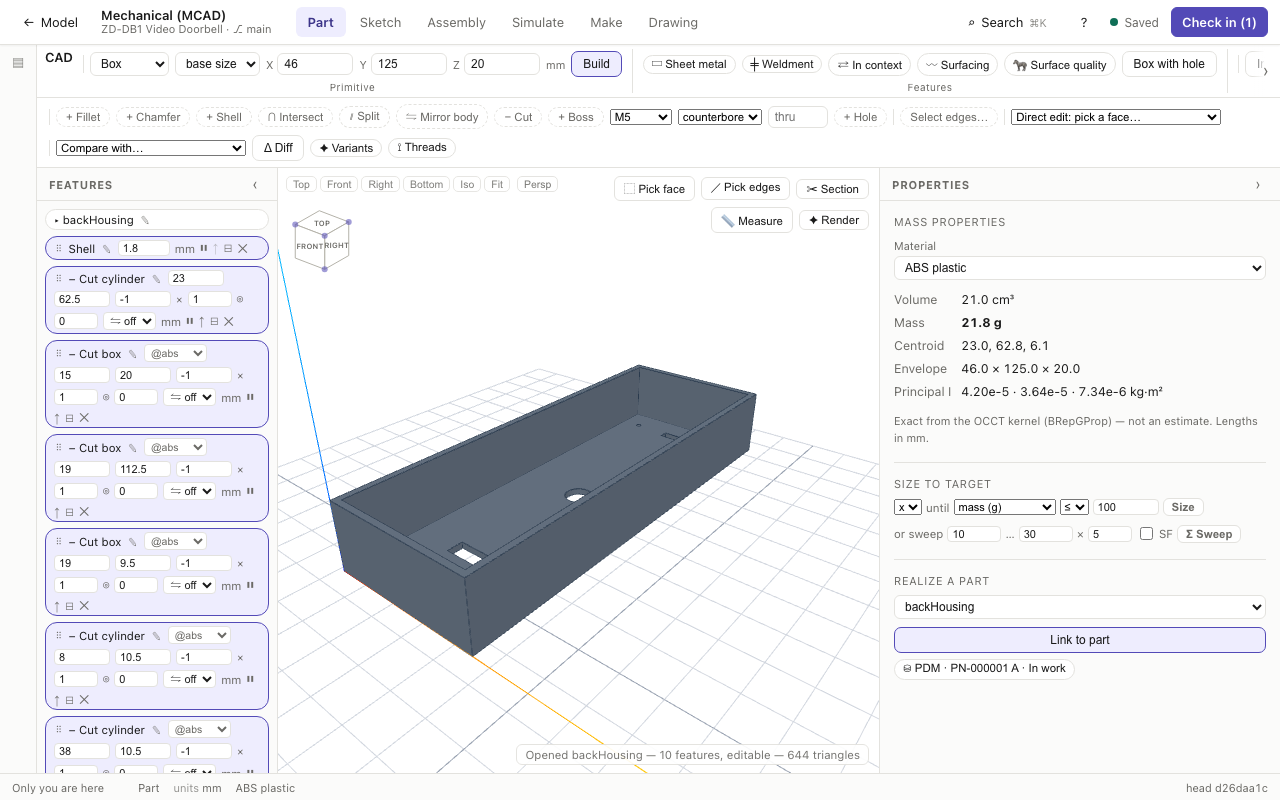
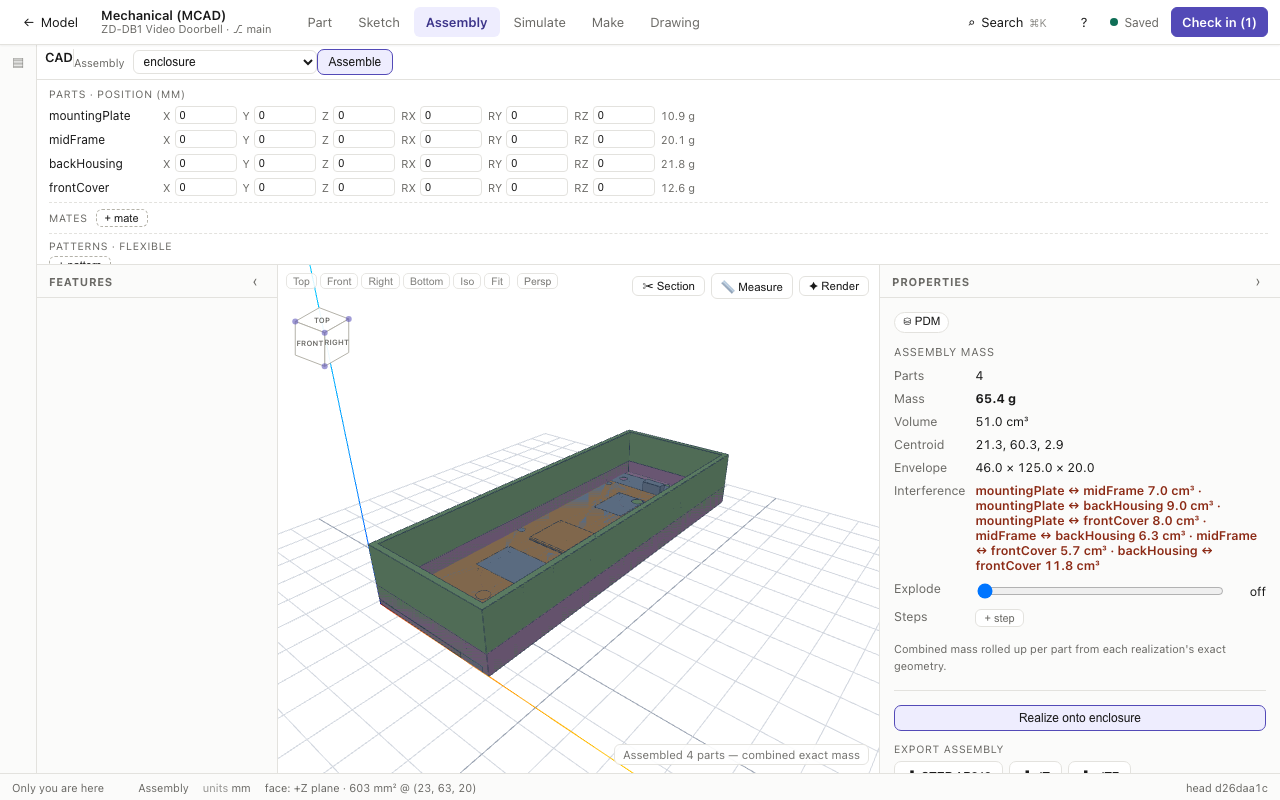
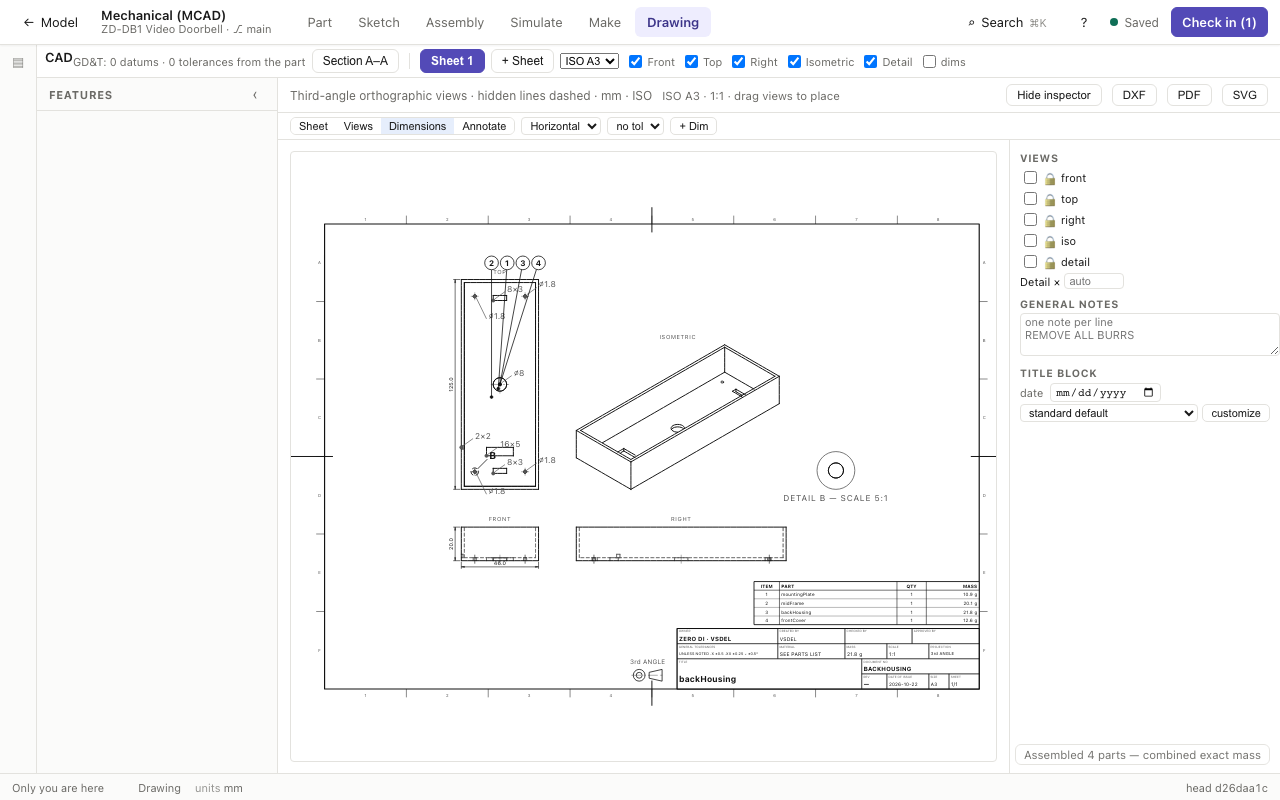
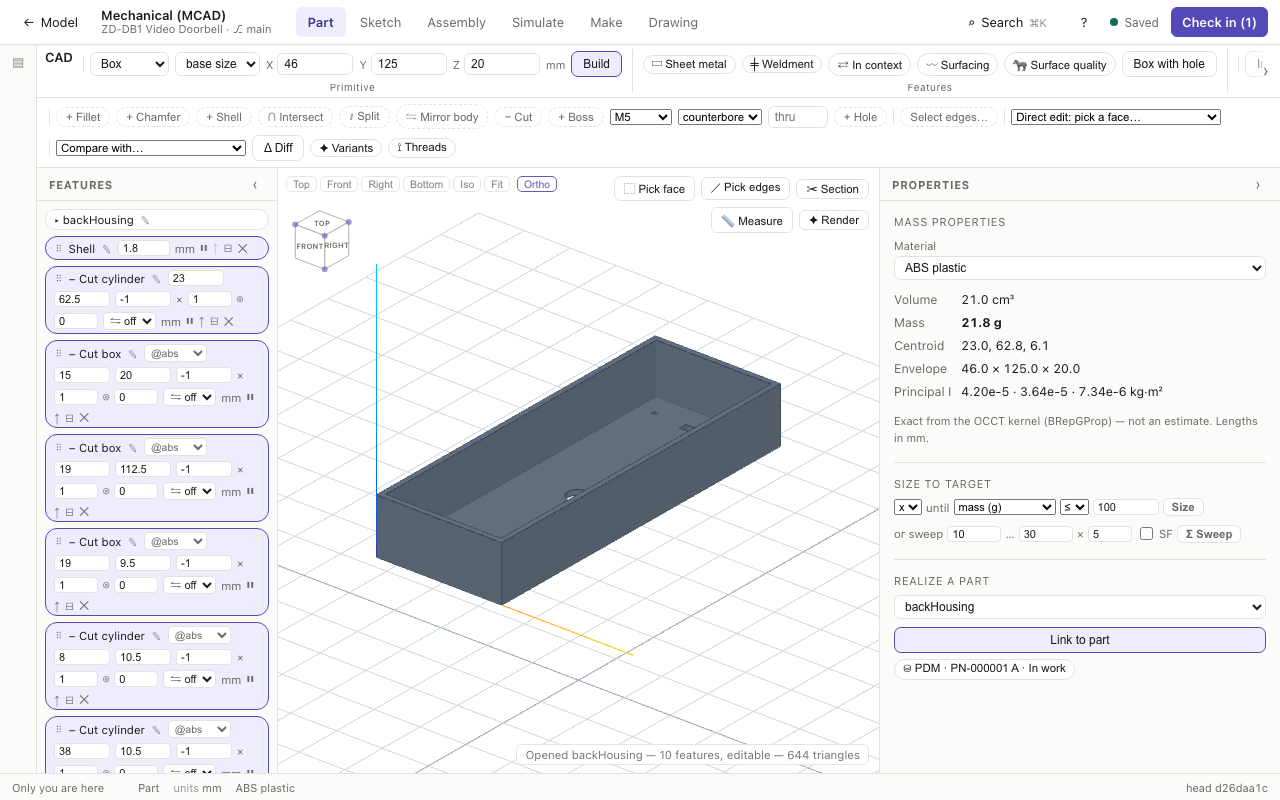
- Part, Sketch, Assembly and Drawing are the CAD tool's modes; the part's history is a Features column on the left of the view and its properties a Properties dock on the right.
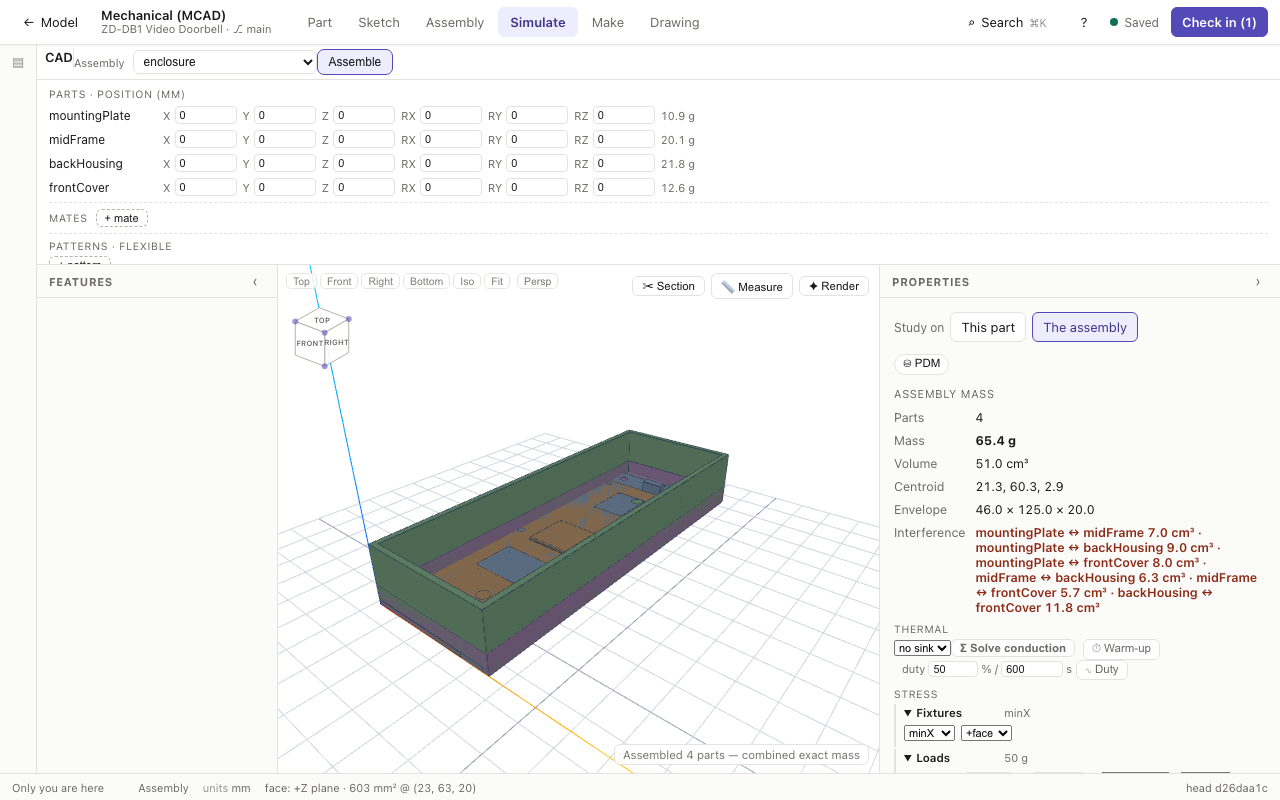
- Simulate holds the studies. Study on picks This part — static stress, frequencies, steady heat and CFD on the one solid — or The assembly: thermal, stress, modal, buckling, nonlinear, motion and CFD on the parts as placed.
- Each task's ribbon holds only its own tools: the primitives, features and import are on Part, so Simulate and Make aren't crowded with modelling buttons.
- Picking a part in the Model rail makes it the part the CAD tool works on, and a link with a part selected (
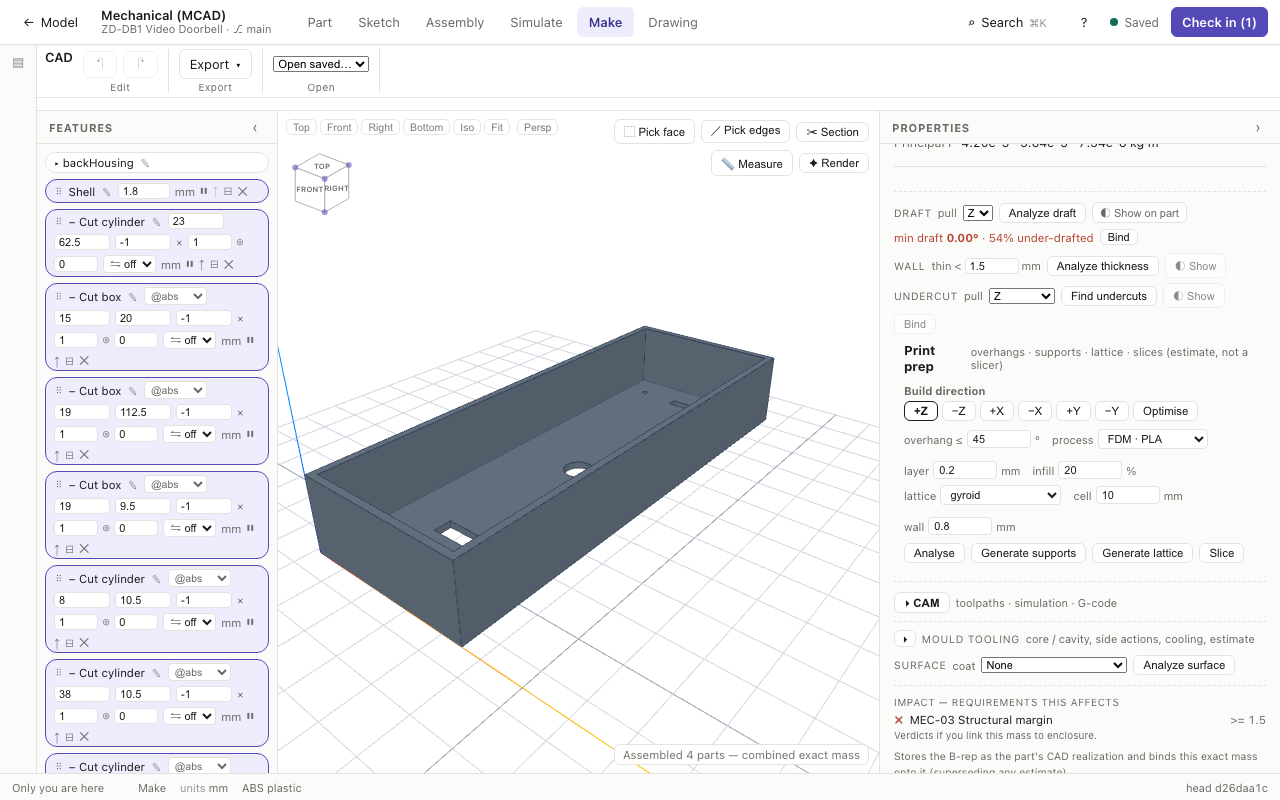
&sel=) opens its saved geometry. Coming from Assembly, Simulate studies the assembly you just built. - Make holds manufacturing: draft, wall and undercut checks, print preparation, CAM, mould tooling and surface coating.
Several tabs at once
Your tabs on one project and branch share your staged changes: what you stage in one appears in the others immediately, Check in in any tab waits for every tab's changes, and undo in one tab never brings back a stale copy of something another tab changed. Selecting an element in the model selects it in the workspace, and the other way round. Only one heavy local solve (FEA, nonlinear, CFD) runs at a time across your tabs, so two can't exhaust the machine; a waiting tab says so and starts by itself.
Limits. The workspaces are still marked beta; with them turned off the lenses work exactly as before. Library and Render aren't tabs of their own yet — reach the part library from the Schematic task and the render studio from Part — and the same element edited at the same moment on two different devices is still last-write-wins.
Commands and keys
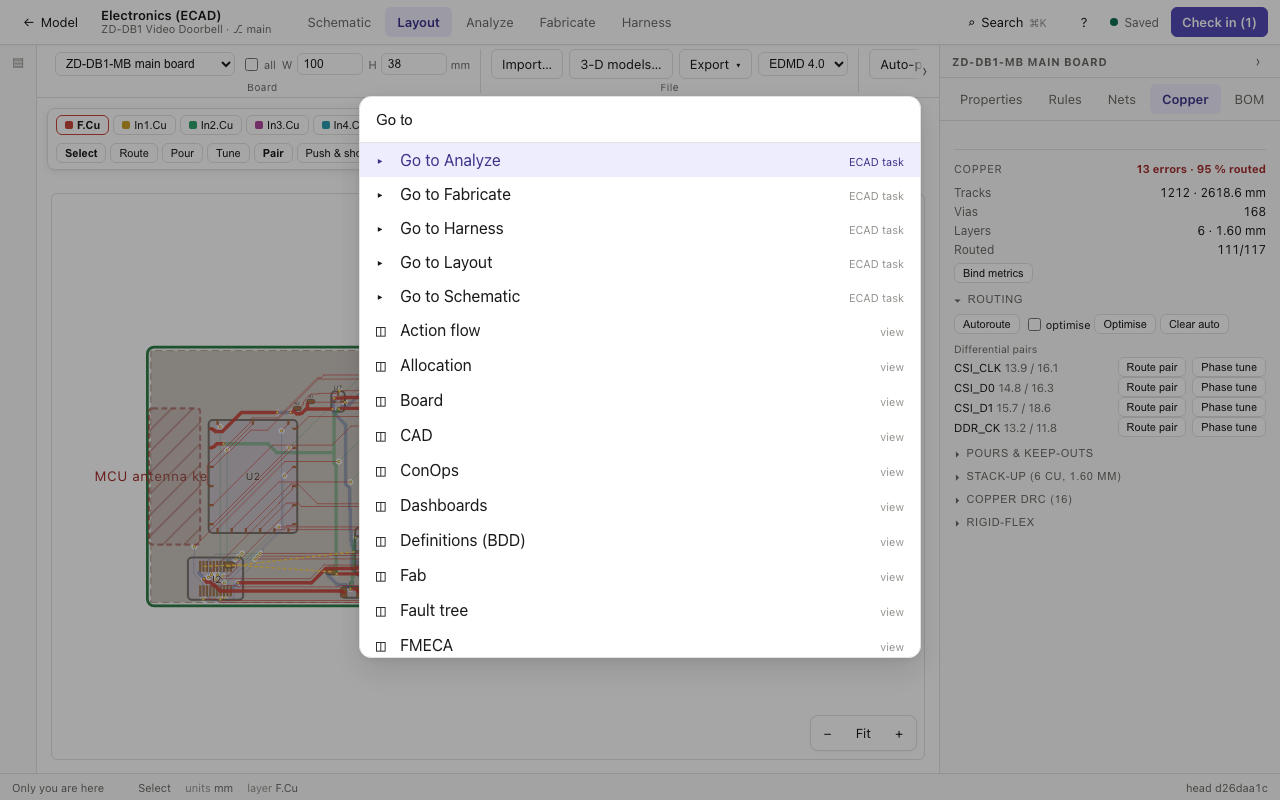
Search (⌘K) knows the open tool's commands — fillet, hole, section, measure, export STEP; autoroute, fill pours, the copper DRC, Gerbers, ODB++; the electrical rule check, simulate, annotate — and runs them. Some have a single key, which works whenever you aren't typing in a field; ? lists them for the tool that's open.
| Tool | Keys |
|---|---|
| CAD | S sketch · F fillet · H hole · M measure · A assemble · N look at the picked face |
| Board | X route · P draw a pour · T tune · B fill pours · D copper DRC · F fit · 1–9 copper layer |
| Schematic | L label a net · F fit the sheet |
A ribbon wider than the window scrolls sideways, with ‹ › at the end that has more.
CAD — solid geometry (B-rep)
The CAD lens (Structure pillar) is a full mechanical CAD seat inside the systems model. Parts are exact B-rep solids on a full geometry kernel, not bounding boxes, and the same lens carries sketches, features, assemblies, drawings, analysis, manufacturing and rendering. Everything runs in your browser: the kernel and every solver work in background workers, on the hosted service and on a self-hosted install alike. When a team admin allows it, a stress, nonlinear or CFD run can go to a cloud machine instead (see Limitations below).
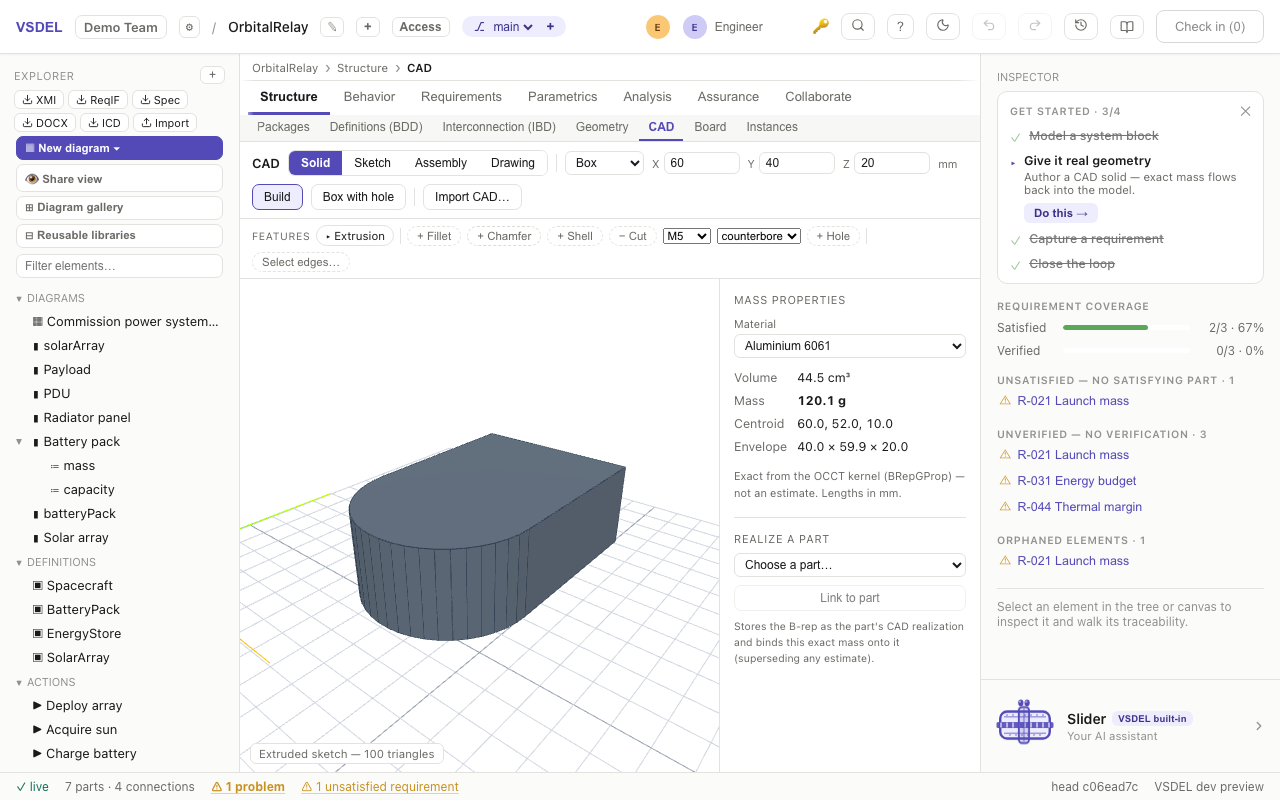
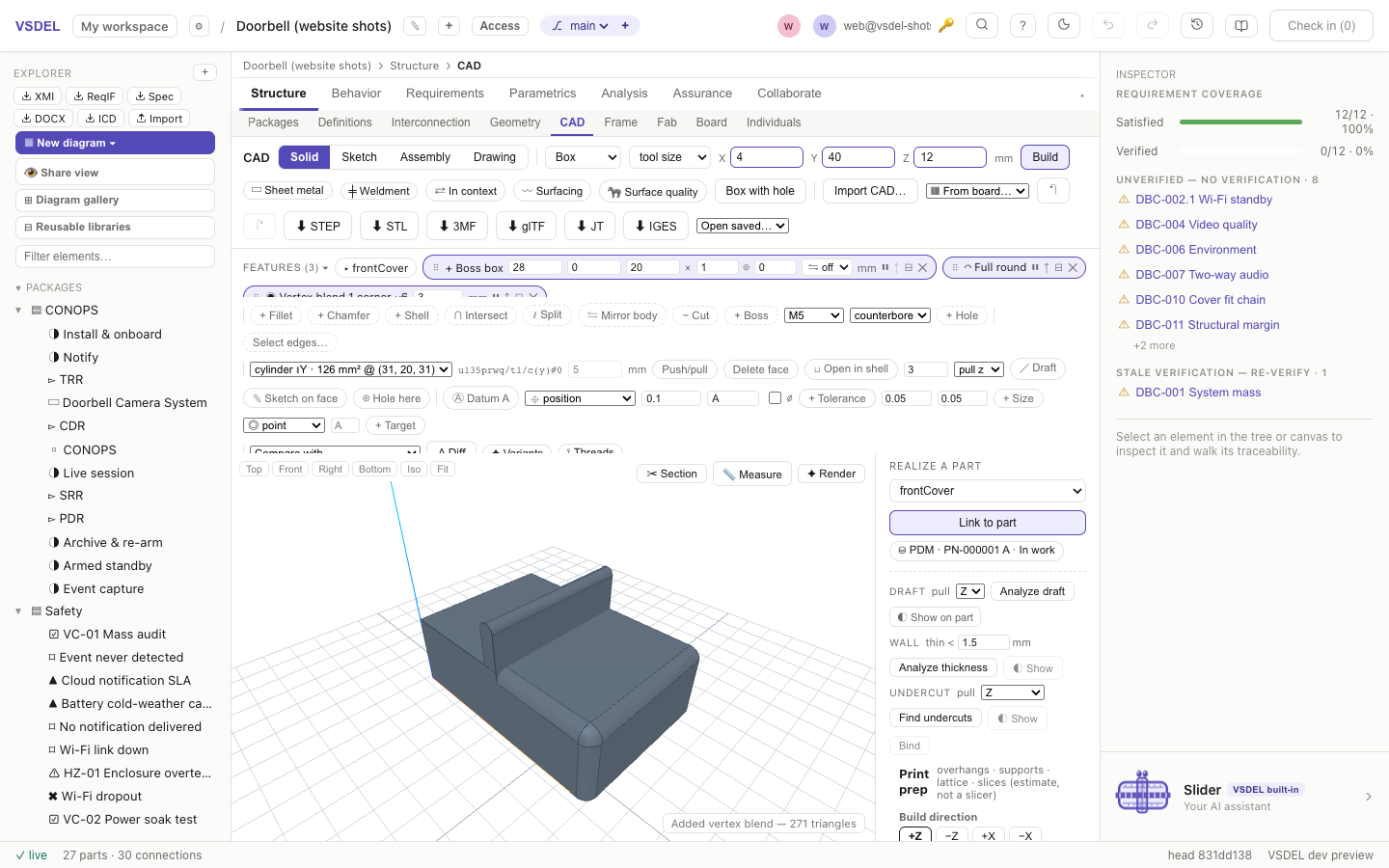
The part you model is a part in the model. Choose it in the lens, build its solid, and press Link to part. The solid is saved as that part's CAD realization and its kernel-exact mass binds onto the part, so mass budgets roll up from real geometry from then on.
Getting around the lens
- Modes: Solid, Sketch, Assembly and Drawing, at the top of the lens.
- Toolbar: primitives (box, cylinder, cone, sphere) and Build, Import CAD… (STEP, IGES, BREP), ▦ From board… (a board's 3-D body, see Board), and the panels that open in place: ▭ Sheet metal, ╪ Weldment, ⇄ In context, 〰 Surfacing and 🦓 Surface quality. Once the part has a base, ✦ Variants and ⟟ Threads join them.
- Views: Top, Front, Right, Bottom and Iso at the top left of the viewer, plus Fit. Each frames the whole part for the viewport's size and shape. Ortho / Persp switches between an orthographic and a perspective camera (remembered). The view cube under them turns with the part: click a face for that view, a corner for an isometric. With a face picked, ⊥ Look at face (N) turns the view square to it. From a straight view, the arrows round the cube step to the face above, below or beside. Search (⌘K) knows the views, Fit, Ortho / Persp and Look at face. A picked face's actions (push / pull, delete, open in shell, draft) sit in one row that scrolls, so picking never shrinks the view.
- Feature chips: every feature is a chip in the history. Drag its ⠿ handle to reorder, press ⏸ to suppress it (the what-if lever: suppress a pocket, watch the budgets), or drag the rollback bar to see the part as it stood. ⌘Z undoes tree edits, and the last 20 steps are saved with the part. A long history scrolls in its own box, and FEATURES (N) ▾ collapses it to one row.
- Right column, under Link to part: ⛁ PDM, the draft, wall-thickness and undercut checks, Print prep, CFD, CAM and Mould tooling. The tool panels (Sheet metal, Weldment, In context, Surfacing, Surface quality, Variants, Threads) open at the top of this column and scroll there. However full the toolbar and history get, the viewer keeps at least 55 % of the lens height.
- Versions: Open saved… reopens any saved version as an editable feature tree; an assembly's saved realization opens in Assembly mode and assembles itself, and a board part's 3-D model opens for editing (see Board). Compare with… then Δ Diff overlays the material added (green) and removed (red) between two versions.
- Top right of the viewer: ✂ Section cuts the view with an X, Y or Z plane you slide through the part (the cut face is shaded); 📏 Measure gives an edge's length (a hole's edge gives its Ø) or the distance between two points snapped to vertices; ✦ Render opens the render studio over the whole lens.
Geometry driven by the model
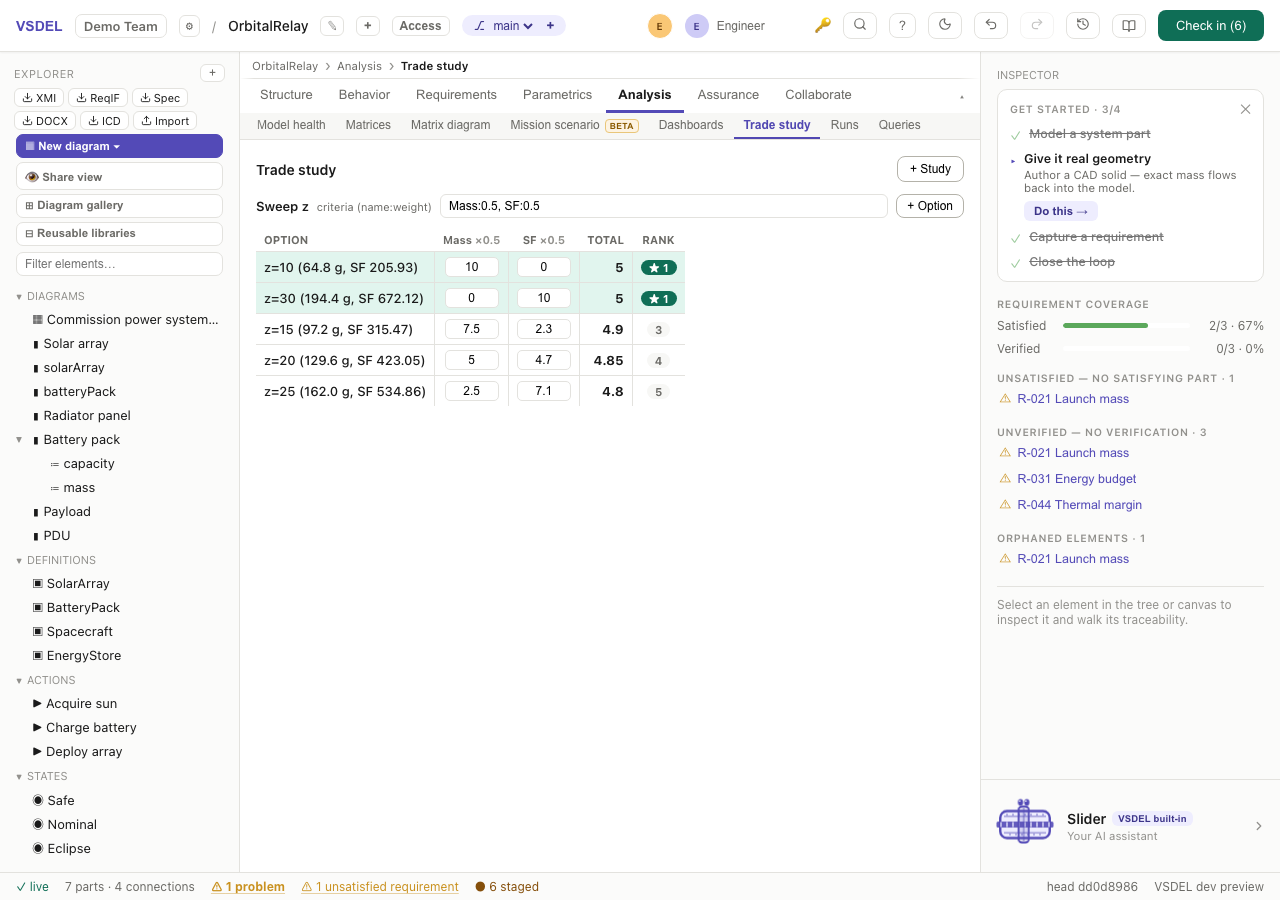
Dimensions, feature values and cut offsets accept expressions over the model's attributes: type =mass/10 instead of a number and the solid regenerates whenever the model changes. Pick a dimension and a target (mass ≤ 100 g, a safety factor, a first mode) and the sizing loop bisects the kernel to the least change that passes; Σ Sweep tabulates a range instead and stages the variants as a scored trade study.
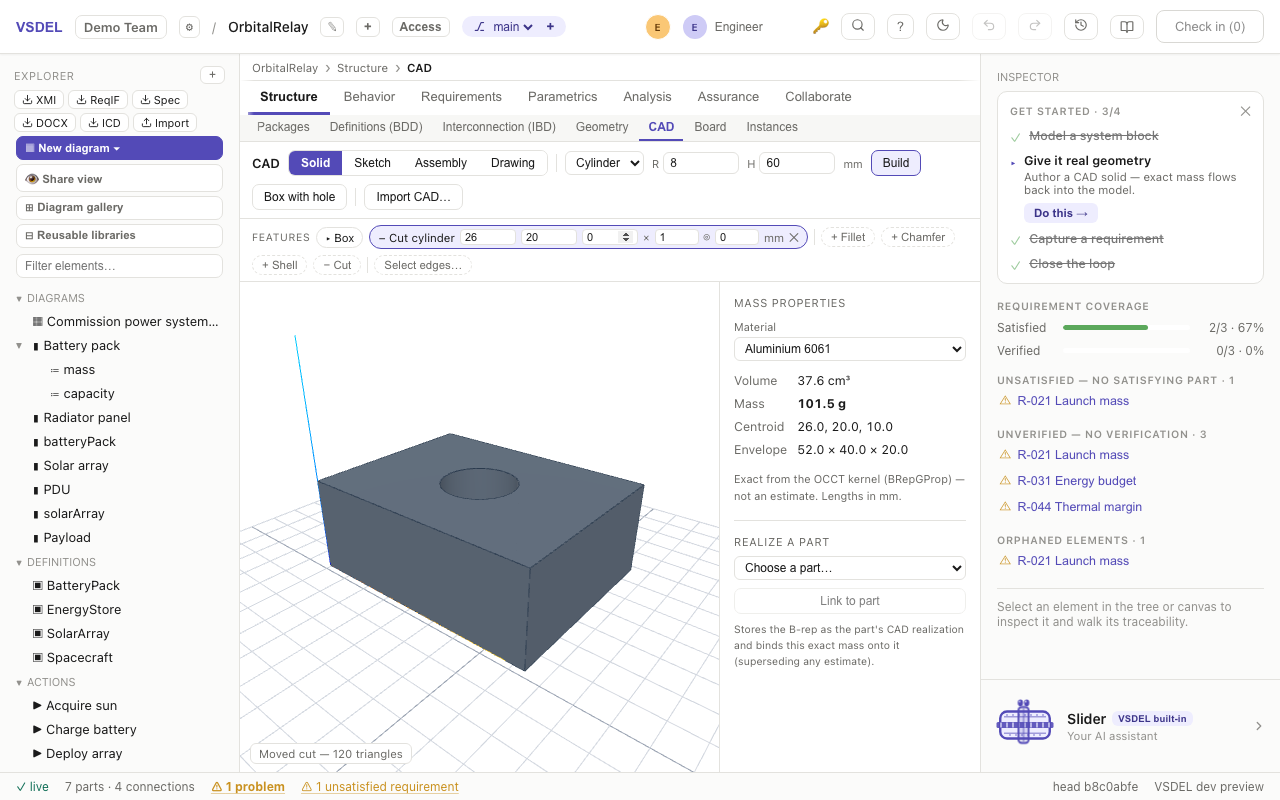
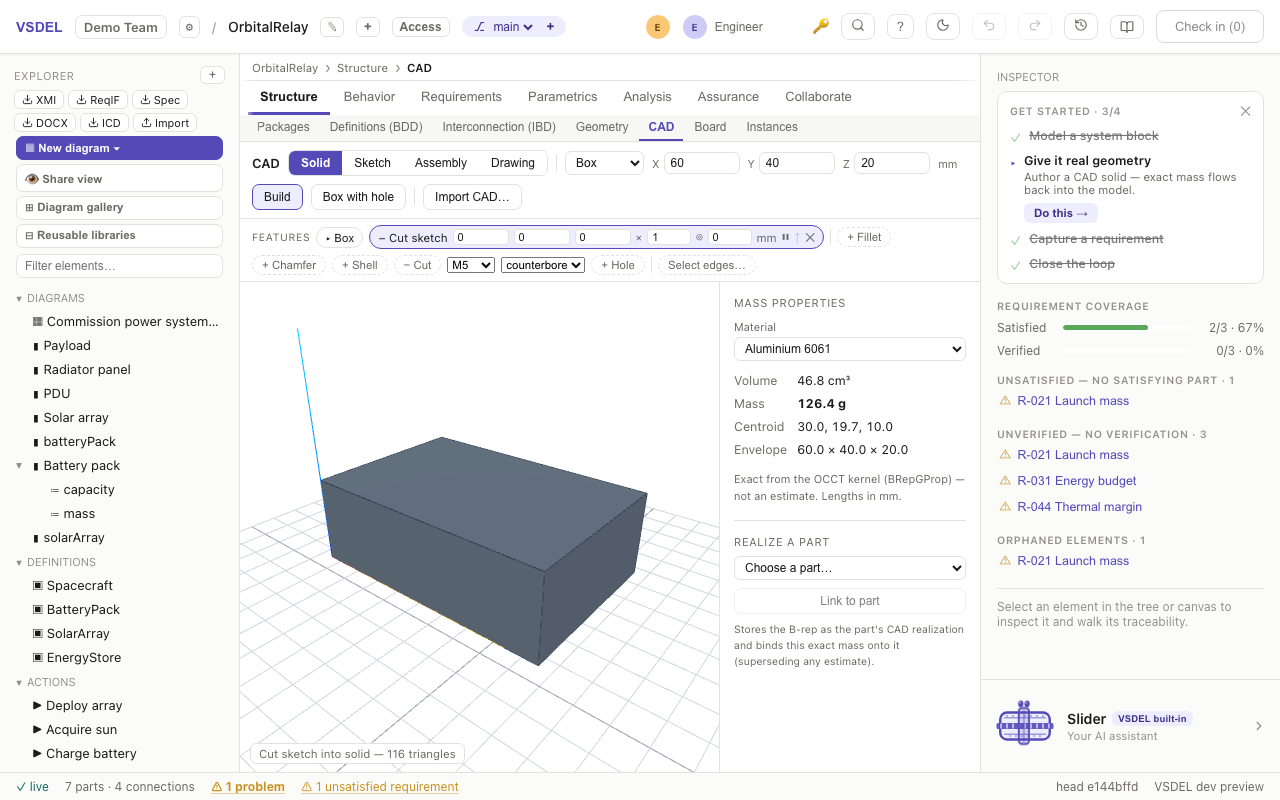
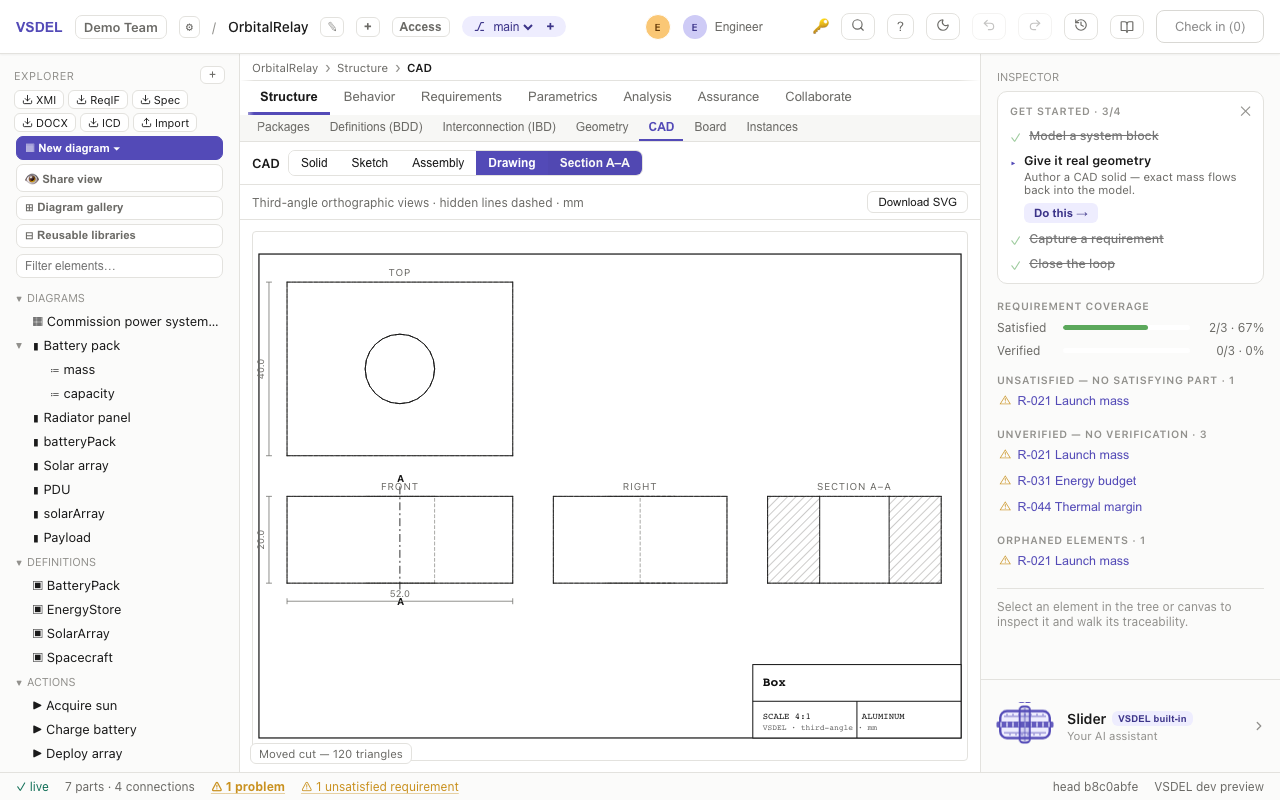
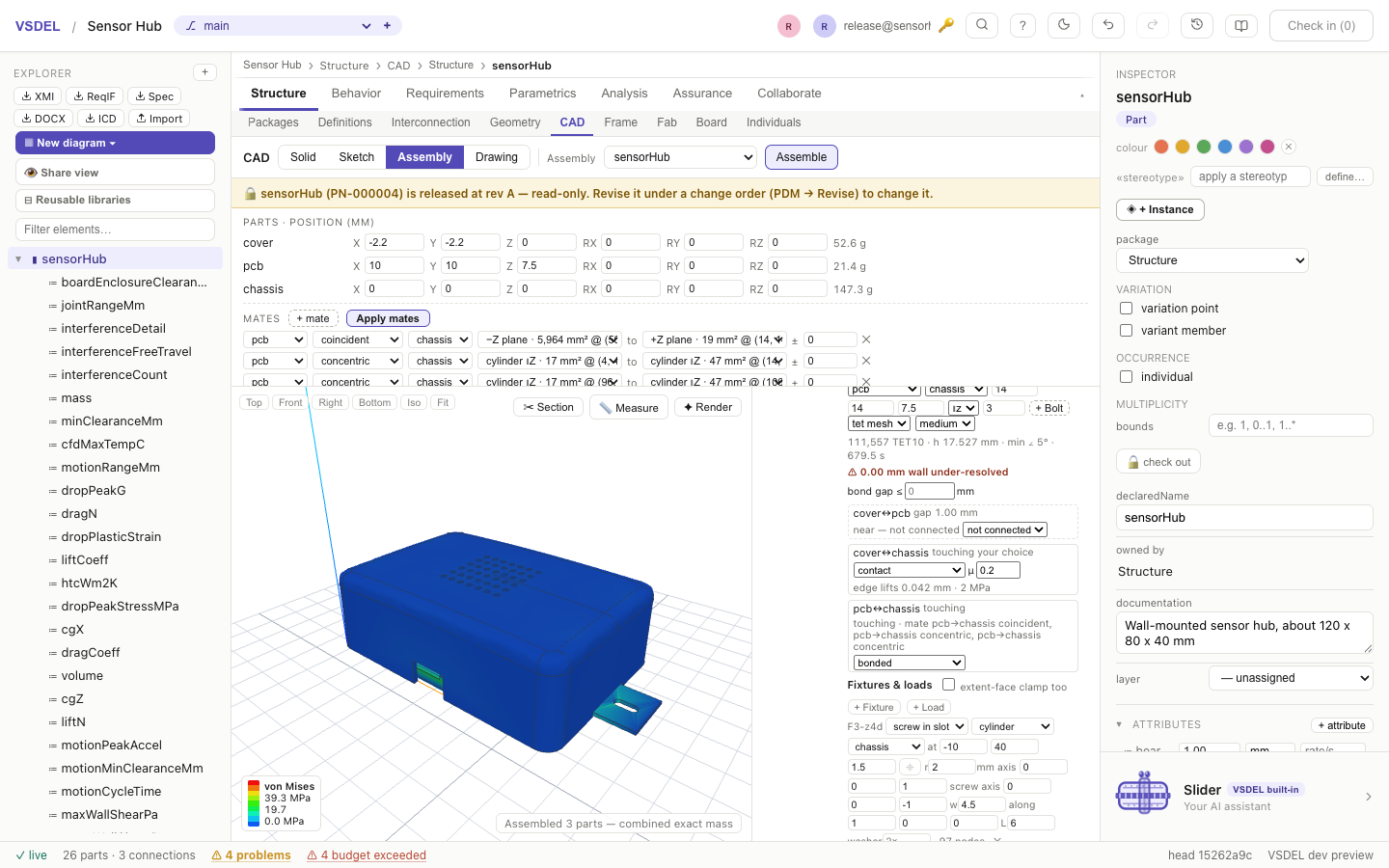
=mass into the width made this 52 × 40 × 20 plate. The value came from the model's own attribute, and when the model changes, the solid regenerates. A positioned cylinder cut bores the centre; the kernel's exact volume and mass update live.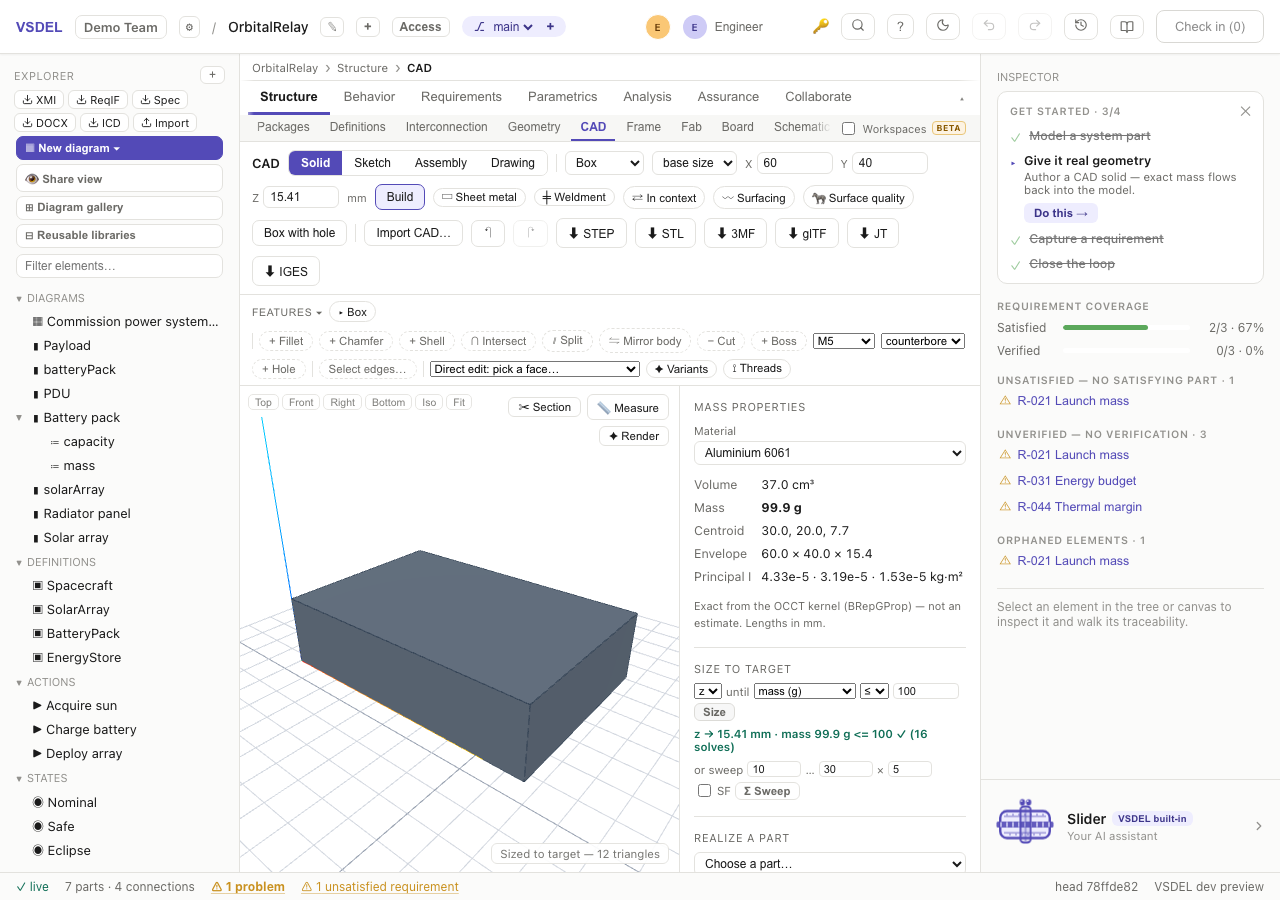
Every result binds to a requirement
This is what makes the CAD lens different from a separate CAD seat. Each analysis and estimate ends in a Bind button. Bind stages the result on the part (or the assembly) as a derived attribute: a staged change you review and check in like any other edit. Once it is checked in, a requirement constraint tests it (min(minSafetyFactor) >= 1.5, max(pressureDropPa) <= 250 [Pa]), a TPM can track it, and it commits, branches, diffs and merges with the rest of the model. A result whose inputs changed since it ran is refused rather than bound.
| AREA | BOUND ATTRIBUTES (EXAMPLES) |
|---|---|
| Part, assembly | mass, inertia, interferenceCount, minClearanceMm, stackMarginMm, stack3dWorstMarginMm |
| Structure | minSafetyFactor, maxVonMisesMPa, maxDisplacementMm, firstModeHz, minBucklingSF, fatigueLifeCycles, limitLoadFactor, dropPeakG, fractureMargin |
| Thermal, flow | maxTempC, junctionTempC, warmupS90, tMaxDuty, pressureDropPa, dragN, htcWm2K, cfdMaxTempC, naturalMaxSpeedMps |
| Motion | motionRangeDeg, motionPeakSpeed, interferenceFreeTravel, motionMinClearanceMm |
| Manufacturing | camCycleTimeMin, machiningCostUsd, blankAreaMm2, bendCount, sheetMetalDfmPass, weldmentMassKg, clampTonnage, toolingCostUsd, cycleTimeS, printTimeH, minWallMm, minDraftDeg |
| Board | copperLayerCount, viaCount, routedPct, trackLengthMm |
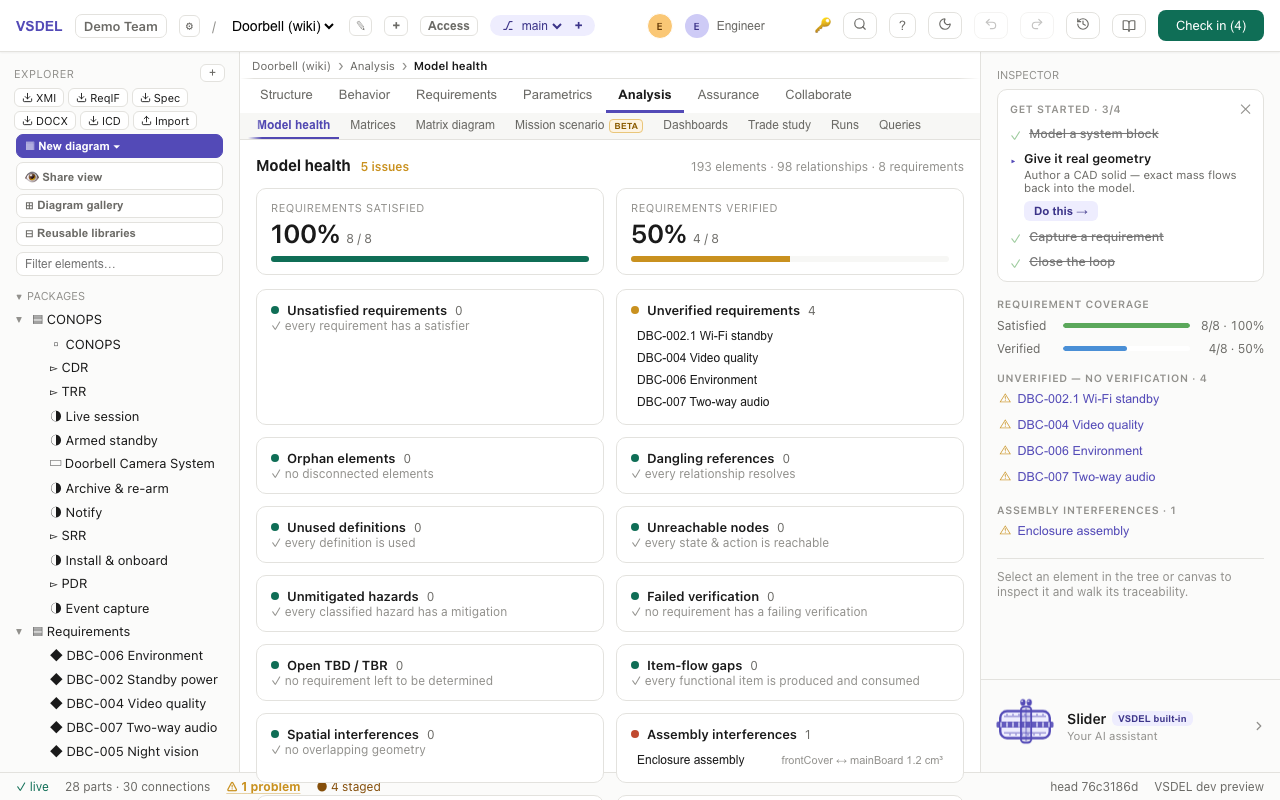
interferenceCount / interferenceVolume onto the parent, and Model health reports the pair — here frontCover ↔ mainBoard, 1.2 cm³ — one click from the offending part. A clean realize binds zeros, which is itself the verifiable no-interference fact.Agents and the CAD kernel
AI agents connected over MCP use the same evaluator as the lens: cad_build evaluates a feature tree with exact mass properties, cad_create_part saves a part and stages its realization link for a person to check in, and cad_read_part, cad_list_parts, cad_diff, cad_topology, cad_flat_pattern and cad_surface_check read, compare and measure. The analysis and manufacturing tools run the lens's own solvers:
- Structure:
cad_fea_static,cad_fea_modal,cad_fea_buckling,cad_fea_nonlinearandcad_fatigue. - Heat and flow:
cad_thermal, andcad_cfd_startfor a CFD run, which is a background job.cad_thermalreads powers, heat sources, ambient, emissivity and boards from the model as the lens does, with the same checks and warnings;ambientCandhWm2Kdefault to the model's, and with no film it uses natural convection. - Jobs:
cad_job_status,cad_job_result,cad_job_cancelandcad_job_listfollow the long runs (CFD, nonlinear, mould splits). - Manufacturing:
cad_cam,cad_mould,cad_additiveandcad_dfm. - PDM:
pdm_read_itemreads an item;pdm_proposestages a proposed transition, change order or revision as a comment for a person to act on. Agents never transition, approve or release.
Agent runs are bounded: at most 16 parts or 1.5 M triangles per call, two solves at once per server and two running jobs per agent. cad_fea_static takes picked fixtures (fixed, pinned, sliding, bolt, slot) and loads on faces chosen by face selection, and refuses an under-restrained set-up; the modal, buckling and nonlinear tools still hold and load the assembly's bounding-box planes. The CFD tool has no buoyancy. Jobs are lost if the MCP server restarts. There's no MCP tool for rendering.
When to use it. Move to the CAD lens when a bounding box is no longer enough — you need the real shape for fit, mass, clearance, analysis, a drawing or a program for the machine. It is the higher-fidelity rung above the Geometry lens: start rough in Geometry, declare a CAD geometry realization (see the fidelity ladder), and author or import the solid here. For a printed-circuit board, use the Board lens. The sections below take each part of the seat in turn.
Limitations. The CAD lens doesn't read other CAD systems' native files; exchange runs over STEP, IGES and JT (see Interchange). Heavy work — modelled threads, large weldments, fine meshes — takes seconds to minutes in the browser; a progress line and a Cancel button show while it runs. The stress, modal, buckling, nonlinear, drop-test and CFD solvers use every core of your computer (up to eight): on an eight-core machine a large stress run takes about a third as long as on one core, and a drop test or a CFD run a third to a quarter. The numbers are exactly the same whichever computer runs them. Geometry building (booleans, threads, weldment members) still runs on one core. ☁ Run in the cloud (beside Σ Solve stress, the Nonlinear Run and Σ Solve flow, once a team admin turns on Team settings → Allow cloud solver jobs) sends the same run to a 16-core, 120 GB cloud machine: it keeps going if you close the laptop, has far more memory than a browser tab, and gives the same answer — but it isn't faster than a modern laptop, the mesh and the CFD grid are sized as they are in the browser (a CFD run stays within 3 M cells), and the run's geometry leaves your browser (inputs and results are deleted after a day). Σ Modes, Σ Buckling and the Thermal row always run in the browser, and agents can't start cloud runs. When you bind a stress, nonlinear or CFD result, its provenance records where it was computed — this browser, or the cloud machine with its threads and run time — and the inspector shows it as computed on. Each section below names its own limits.
Picking on the model
⬚ Pick face over the 3-D view picks the face you click: it is tinted, and the face actions on the toolbar — push / pull, delete, draft, sketch on it, a hole in it, a datum — act on it; Esc stops picking and clears the picked face. ⟋ Pick edges picks edges to fillet or chamfer just those. In an assembly, the ⌖ beside a mate's face picks that face on the model: the part you click becomes that side of the mate. Esc stops picking.
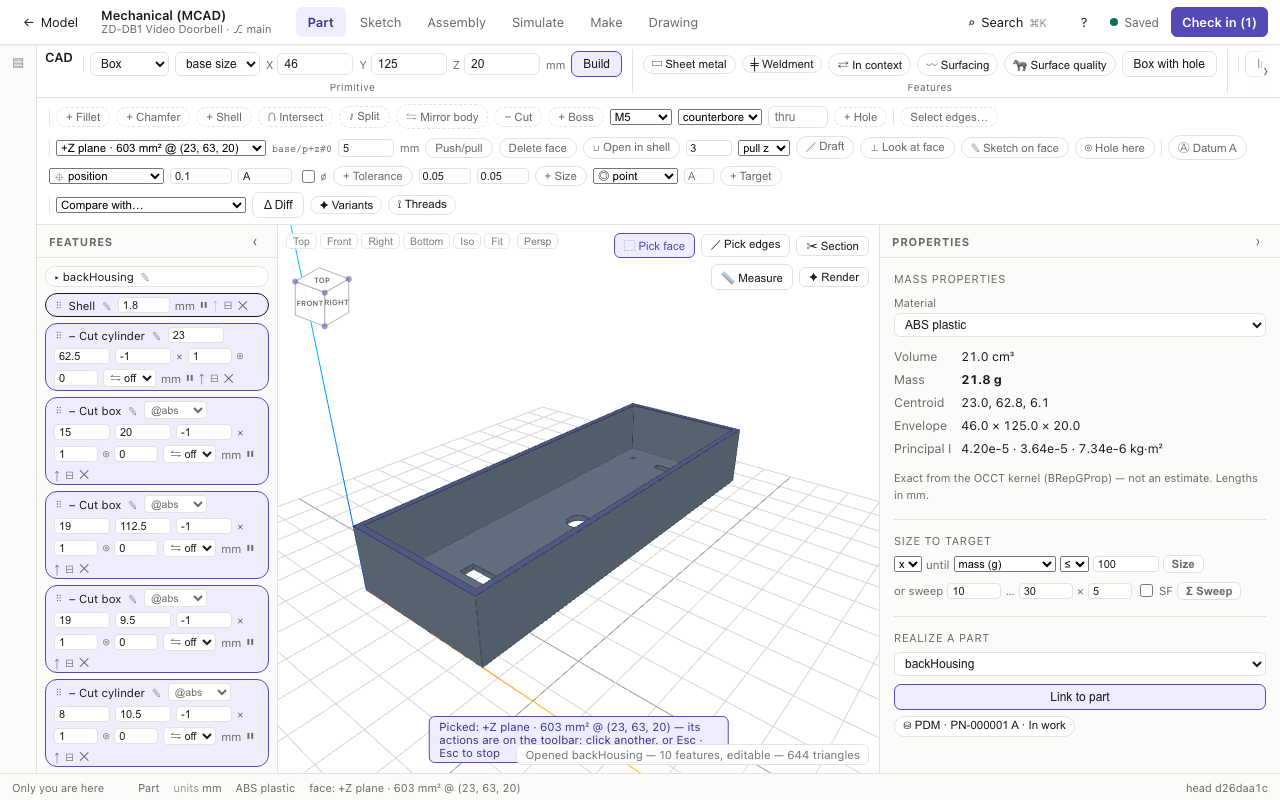
Exports carry the part's name: a STEP file's product is the model part it realizes (else the part's title), with you as its author, and the file is named after it.
Sketching — the loop pad and the free sketcher
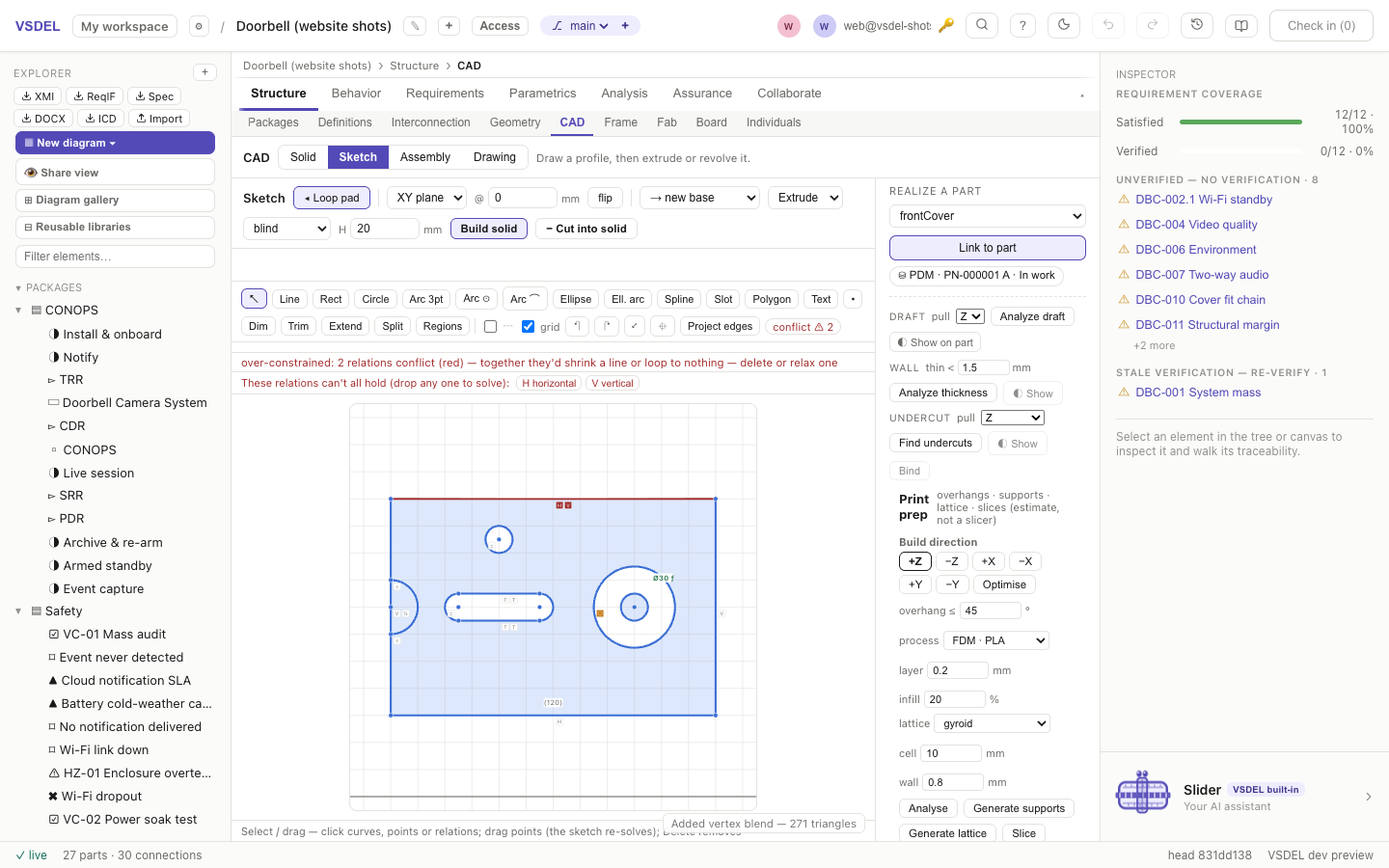
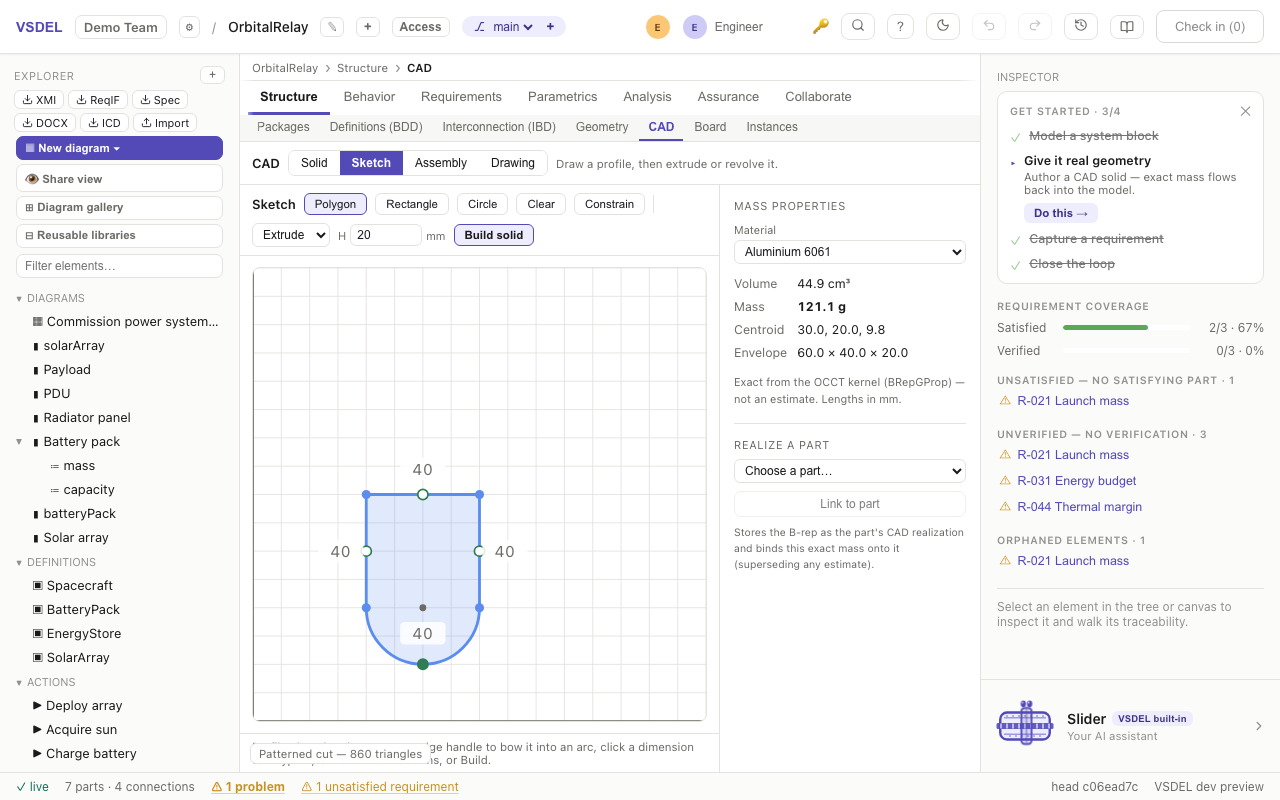
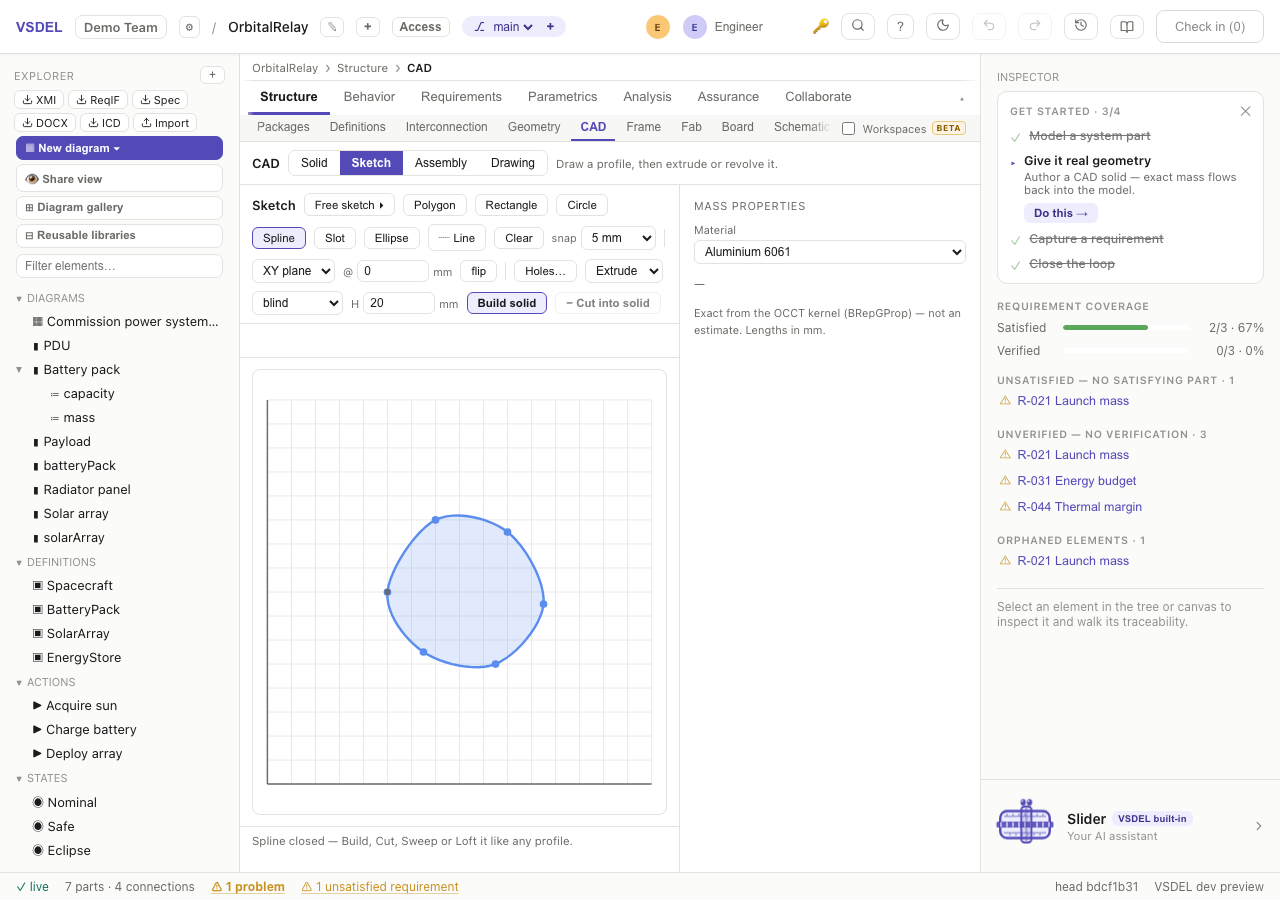
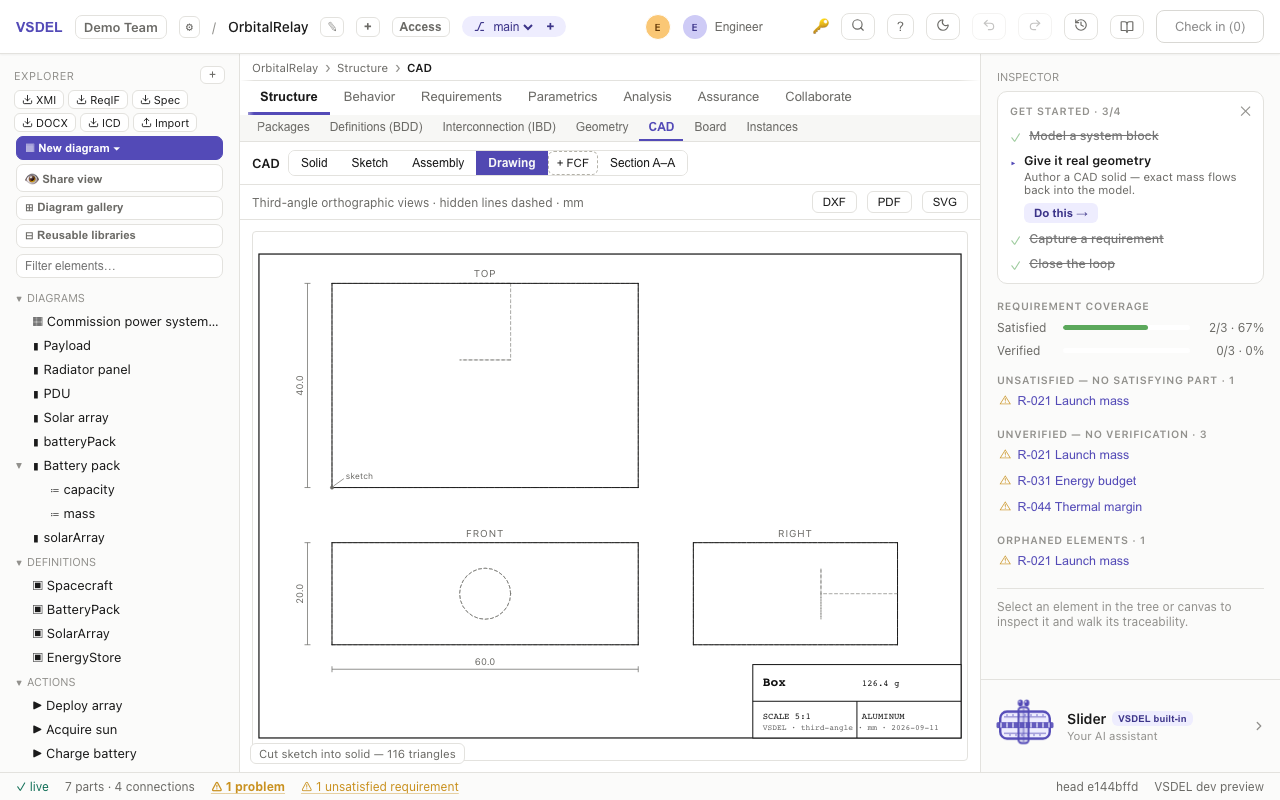
Sketches drive most features. Switch the lens to Sketch and you get the loop pad: a closed outline whose edges bow into true arcs when you drag their handles, plus rectangles, circles, ellipses, slots, polygons and splines. When the loop can't say what you mean, press Free sketch ▸. The free-entity sketcher opens with whatever the pad holds; ◂ Loop pad takes you back.
Drawing
The free sketcher's palette has Line, Rect, Circle, three arcs (Arc 3pt, centre Arc ⊙, tangent Arc ⌒), Ellipse and elliptical arc, Spline, Slot, regular Polygon, Text and sketch points (•). New points snap to ends, midpoints, centres, intersections, tangents and horizontal / vertical. Toggle ┄ construction to draw reference geometry that never becomes profile. The tool rows wrap, so every tool stays in view.
A sketch opens fitted to its geometry (an empty one shows 0–160 mm). Pan with a middle-button drag, Space + drag, a two-finger trackpad drag or Shift + wheel; the wheel or a pinch zooms, and ⌖ centres the view on the origin.
Editing
Trim removes the span of a curve between intersections, Extend runs a line or arc to the next curve, and Split breaks a curve where you click. Pick curves for Offset, ⇋ Mirror (across the last line you picked), Fillet and Chamfer between entities, and Linear ⋯ or Circular ○ patterns. Project edges brings the part's edges in as fixed reference geometry; when you sketch on a face, it reads Convert face.
Constraints and dimensions
Relations: coincident, horizontal, vertical, parallel, perpendicular, collinear, equal, tangent, concentric, coradial, on curve, midpoint, symmetric and fix. Dim is a smart dimension: a line gives its length, a circle its diameter, an arc its radius, two lines their angle. Mark a dimension driven to measure without constraining. Any dimension accepts =expression over the model's attributes and stays bound, so the sketch re-solves when the model changes.
On the loop pad, snap sets where clicks land (5 mm, 1 mm, 0.5 mm or off). With Constrain on, set a corner size and use Fillet or Chamfer on picked corners, or Fillet all to round every sharp corner of a closed profile in one go.
The sketch solves live. Geometry that is still free draws blue; when relations conflict, including relations that would shrink a line or loop to nothing, the conflicting ones turn red and the status line tells you how many to delete or relax.
From sketch to feature
Closed areas become regions. Use Regions to click the ones to build, or pick none for the natural outline with its holes. Then choose Extrude, Revolve, Sweep or Loft, and whether it makes a new base, a − cut into solid or a + boss onto solid. Extrudes run blind, mid-plane, both ways, through all or up to face, filled or as a thin wall.
Sketch on the XY, XZ or YZ plane with an offset, or pick any planar face and press ✎ Sketch on face; a face sketch follows its face through edits. An open chain can become a Rib or a → Sweep path, and + Section @H on the loop pad adds loft sections.
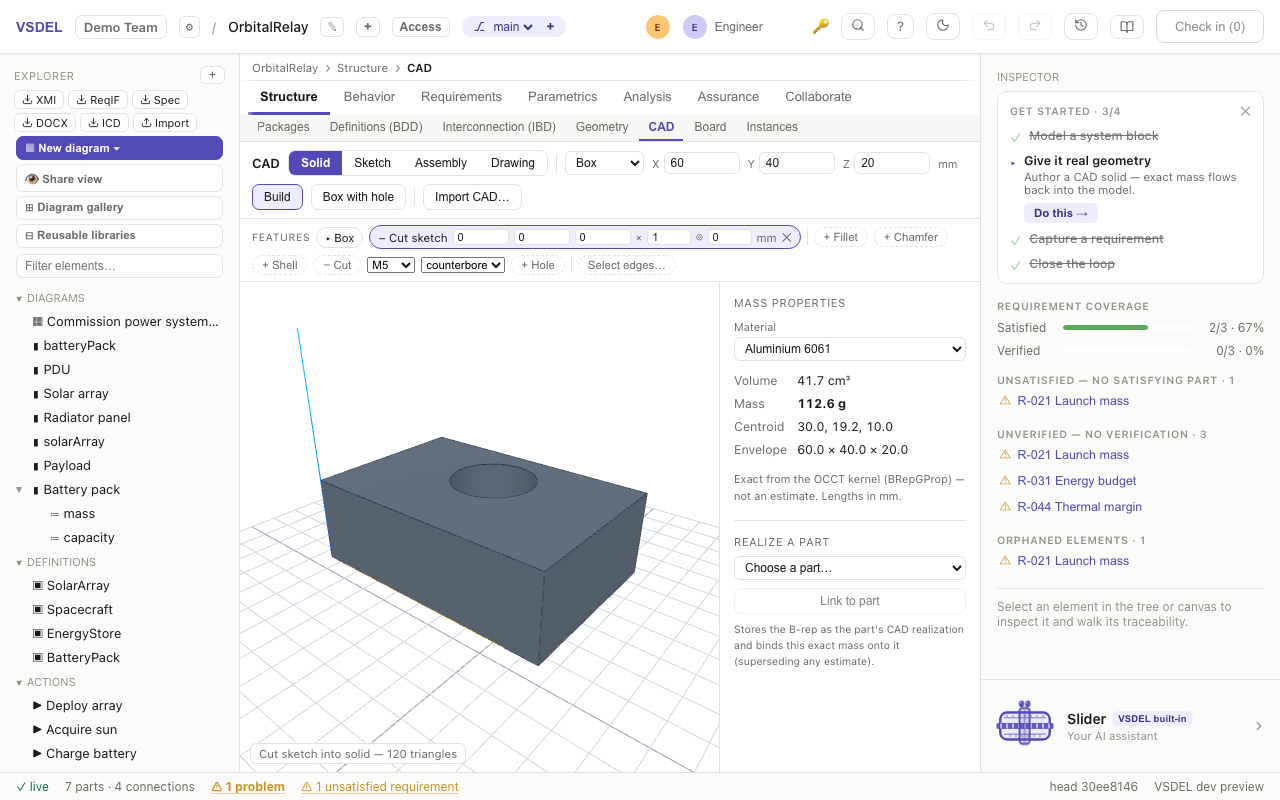
Limits. Sketches are planar: there's no sketching on curved faces. Older loop sketches open in the free sketcher and build exactly as stored until you edit them.
Features and variants
Build a base (a primitive, a sketch, an import), then add features as chips. When the base is a primitive, the base size / tool size switch says what the size fields edit: the base (it rebuilds live) or the tool that + Boss, − Cut and ∩ Intersect add. It is the one tool-size control; sketched tools are sized in the sketch. The everyday features sit in the toolbar: + Fillet and + Chamfer on all edges or Select edges…, + Shell, + Hole, + Boss, − Cut, ∩ Intersect, ⫽ Split and ⇋ Mirror body. Pick a face from Direct edit: pick a face… to reach the direct edits: Push/pull, Delete face, ⟋ Draft, ⊔ Open in shell, ⌾ Hole here and ✎ Sketch on face.
Select edges… picks edges in the viewer, by rule (vertical outside corners, vertical edges, convex or concave edges, edges of the picked face, all edges) or from an edge list giving each edge's length and position.
Cut features take linear 2-D grid and circular patterns, and a ⇋ mirror twin. A positioned feature can be parked on an earlier one so its offsets become relative: move the parent boss and its counterbore, pattern and callouts follow.
✦ Variants
✦ Variants opens the rest of the feature set, one tab per family:
| TAB | WHAT IT ADDS |
|---|---|
| Fillet / chamfer | Variable, face, full-round and setback (vertex) fillets; two-distance and distance–angle chamfers. |
| Pattern | Along a curve or picked edges, at sketch points, from a table of positions, a fill pattern inside a boundary, and patterns of patterns. |
| Extrude / sweep / loft | Thin extrude, draft on extrude, up to a vertex, surface or body; guide-curve and twisted sweeps; loft tangency. |
| Hole | Clearance classes (close / normal / loose), slot holes, tapered pipe holes, and a hole series through every body of a multi-body part. |
| Bodies / shell / mirror | Combine, copy, move, delete or keep bodies; multi-thickness shells; mirror about any plane or face. |
| Move / rotate / replace face | Direct edits on the picked face. Replace picked face fills or cuts the face out to a target: a plane, another face's surface, or a Surfacing surface, so a free-form crown on a housing works. |
| Datum | Planes (offset, angled, mid-plane, through three vertices, normal to edges), axes, points and coordinate systems to build on. |
| Text | Emboss or engrave text, projected or wrapped onto a face. |
| Edit feature (JSON) | Edit any feature's parameters directly. |
Each feature is a chip in the history. A cut's or boss's chip says its size beside its position boxes — Ø16 × 10, 40 × 20 × 5 · × 3, ring of 6 for a pattern — with the full … at (23, 100.5) on hover; a fillet's or shell's chip holds its value. ✎ opens the full editor.
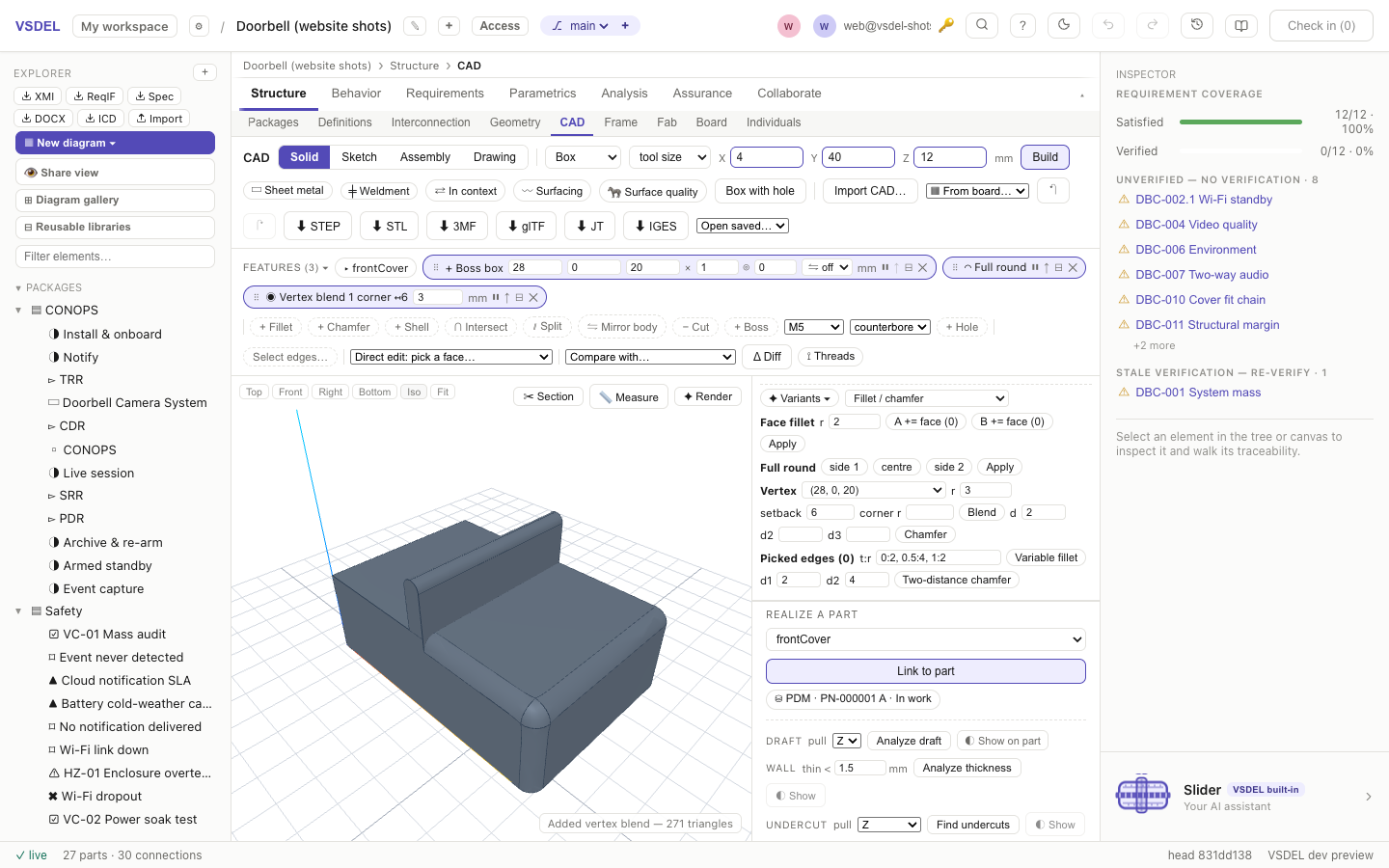
Holes
The hole wizard drills ISO metric (M2.5–M12) and Unified inch (#4–1/2") fasteners as plain, clearance, counterbore, countersink or tapped stacks. Pick a size and kind, press + Hole, and the stack lands as cut chips you can pattern into bolt circles. To drill a face other than the top, pick it and press ⌾ Hole here: the hole follows that face through edits. Tapped holes carry a thread callout and feed the thread-engagement check; see Threads to make them real geometry.
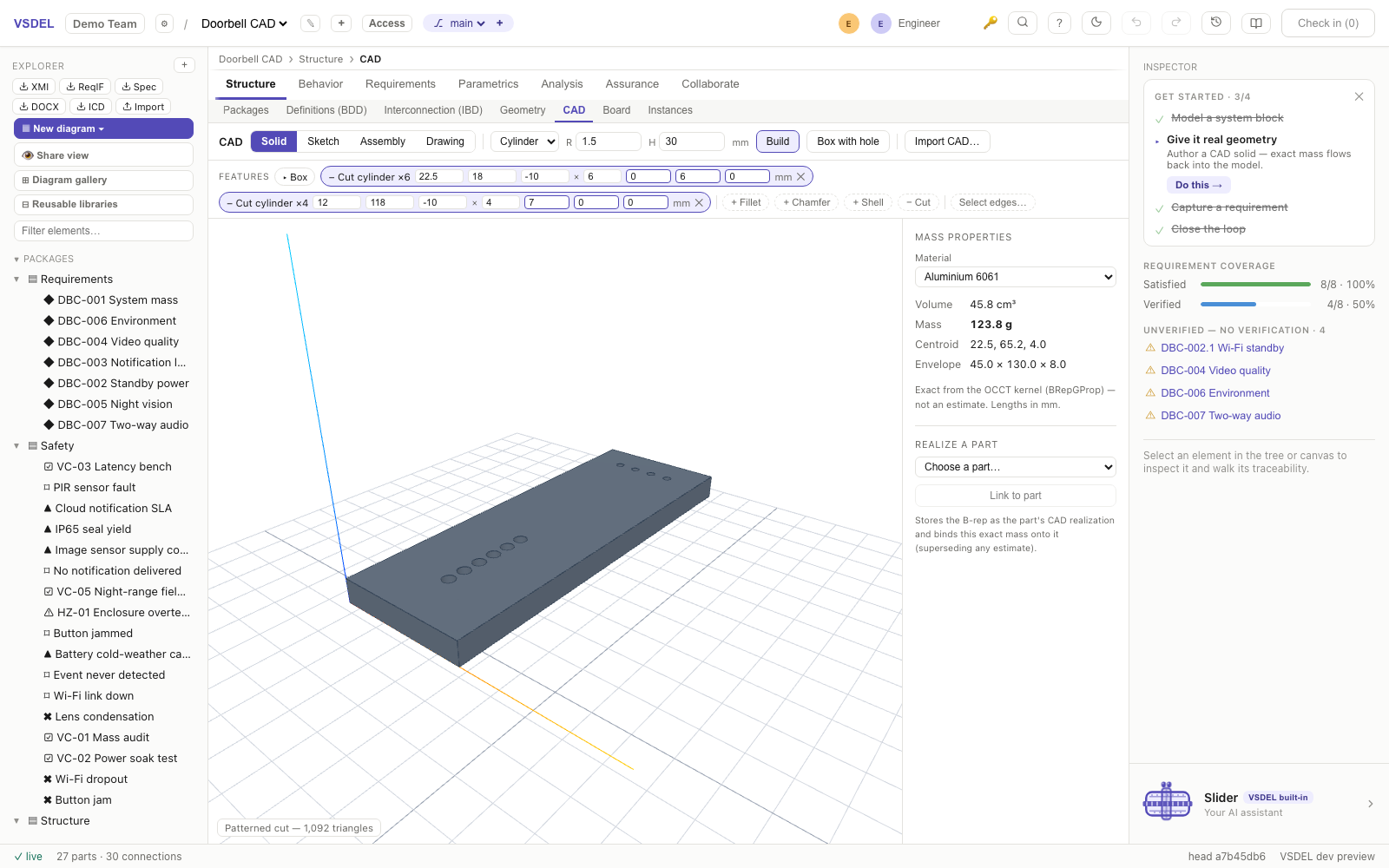
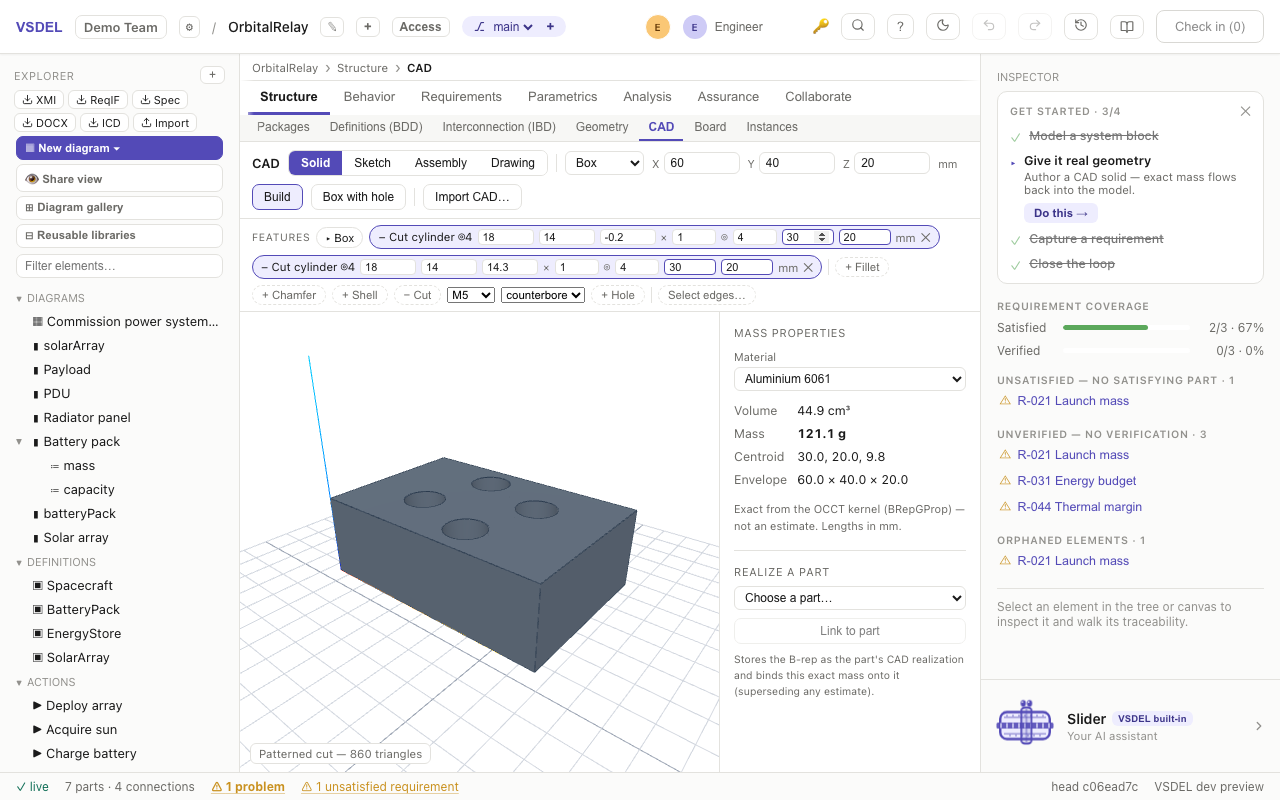
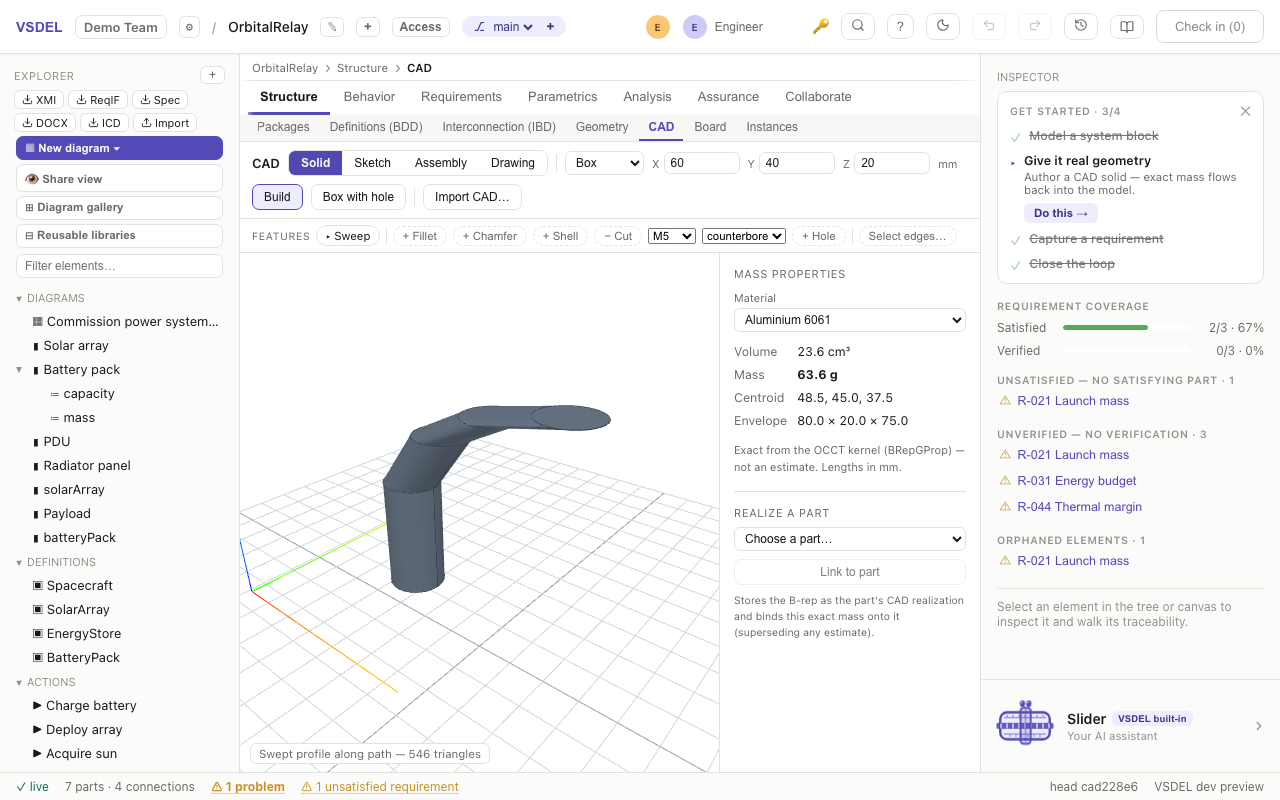
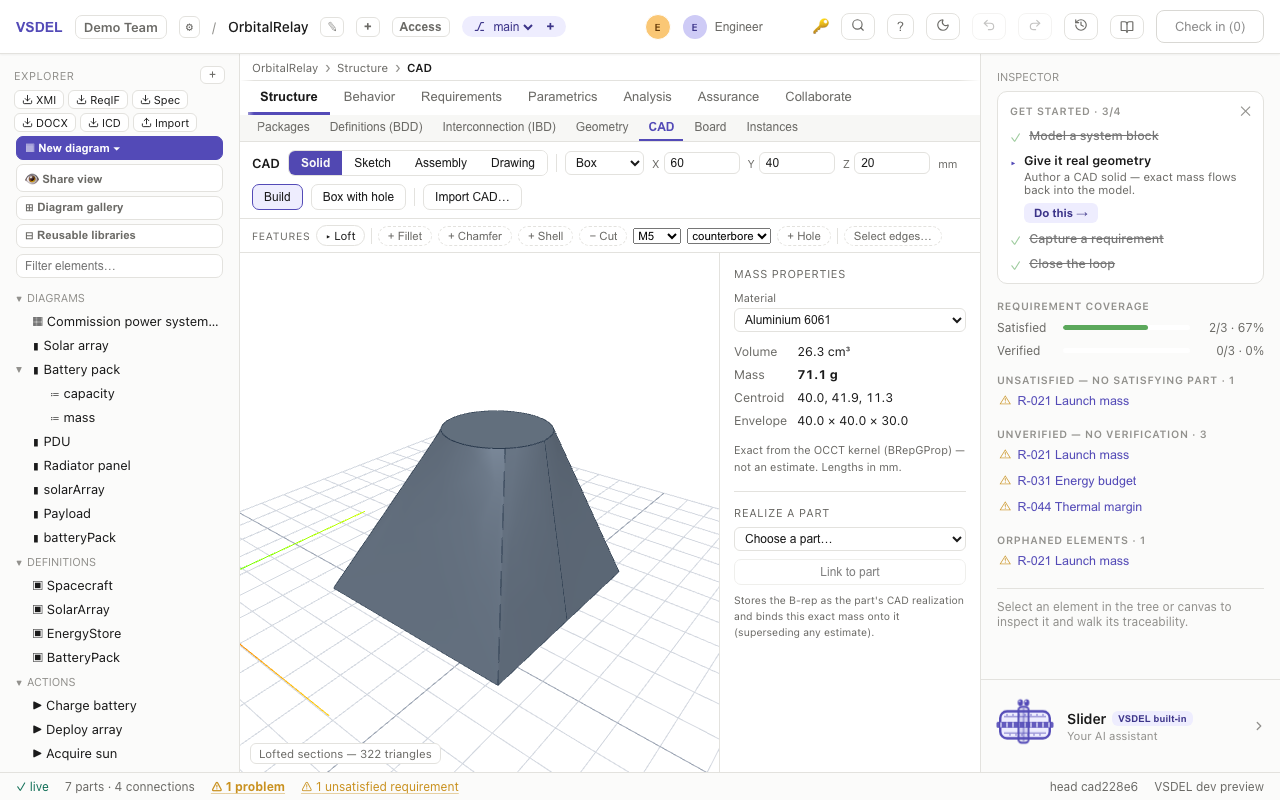
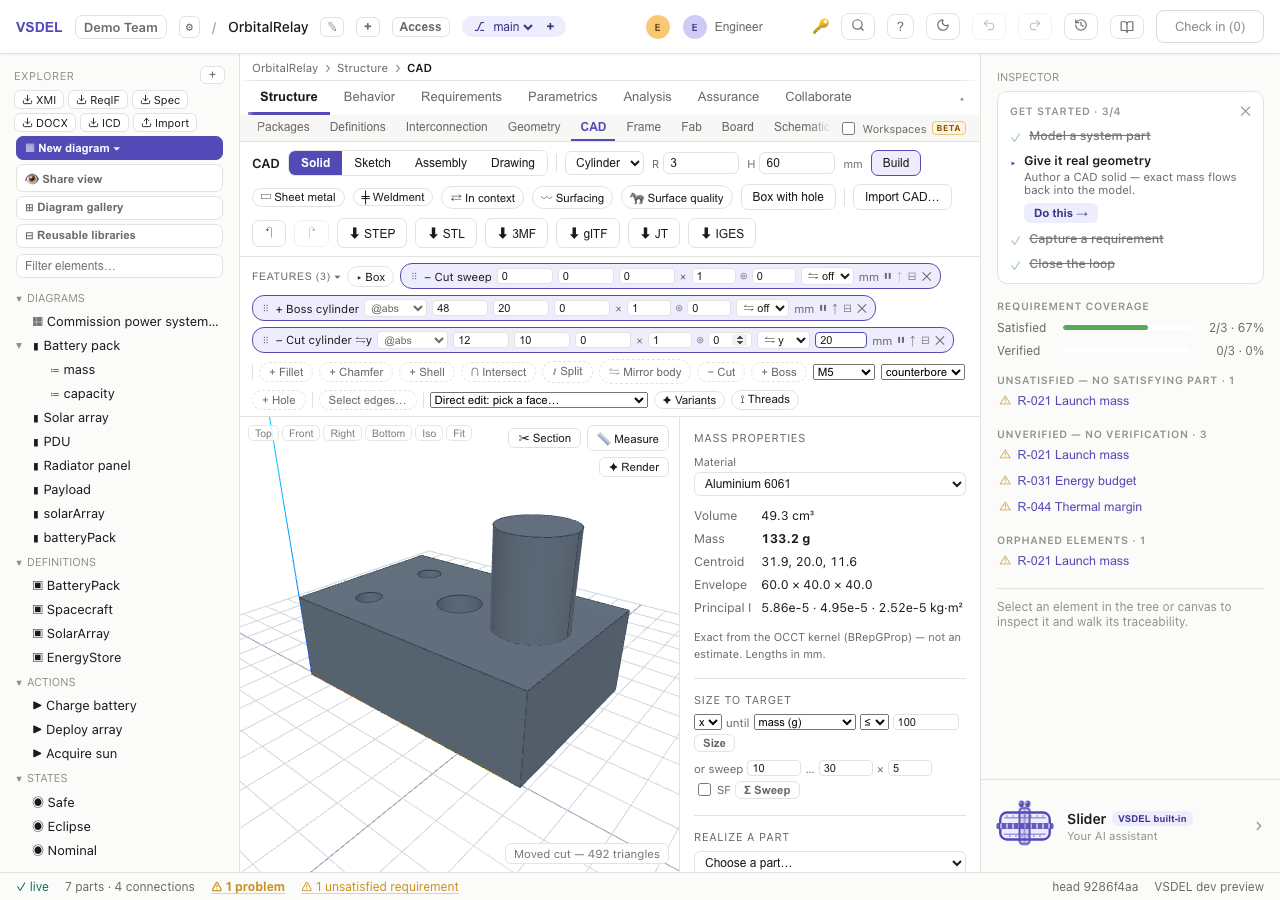
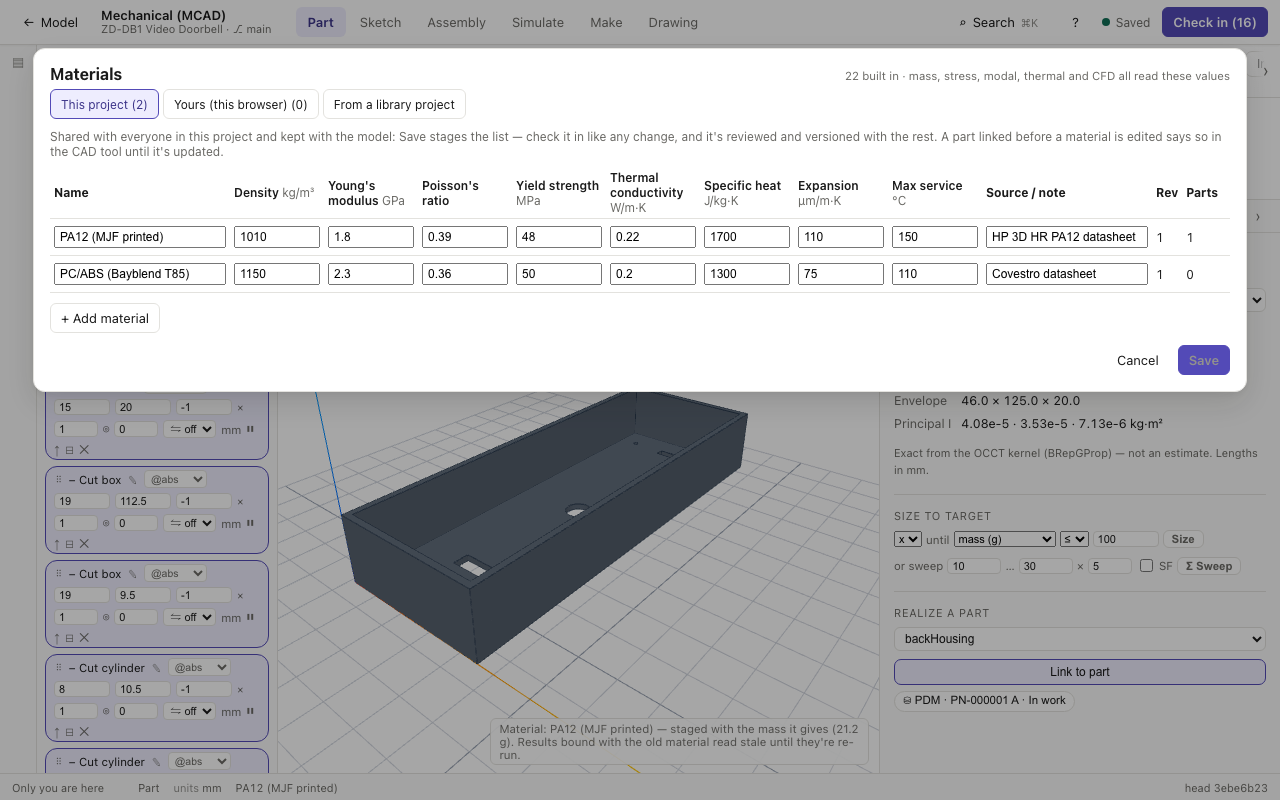
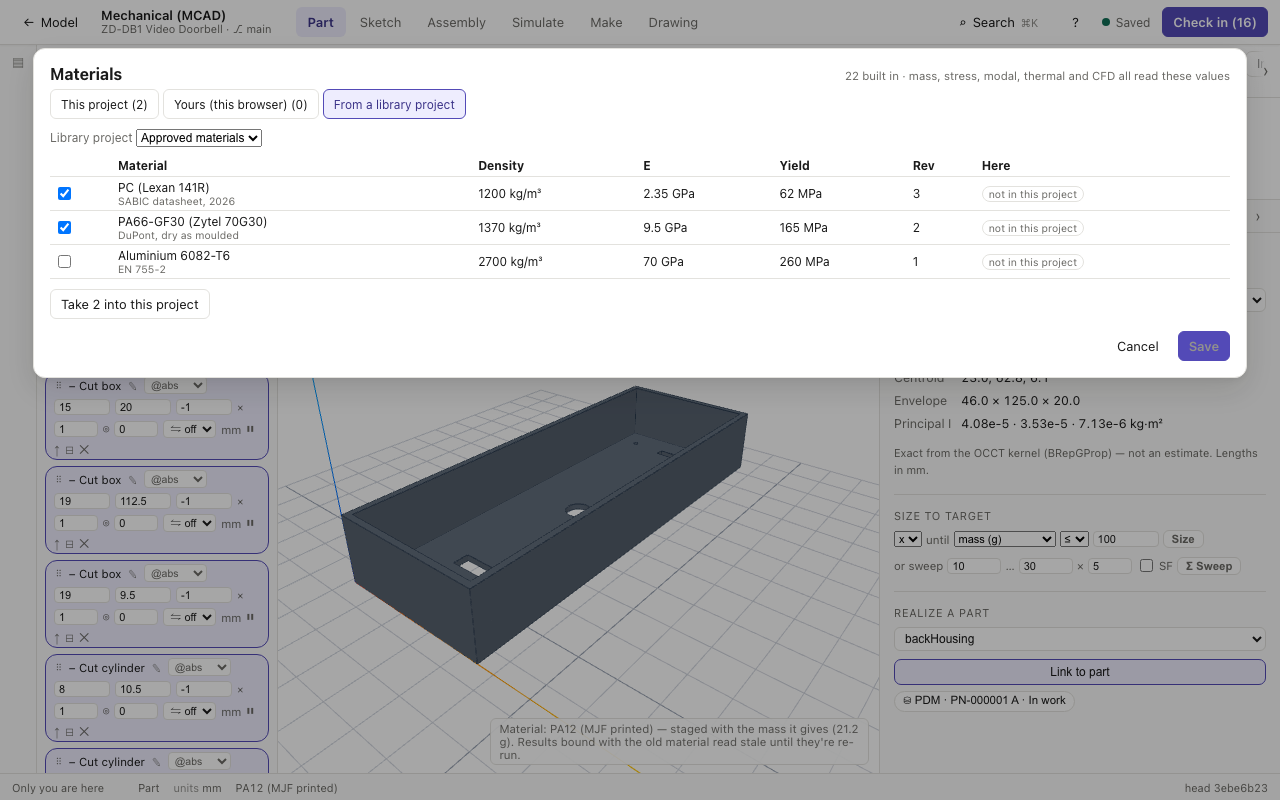
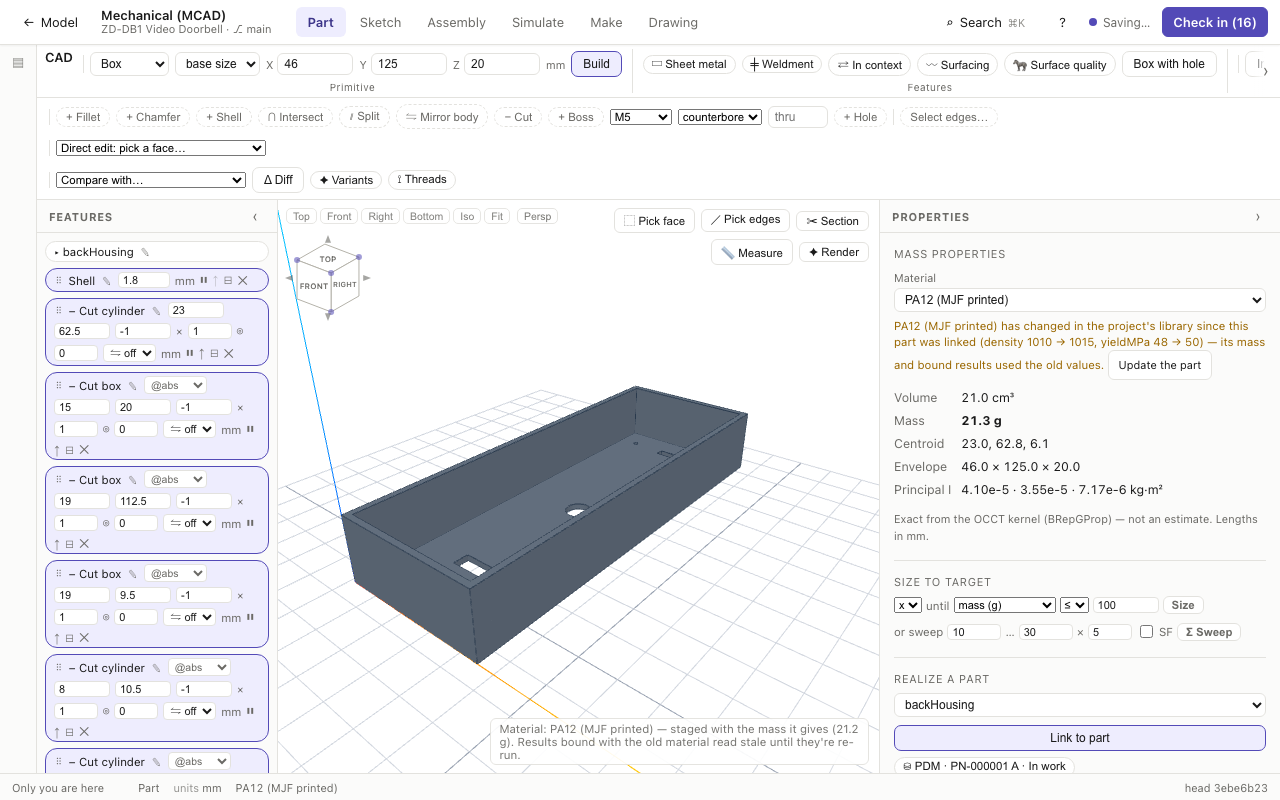
Materials and mass. Pick a material and the kernel reports exact volume, mass, centre of mass, inertia tensor and principal moments in the model's units. Every material carries density, stiffness, strength and thermal conductivity, so picking "Aluminium" means aluminium physics in every solver. The list covers the common engineering materials — structural steel and stainless 304 / 316, aluminium (6061, 6063, 7075, 5052, A380 die-cast), brass, titanium, zinc (Zamak 3), magnesium (AZ91D) and the moulding plastics (ABS, PC, PC/ABS, PA66-GF30, POM, PMMA…). Materials… at the end of the list opens the materials, in three tabs. This project is the project's shared library: name, density, Young's modulus, Poisson's ratio, yield, conductivity, specific heat, expansion, a maximum service temperature and a note on where the numbers come from (a datasheet, a test report). Save stages the list on the model — check it in like any change, so it is reviewed, versioned and branched with everything else, and everyone in the project picks from it. Each material shows its revision (who changed it last, and when) and how many parts are made of it; an edit bumps the revision, and a part linked before the edit says what changed (density 1010 → 1020) until you press Update the part, which stages its new mass. Yours (this browser) is for trying a material out; Share with the project → moves one into the project's library, keeping its id so the parts already made of it stay made of it. From a library project lists the materials in the team's library projects (a project an admin marks as a library — keep the team's approved materials there): tick the ones you want and Take them in; one taken before and changed in the library since reads update rev 1 → 2. The material list groups them — This project, Built in, Yours, and On a part only for a material a part still carries after it left the library. A part made of a project material carries its definition too, so it opens with the same properties in any browser; an id nothing can resolve shows in red, mass reads "—", and no study runs on it — nothing is computed from guessed properties. Every solver reads the same values, including an agent's over MCP (give the projectId for a project's own material)
Limits. A draft on a plain spline outline and a zig-zag loft through many sections can give invalid solids; the lens reports the failure. A hole series works through the bodies of one part, not across separate parts of an assembly. A box with every edge filleted can't be shelled, because the kernel can't offset the round corner where three fillets meet; the message says to leave one edge per corner sharp (fillet only the vertical edges, say) or to shell first. A fillet too big for a narrow face (the rim of a shelled box, for one) fails with the face it overruns, its width and the largest radius that fits.
Long builds. When the kernel works for more than a couple of seconds, a progress line shows the step it's on (step 4 of 9 · Thread #2 · 12 s) and a Cancel button. Cancel restarts the kernel and the part keeps its last good build. A build that makes no progress for 3 minutes is stopped the same way.
Editing a feature
Double-click a feature in the Features column (or its ✎) to edit it as a form in Properties: each value with its name and unit — the tool's sizes, the end condition, its position and what it is measured from, its pattern and mirror, a hole's size, type and depth. OK applies the change as one undo step; Cancel or Esc leaves the part as it was. A value that followed an =expression stops following it once you change it.
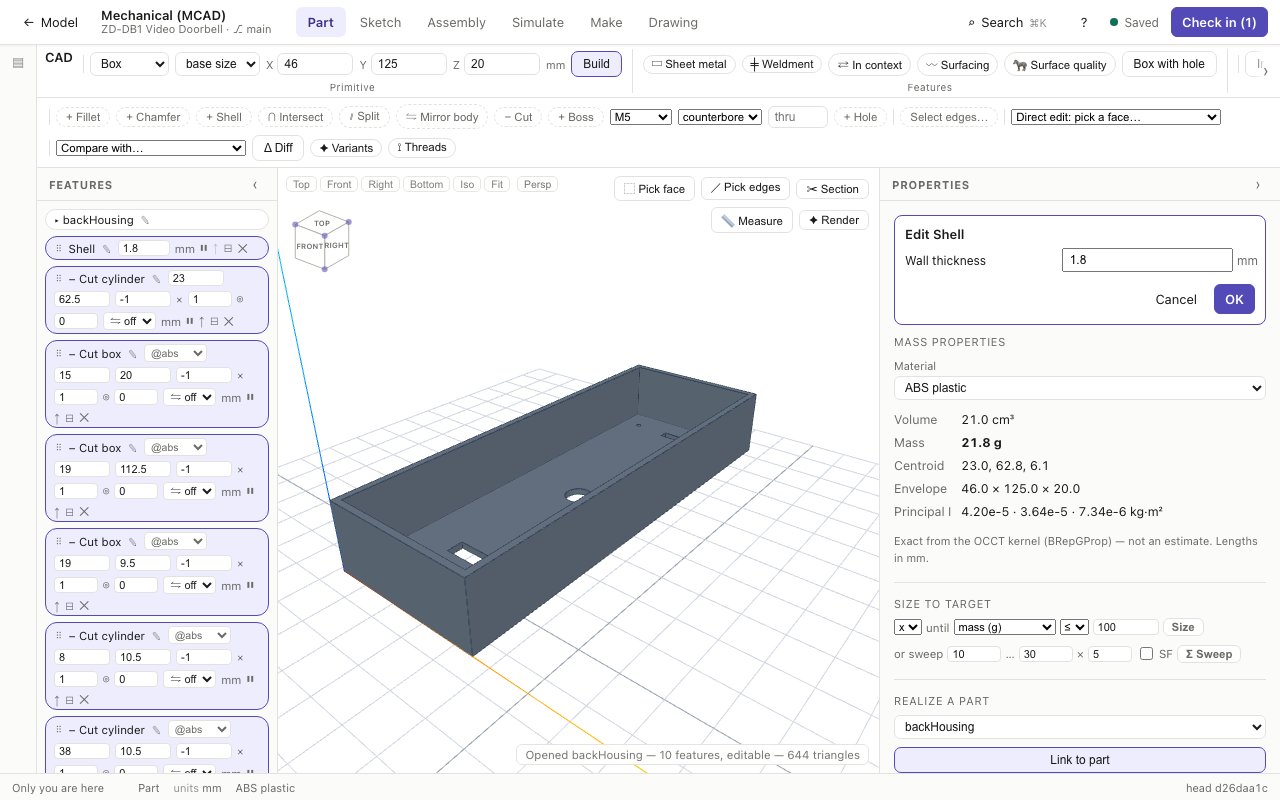
The base edits the same way: its sizes, or a sketched base's depth and end condition. Edit sketch… reopens the base profile on the pad; Build solid then rebuilds the part on the new profile with every feature after it kept. Build on the ribbon starts a new part from the sizes beside it, so over a part with features it asks first.
Holes are through by default; a number in the depth box beside + Hole makes a blind hole that deep. Moving a feature to be measured from another (a hole from a boss) keeps it where it is. A pattern switched on starts with a step twice the tool's width, not on top of itself.
Persistent naming and references
When you pick a face or edge for a fillet, a sketch plane, a mate or a drawing dimension, the pick has to survive later edits. VSDEL gives every face and edge a persistent name built from the feature history: which feature made it, and from what. A fillet's round is named from the edge it rounded; a sketched wall is named from the sketch curve that generated it, not from where it happens to sit. Pick a face from the direct-edit face list and its name shows beside the list.
Every stored reference resolves by that name:
- One match: that face, wherever it moved.
- Split by a later feature: a fillet, chamfer, shell, draft or face delete takes every piece and says so; a single-target pick (a sketch plane, a mate, a thread) takes the piece nearest where you picked.
- Gone: the reference is reported lost, naming the feature that removed it, and you re-pick it. It is never silently moved to a look-alike face.
Names are used by feature picks, sketch-on-face and hole-on-face planes, up-to faces, datums, assembly mates, drawing dimensions and the AP242 PMI export. Agents can list every named face with cad_topology.
In-context references and skeletons
⇄ In context lets one part read another part's geometry. Reference a skeleton sketch or a value, a face (as a sketch or tool plane), an edge (as a sweep path) or a whole body (a derived part, optionally mirrored left/right or scaled). The value is copied into your feature, so rebuilds never reach into the other part.
Each reference shows its state: current, out of date (the source has a newer version), locked at a version, or broken. Update re-reads the sources; Lock, Unlock and Break control it. The server refuses a reference loop (Skeleton → Bracket → Gearbox → Skeleton) and refuses to delete a version other parts reference.
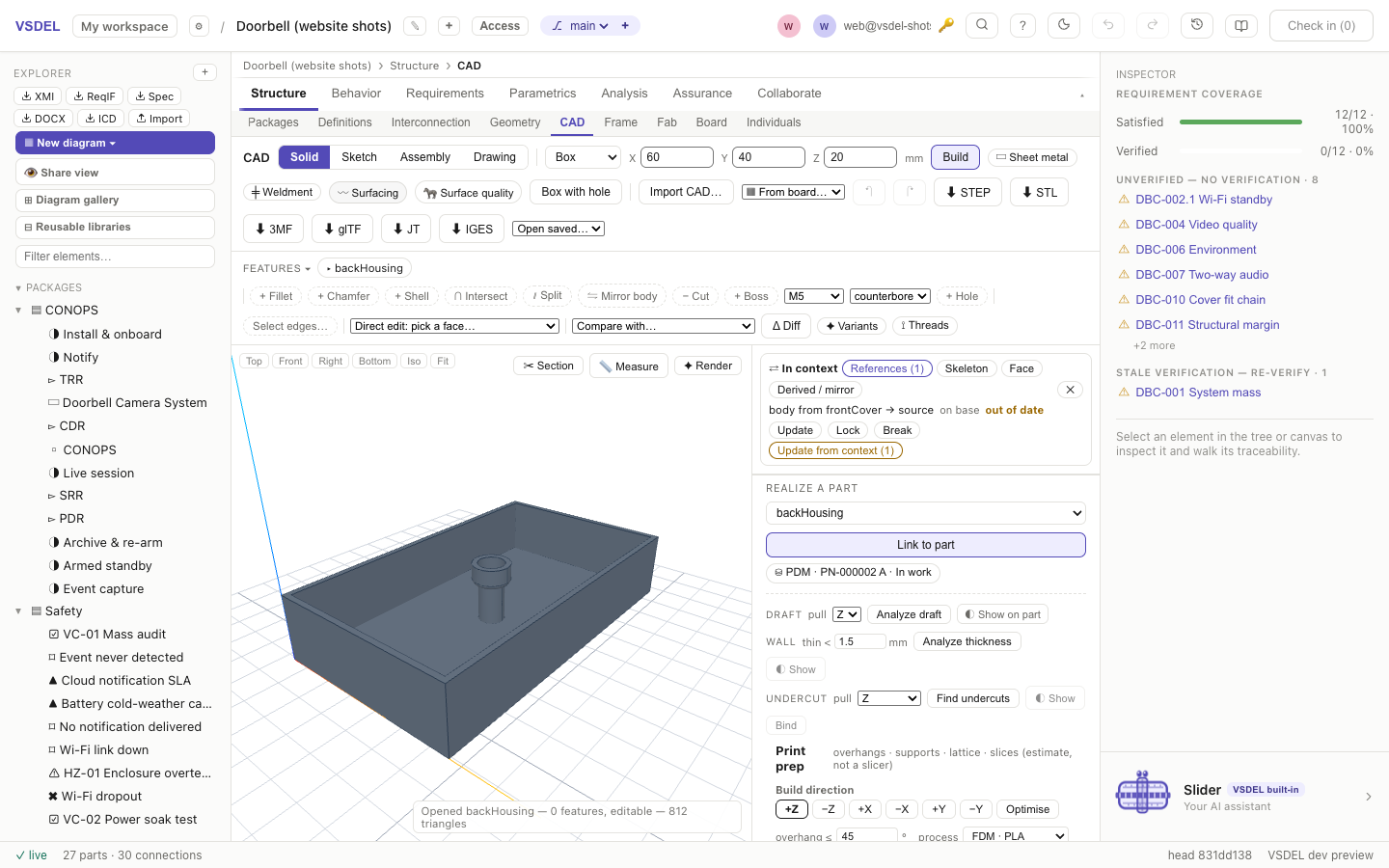
Limits. Vertices aren't named, so up-to-vertex and vertex blends still match by geometry. Imported bodies, sheet-metal and weldment internals and text have weak names and resolve by geometric signature, as before. Pattern instances are numbered by position: change a circular pattern's count and instance 1 is the new first step. A mate on a part linked before naming existed resolves by signature until you re-link the part. In-context placement is taken from the assembly both parts sit in; otherwise the source's own frame is used, and the panel says so.
Threads
A thread is cosmetic by default: a callout on the drawing and an input to the thread-engagement check, with no geometry. Switch it to modelled and VSDEL cuts the true helical groove into the shaft or bore.
Open ⟟ Threads, pick a round face, and the size list offers what fits that face first. Standards: ISO metric coarse and fine, UNC, UNF, BSP parallel (G), and the 1:16 taper threads BSPT (R / Rc) and NPT on a conical face. Set the length, the end it starts from (from the + end / from the − end), RH or LH, and an optional 45° start chamfer, then + Thread. The same panel switches any thread in the part, including a tapped wizard hole, between cosmetic and modelled.
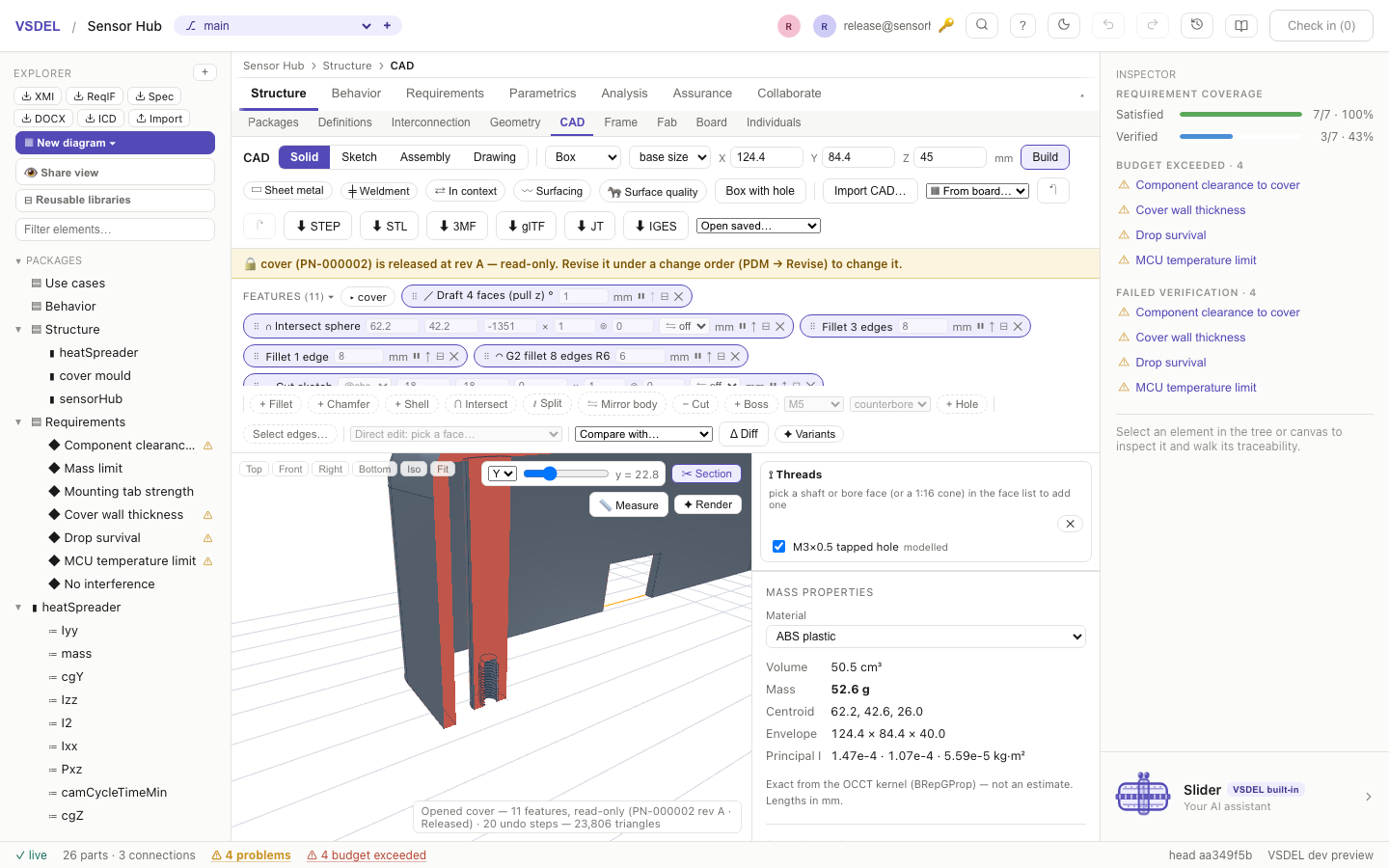
Every modelled cut is checked. A thread on a shaft or a plain bore is checked against the analytic volume the groove should remove. A modelled tapped hole is drilled as a plain bore and its thread is cut last, when everything after it is a cut, fillet or chamfer; that groove is checked on its own against its analytic volume and for being cut wherever it runs in material, because on a large part the volume difference is too small to measure. A thread that would silently cut nothing, or cut wrong, is refused with "keep it cosmetic", so the bound mass is never wrong. A size that doesn't fit the face ("a M8×1.25 thread needs a Ø8 shaft"), a taper size on the wrong cone, and a thread that would run into a shoulder are refused up front.
Limits. Modelled threads take seconds each (an M3 tapped hole is about 5 s), and a pattern of modelled holes multiplies that, which is why cosmetic is the default. Threads end abruptly at their length, with no runout groove. Taper threads are referenced to the face they're cut on, not the standard's gauge plane (the face's start diameter is checked against the standard). A slot hole's thread stays cosmetic.
Sheet metal and weldments
Sheet metal
Open ▭ Sheet metal and set the part's thickness, inside bend radius, K-factor, bend and corner relief types and material. The K field defaults to DIN: each bend's K comes from its own r/t by DIN 6935. Type a number to override it, or use a bend-allowance table. With a sheet part open, the panel shows the K this part uses and its source: the part's override, DIN 6935 per bend, or a bend-table row. DIN 6935 is a standard for cold-bent steel, so on other materials the panel warns you to confirm K with a bend test.
Start with Start from a tab (a W × H rectangle) or Start from a profile (an open profile, one face of the sheet, with a width). Then add Add flange on picked edges (angle, length, up or down, partial width), Add miter flange along a chain of edges, Add hem (closed, open, teardrop, rolled), Add jog, Add bend on a sketched line, Close corner, Set relief, Add tab and Add cut.
Hardware. The Hardware tab places self-clinching PEM-style fasteners on a flange: nuts (M2–M6), through-threaded standoffs (M3–M5) and flush-head studs (M2.5–M6), each by its catalogue part number. Add hardware cuts the catalogue's mounting hole in the blank and stands a round envelope body on the folded part, so it counts in mass, fit and interference. A fastener whose hole would run off flat sheet (onto an edge or a bend) is refused.
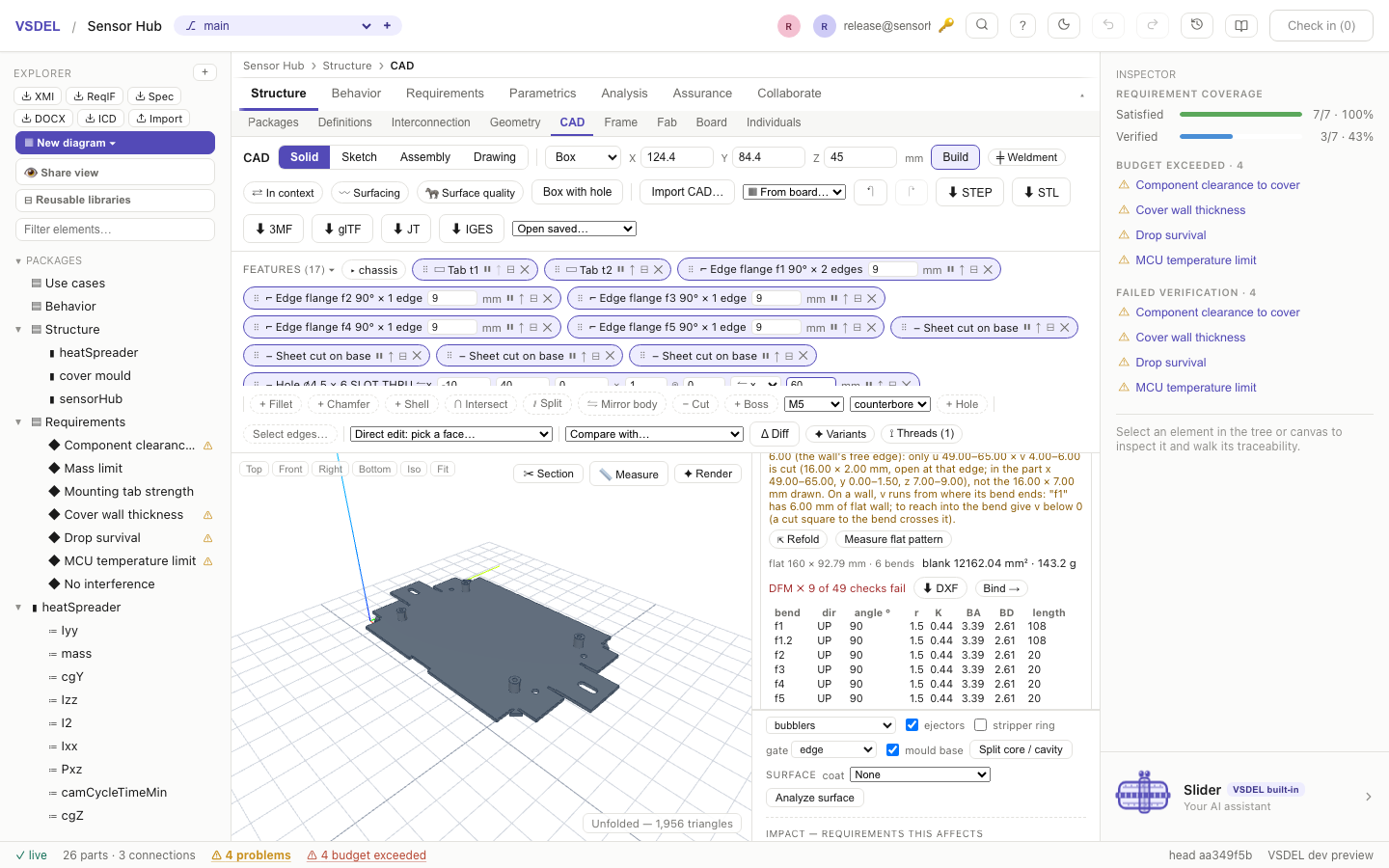
The model is flat-first: every flange is stored in its flat coordinates, so the flat pattern is exact by construction. ⇲ Unfold and ⇱ Refold switch states, and holes cut in the folded part appear in the flat. Measure flat pattern gives bend lines, a bend table with each bend's K, bend allowance (BA) and bend deduction (BD), and a hardware table; ⬇ DXF exports it layered (CUT, BEND, TEAR, NOTE) with true circles and arcs. For a drawing of the blank, add the Flat pattern drawing view.
The same measurement runs the sheet-metal DFM checks and reads DFM ✓ N checks or lists each failure with its value and rule: hole diameter and slot width against thickness, hole and cut-out distances to the blank edge and to the bend, notch to bend, inside radius, minimum flange length, bend-relief size, bend ends that would rip without a relief, and each fastener's minimum sheet and centre-line distances. Hole-to-hole spacing isn't checked. Bind → stages flatLengthMm, flatWidthMm, blankAreaMm2, blankMassKg, bendCount and sheetMetalDfmPass (1 or 0), plus hardwareCount and hardwareMassKg when the part carries hardware.
Weldments
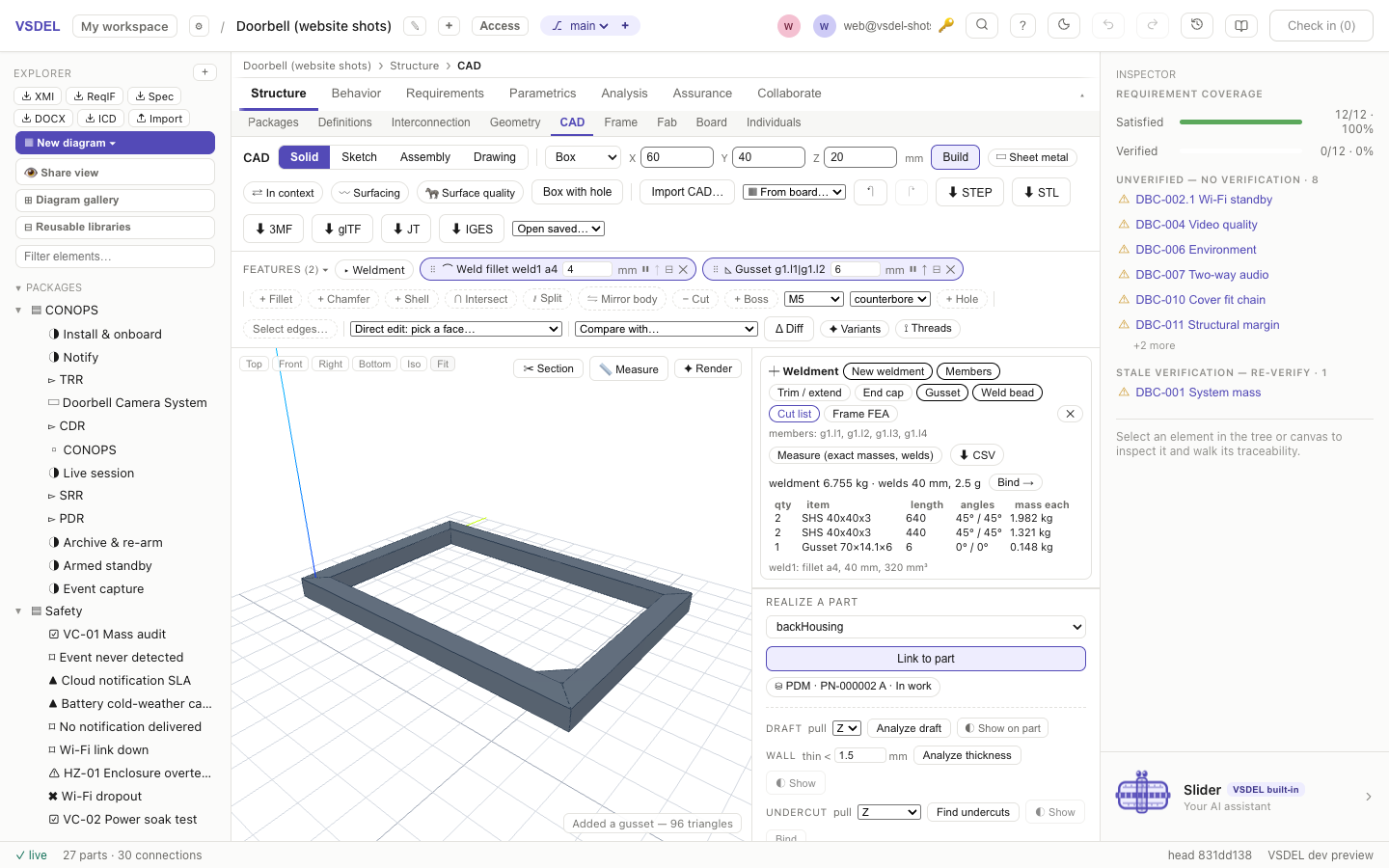
Open ╪ Weldment, press Start weldment, and place structural members on the lines of a 3-D sketch or on picked straight edges with Add members. The section library covers EN SHS, RHS, CHS, angles, UPN, IPE, HEA, HEB, flat, round and square bar, and AISC HSS, pipe, angles, channels and W shapes. Group corners mitre, butt, or run through; Trim butts, copes or mitres one member to another; Add cap and Add gusset finish the ends and corners.
Add weld lays real bead geometry: fillet welds (equal or unequal legs, continuous or intermittent) and groove welds with a crown. Each bead maps to a drawing weld symbol. Measure (exact masses, welds) gives the cut list — long-point length, end-cut angles and mass per member, identical members grouped — exported with ⬇ CSV. ▶ Solve runs beam-element FEA on the frame. Bind → stages cutLengthMm, memberCount, weldmentMassKg, weldLengthMm, weldVolumeMm3 and weldMassKg.
Limits. Sheet metal starts from a tab or a profile: an imported sheet-metal body can't be recognised and unfolded, and there are no forming tools (louvers, lances) or lofted bends. A bend's ends are square to its line; a sketched bend or jog across edges that aren't square to it is refused. A cut whose edges are square or parallel to a bend crosses it; a skewed or round cut across a bend is refused (it would have to wrap round the bend), and a cut across a jog is refused. Hardware bodies are round envelopes, so their masses are estimates. Library sections are modelled sharp-cornered at nominal size, while their masses use the catalogue section areas; the beam FEA uses the sharp-cornered properties. Weld beads go on planar and cylindrical faces only. Large weldments are slow: members that overlap untrimmed at a node cost a general boolean fuse, and a 60-member frame can take a minute or more to build. Trim members at their nodes to keep it fast.
Surfacing
〰 Surfacing builds freeform surfaces with controlled continuity. Start a New surface part (surfaces and curves with no solid until you knit or thicken them), or add surfaces beside an existing solid without disturbing its mass.
- Add curve: 3-D splines through points or on control points with tangent and curvature end conditions, arcs, projections onto faces, face intersections, iso-curves, and chains of existing edges.
- Add surface: boundary surfaces from two, three, four or up to eight curves, each side G0, G1 or G2 to a support face; fills of a hole (G0 / G1, or G2 for 3–8 sided holes); bridge blends between two edges; ruled, revolved, swept (two-rail too) and lofted surfaces.
- Edit: extend (natural, linear or curvature-continuous), trim and untrim, offset, and extract faces.
- Knit sews surfaces into a watertight solid; Thicken gives a sheet a wall (out, in or mid).
- Fillet on solid edges: G2 (curvature-continuous) or conic sections in place of a circular round.
Continuity is measured, not assumed. After every build the seams are sampled and the panel reports what each one achieved — gap, angle and curvature mismatch — never just the order you asked for. A seam that only reaches G1 reads G1.
🦓 Surface quality
🦓 Surface quality paints zebra stripes on the exact surface normals (count, direction and softness adjustable), Maps Gaussian, mean, max or min curvature, draws curvature combs on curves or every edge, runs Check continuity across edges, and Measures the deviation between two surfaces vertex by vertex.
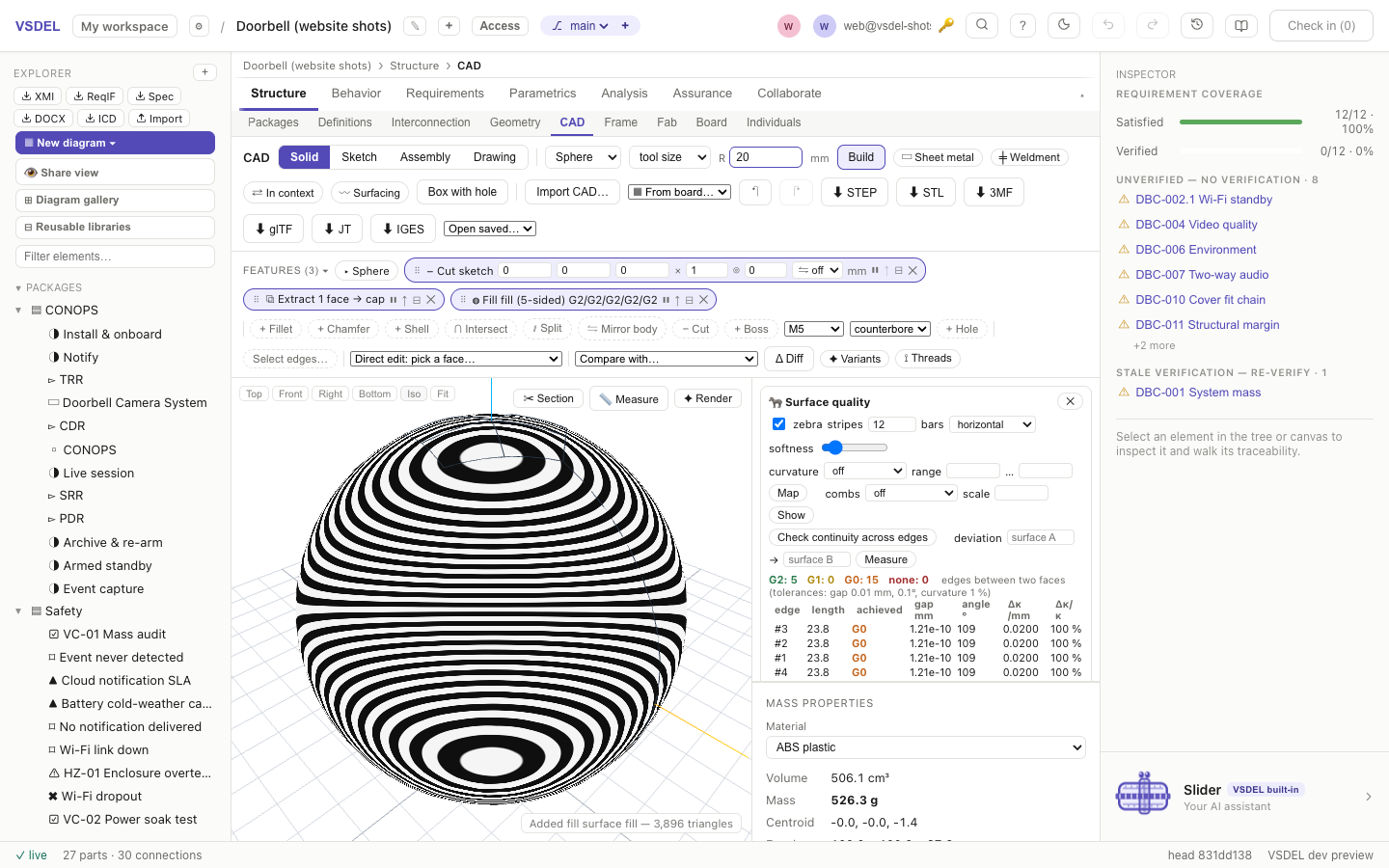
Limits. A G2 fill covers 3 to 8 sides with no extra curves or points; a round hole, more than eight sides or a fill through extra curves is built G1 and reports its curvature mismatch. A hole must be convex and not too elongated, or it's refused with "split it". Where the support faces themselves disagree at a corner, no fill can be G2 to both; the fill eases the difference near that corner and says so. G2 fillets don't make corner blends: fillets meeting at an angle are refused. Offsets that would fold or overlap themselves are refused, but the checks are sampled, so a feature smaller than the sample grid can slip through. A surface reaches a solid only as the target of Replace picked face (in ✦ Variants): it can't split or cut a solid, solid features don't trim surfaces, and the viewer doesn't pick surfaces: reference them by the ids the Bodies tab lists.
Assemblies, mechanisms and motion
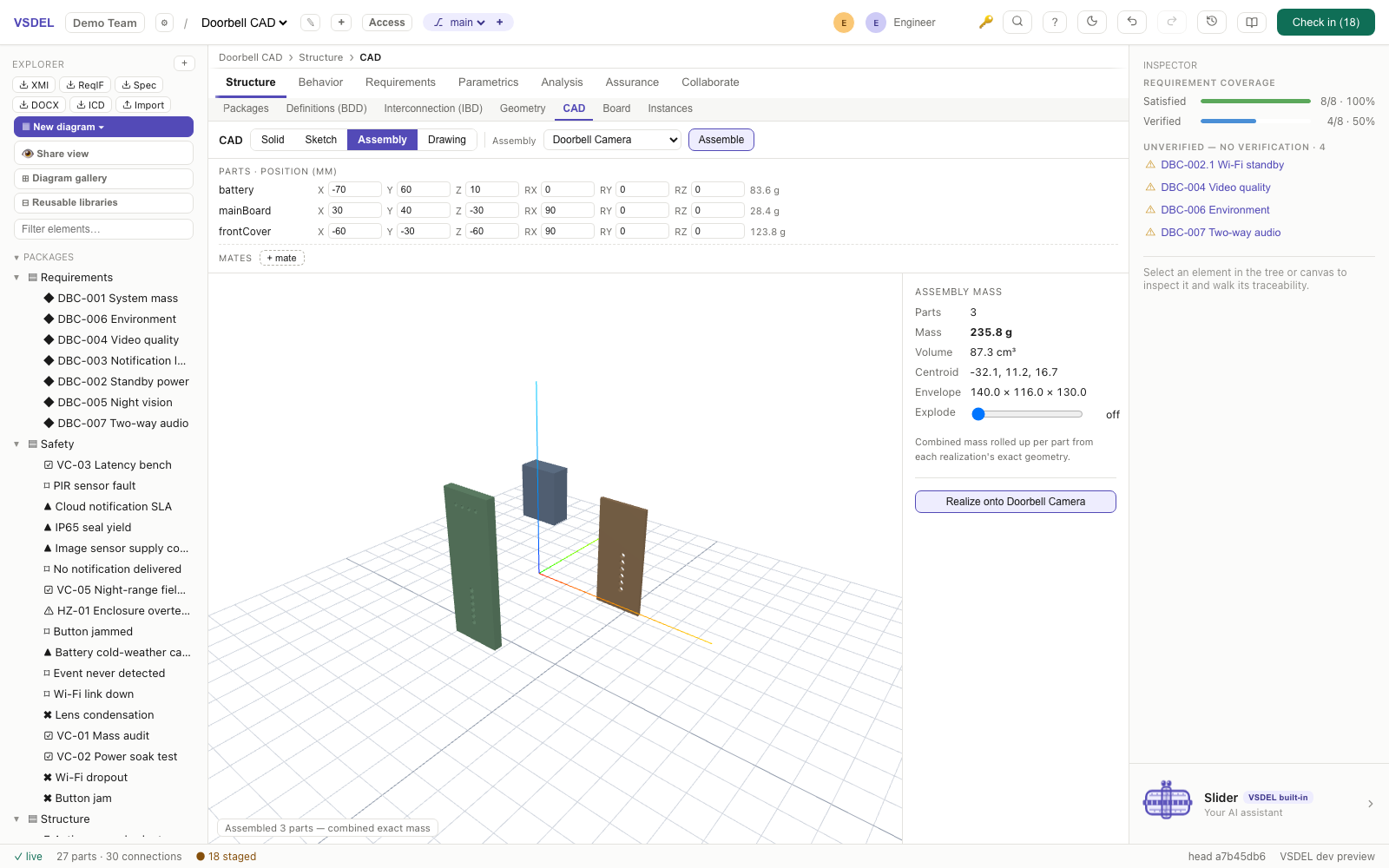
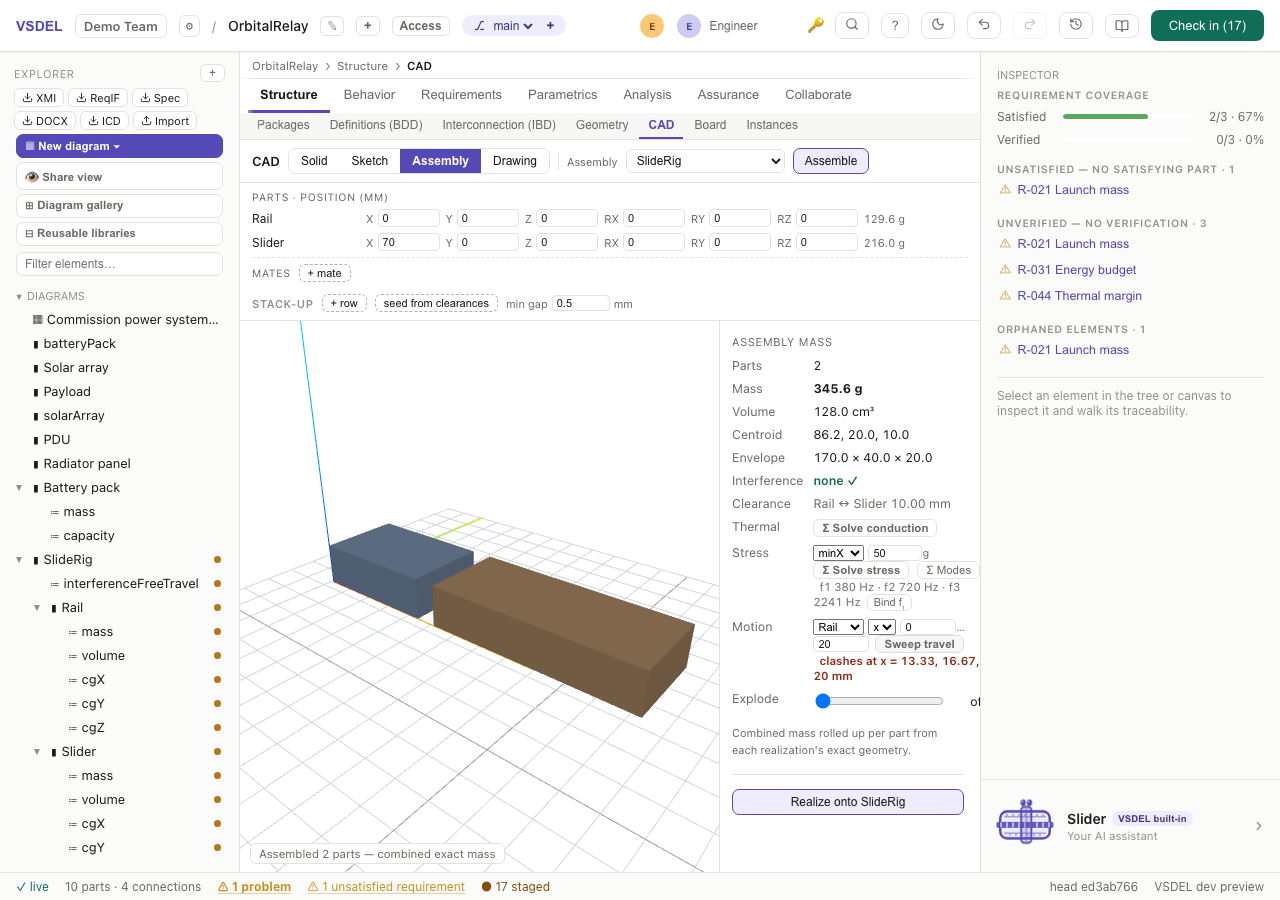
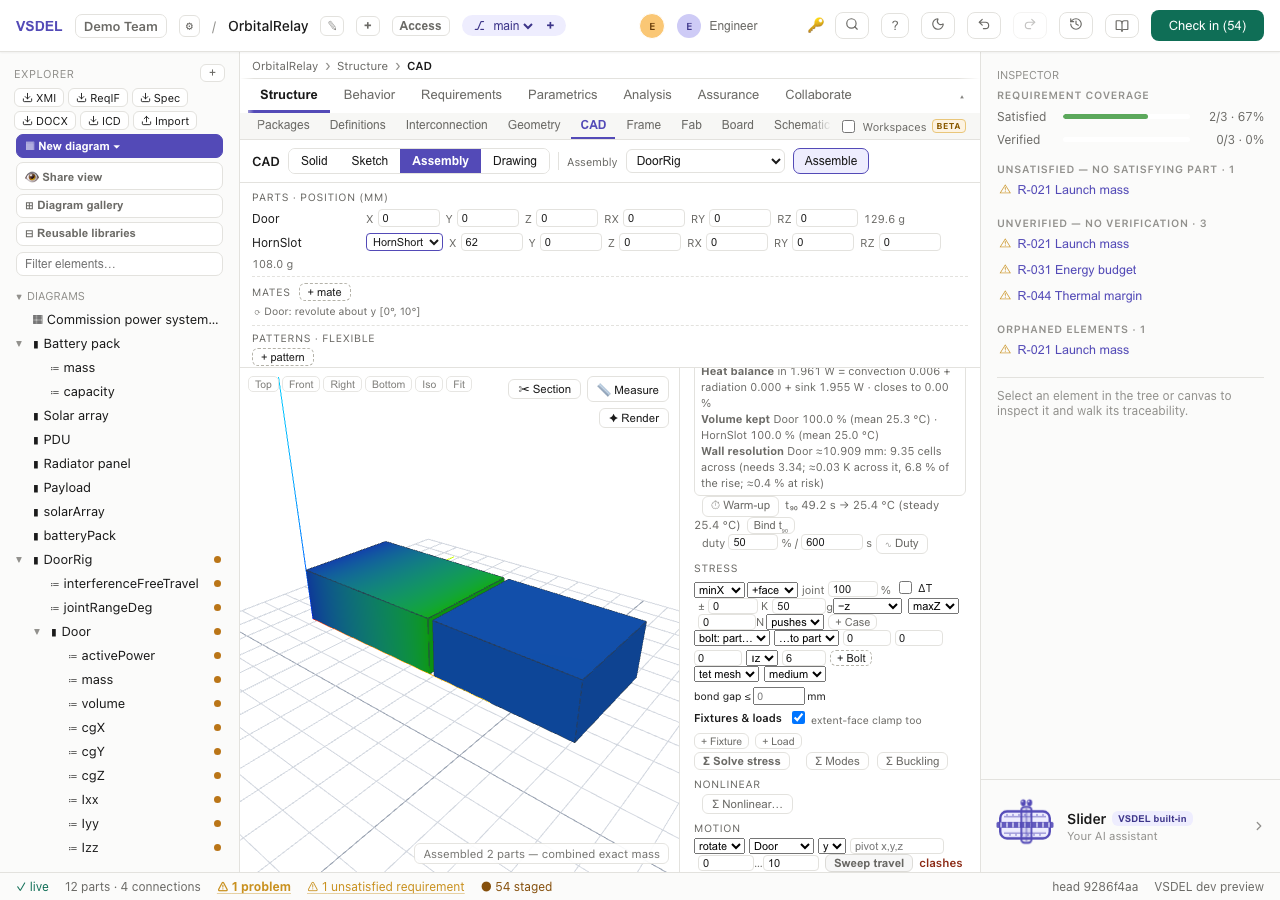
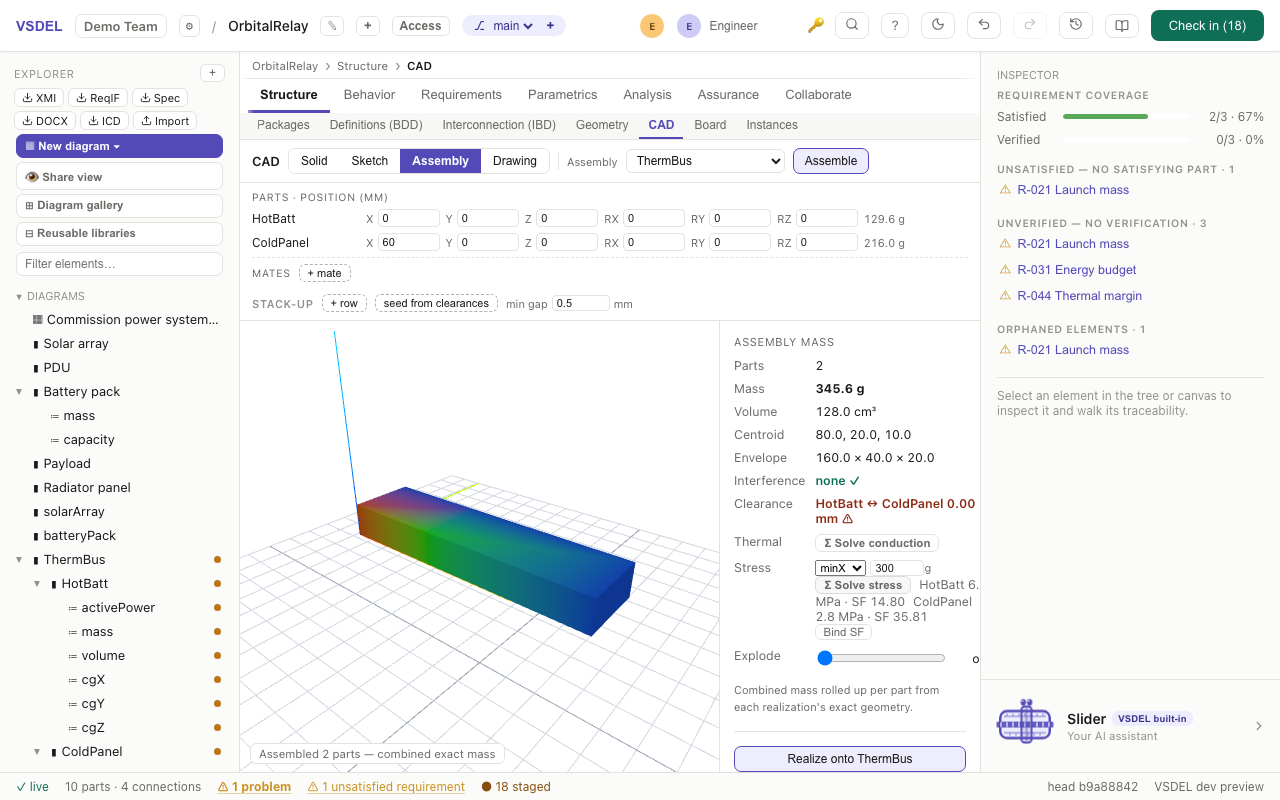
Switch to Assembly with a parent part selected: its realized children are placed (with rotation), their kernel-exact masses combine, and Assemble runs an exact boolean interference check — each clashing pair is a row by its overlap volume; click one to show just that pair, the rest of the assembly faded (show all parts brings them back) — and reports near-miss clearances as the true minimum surface distance; hover a pair in the Clearance row to see the nearest points on each part (every exactly measured pair, boards included; only a pair estimated from boxes has none). Touching parts read in contact: green with (mated) when a mate puts them together, amber ⚠ when nothing does (a part resting where it shouldn't); a tight gap under half a millimetre and a clear one are told apart. A child that is itself an assembly comes in as its structure, any depth, and moves as one unit — or mark it flexible so its own joints move inside the parent. Placements and mates are model elements: they commit, branch and merge like everything else. In the workspace the Features column lists the assembly's components (click one to show it alone) and its mates.
Mates
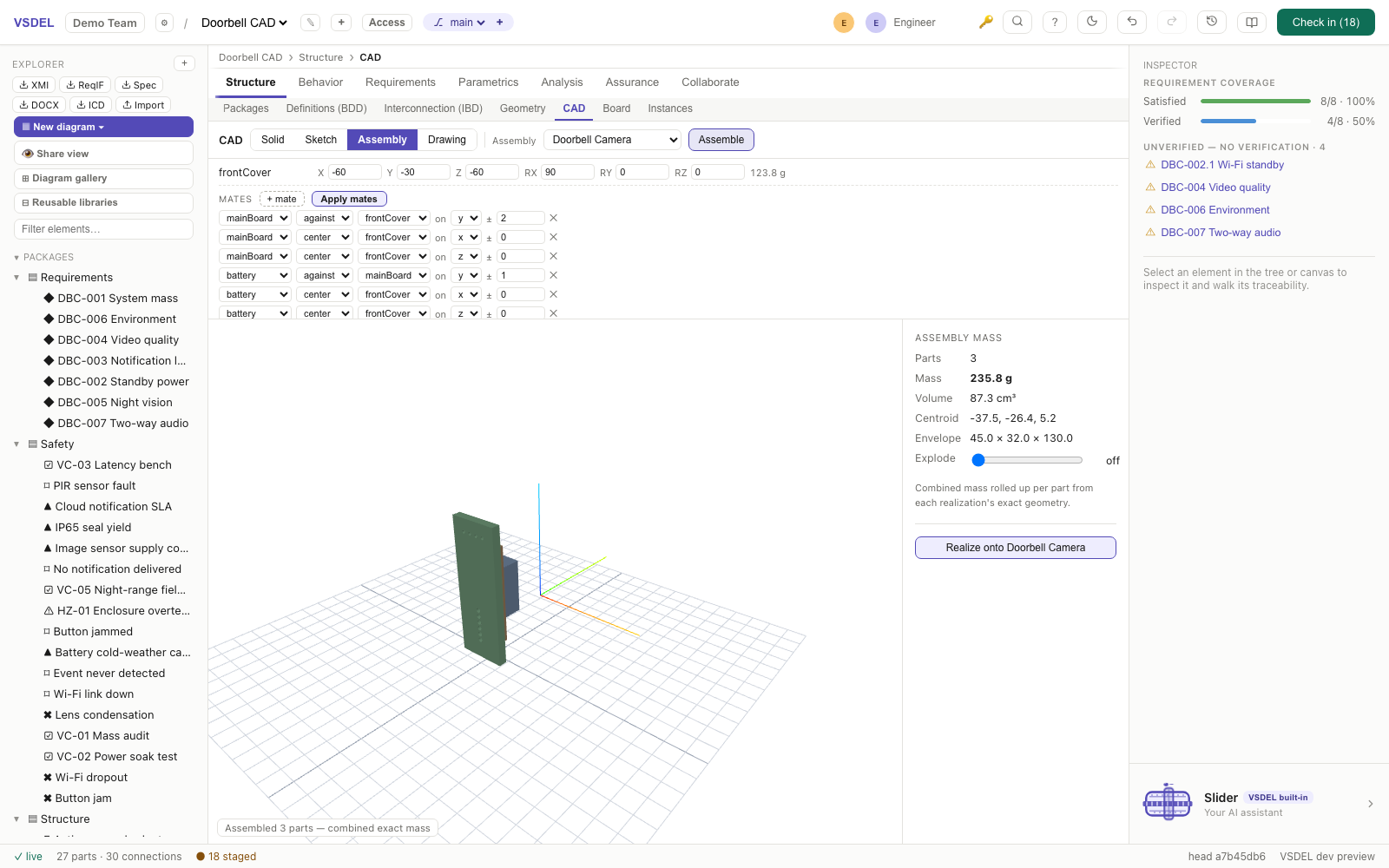
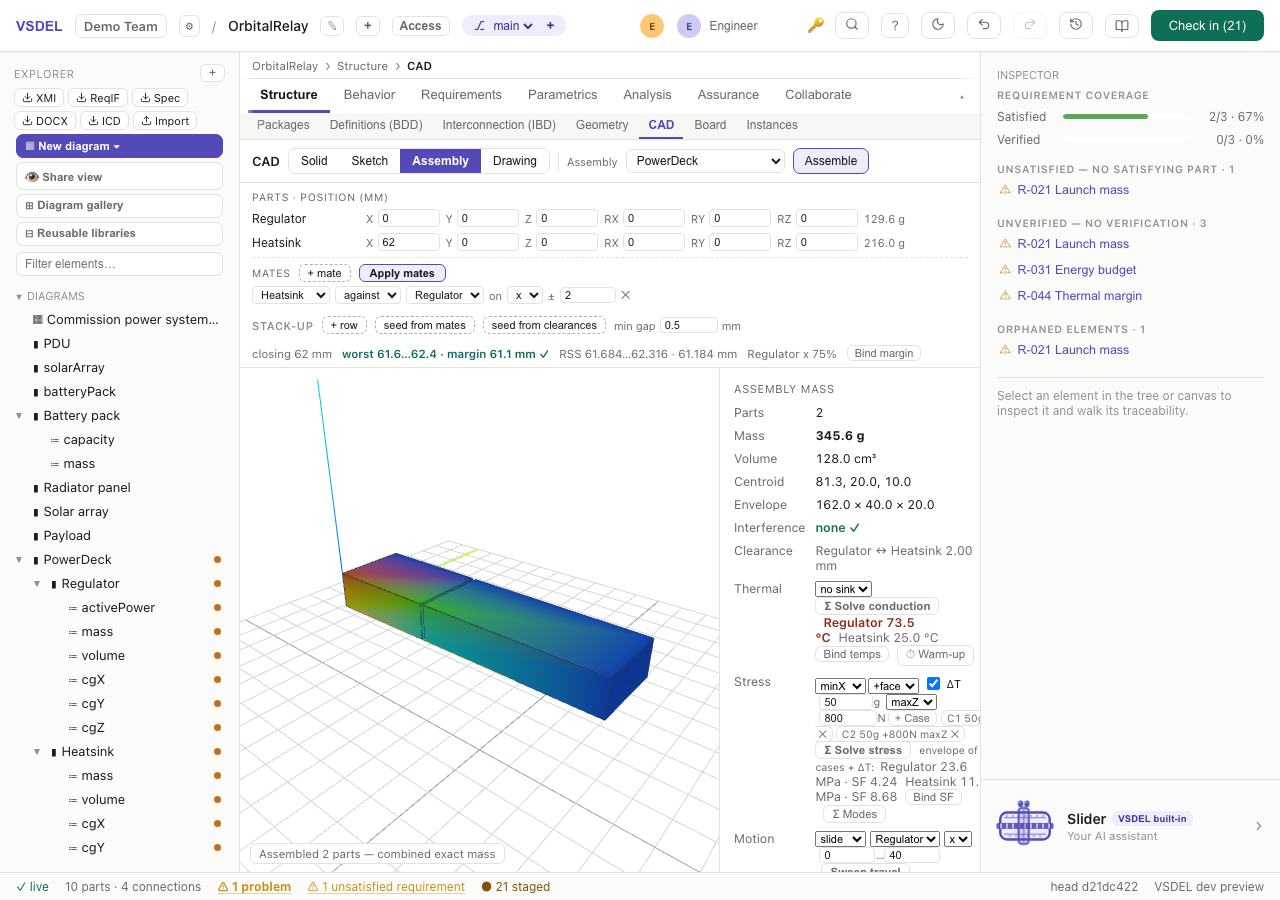
+ mate adds a row. The quick ones (against, flush, center) place parts by intent. Geometric mates — coincident, parallel, concentric, angle, tangent — anchor to picked faces and solve rotation as well as translation. Mechanism mates add limit, width, gear, rack-and-pinion, cam, slot, path, screw, ball and universal joints. Apply mates solves the set as a network: each mate shows ✓ or its leftover residual, and the readout counts the degrees of freedom removed.
Motion studies
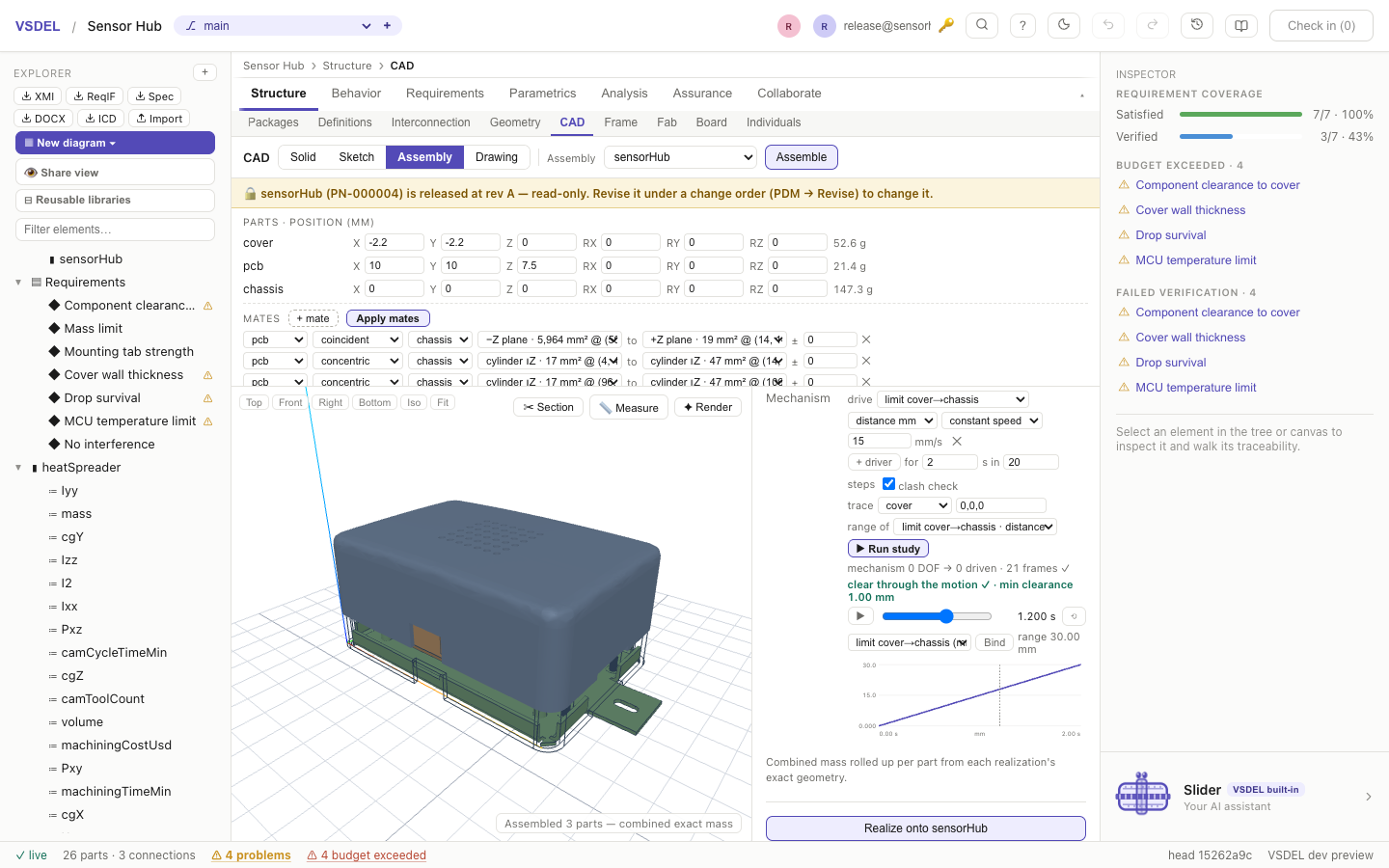
The motion study drives the mate network's joints over time. Add a + driver on a joint (constant speed or a profile table of time : value pairs), set the duration and steps, and run it. Plots track a part's position, speed and acceleration; turn on clash check for exact B-rep interference at every step, and trace to draw a point's path. A loop that can't close is reported with the time it locks up. ▶ Run study refuses to run while any mate is broken (a face that no longer resolves, or the wrong kind of face) and names each one, because a study with joints missing would invent the motion; re-pick those faces and run again. Bind stages motionRangeDeg / Mm, motionPeakSpeed, motionPeakAccel, motionCycleTime, motionMinClearanceMm and interferenceFreeTravel. For a single joint, Sweep travel runs the same exact clash check through its range.
Patterns, explode and tolerances
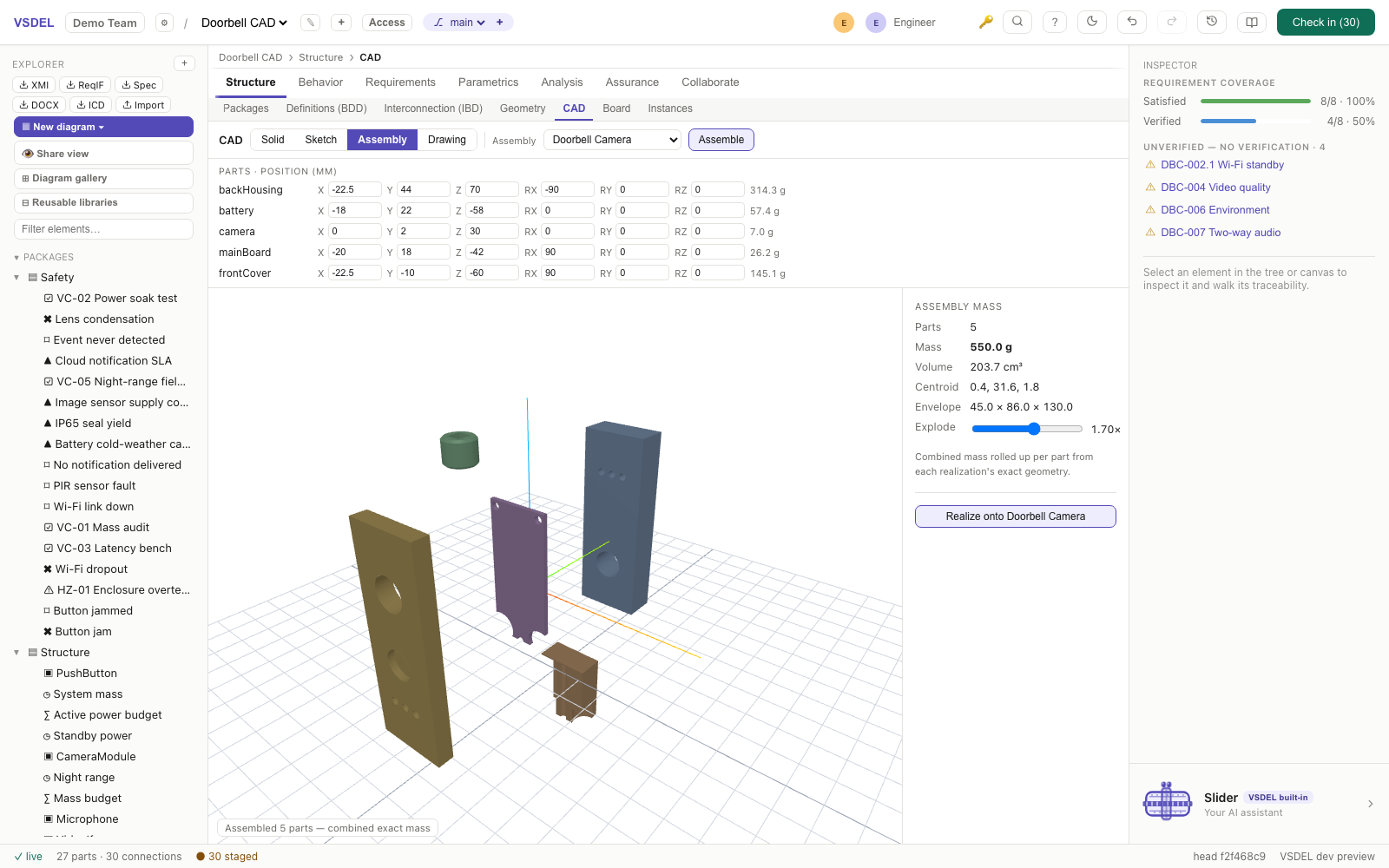
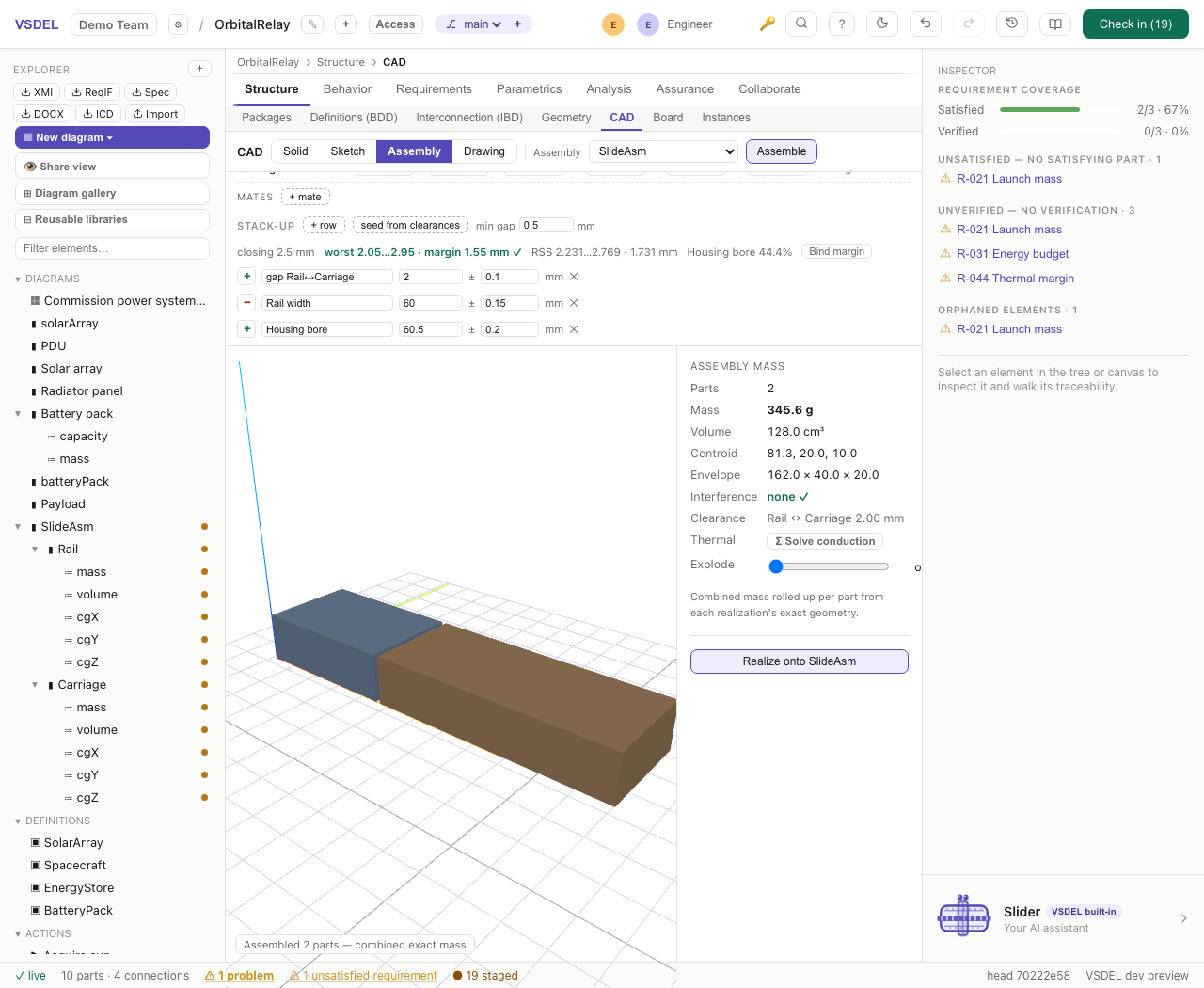
+ pattern repeats a child linearly, circularly, or by following a feature pattern on another part. + step builds a stepped exploded view (explode ▶ / ◀ collapse) that the drawing's exploded view follows; the slider's explode direction spreads the parts out from the centre or along X, Y or Z, in the order they stack. Tolerance stack-ups live in the assembly panel: 1-D chains (worst case, RSS and statistical yield, seed from mates or seed from clearances, Bind margin) and a 3-D stack over vector loops with Monte Carlo and sensitivities (seed from mate chain, + PMI size…).
Exporting the assembly
After Assemble, Export assembly writes the whole product: ⬇ STEP AP242 with its product tree (each part once, named, coloured and with its material, and every instance placed and named), ⬇ JT with named, placed instance nodes over shared parts and vertex normals, and ⬇ glTF with a node per instance. The Solid-mode toolbar's STEP, JT and glTF buttons write the part (or the assembled parts as placed meshes) without the instance tree.
Cable harnesses
A harness drawn in the Harness lens routes through this assembly in 3-D — round its parts' bounding boxes, or their own surfaces with part shapes — and Apply 3-D lengths takes the routed lengths back to the formboard: see Harness, rigid-flex, RF, FPGA and packages.
Limits. JT and glTF place instances by world position under flat sub-assembly groups; only STEP carries each sub-assembly's own placement. The 3-D stack's loops are authored or seeded from the mate chain, not extracted with form tolerances from the geometry. Mates and sizing act on direct children; a motion sweep can drive a direct part, a whole sub-assembly, or a hinged leaf inside one. An assembly pattern makes at most 64 instances. Harness routes are centre lines with a diameter, not bodies: they add no mass to the assembly, aren't in its clash check and don't export to STEP.
Drawings
Switch to Drawing and the part (or assembly) projects into third-angle views (or first-angle: choose 1st angle in the projection list) with hidden lines, on real paper — ISO A4–A1 or ANSI A–D — at a standard scale, with the kernel mass, material, scale and date in the title block. Sheets are multi-page (+ Sheet), and views can be dragged where you want them.
Views
Callouts are placed clear of the other views, their labels and the frame; an assembly's balloons sit in a row above the top view, and the title block names the part's material, or See parts list for an assembly. Beyond the standard and isometric views: Section A–A on any axis and position, a section along a sketched line (+ Section line), + Aux view, Detail… views at their own scale, Break for long parts and Crop (rectangle or spline). A section view says what it is doing: SECTION A–A — COMPUTING THE CUT… while it works, and FAILED with the reason if the cut can't be made, instead of an empty frame. Assemblies add an exploded view, numbered balloons and a BOM, with identical parts collapsed into ×N.
For a sheet-metal part, tick Flat pattern beside the standard views. It draws the blank's outline with every bend centre line and its note (f1 UP 90° R1.5), the blank's length and width, a bend table (bend, direction, angle, radius, bend allowance, length) and a note with the thickness, K, blank size and bend count. It is recomputed from the current part on every edit.
Dimensions and annotation
+ Dim places horizontal, vertical, aligned, radius, diameter, angle, arc-length, chamfer, baseline, chain and ordinate dimensions with tolerances. Dimensions are attached to model edges by persistent name: they follow the part through edits, and one whose edge is gone reads "lost" instead of jumping to another edge. Hole and feature callouts do the same: a callout on a feature the part no longer has reads ⚠ LOST (or ⚠ 2/4 LOST when only some instances are gone), the hole table counts holes it couldn't find, and the sheet's header warns how many annotations name missing features. Annotate with + Note (with leaders), + Finish (surface finish), + Weld (weld symbols), + Datum target and automatic centre marks and centre lines. Datums and feature-control frames come from the part's own PMI (+ Tolerance, + Size), the same source the AP242 export uses. A revision table reads the part's revA / revB… attributes.
Edit the title block in the template editor and Save to project to reuse it. Export each sheet as SVG, PDF (both at true paper size) or a layered DXF with dimension entities.
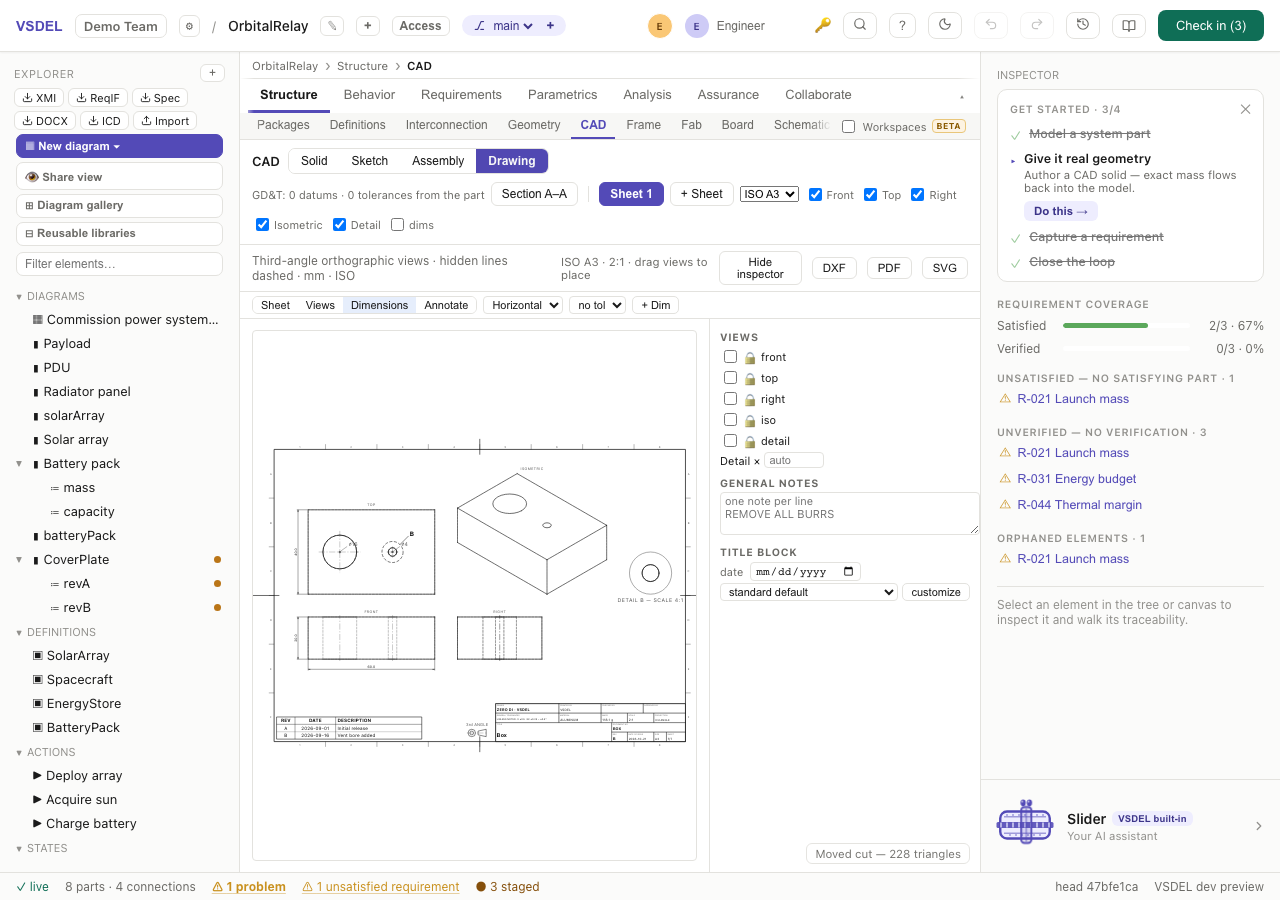
revA/revB attributes — the title block carries the current REV.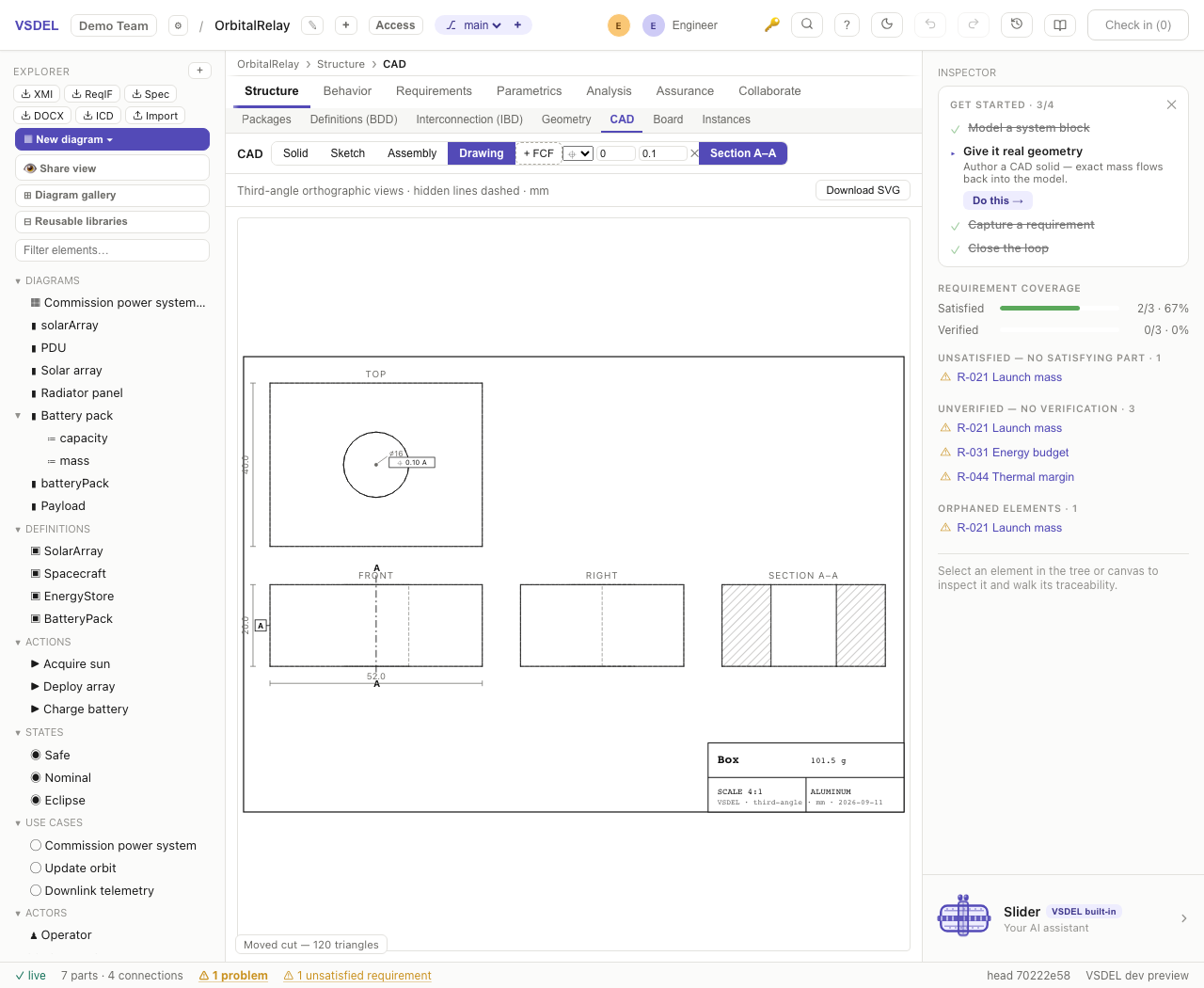
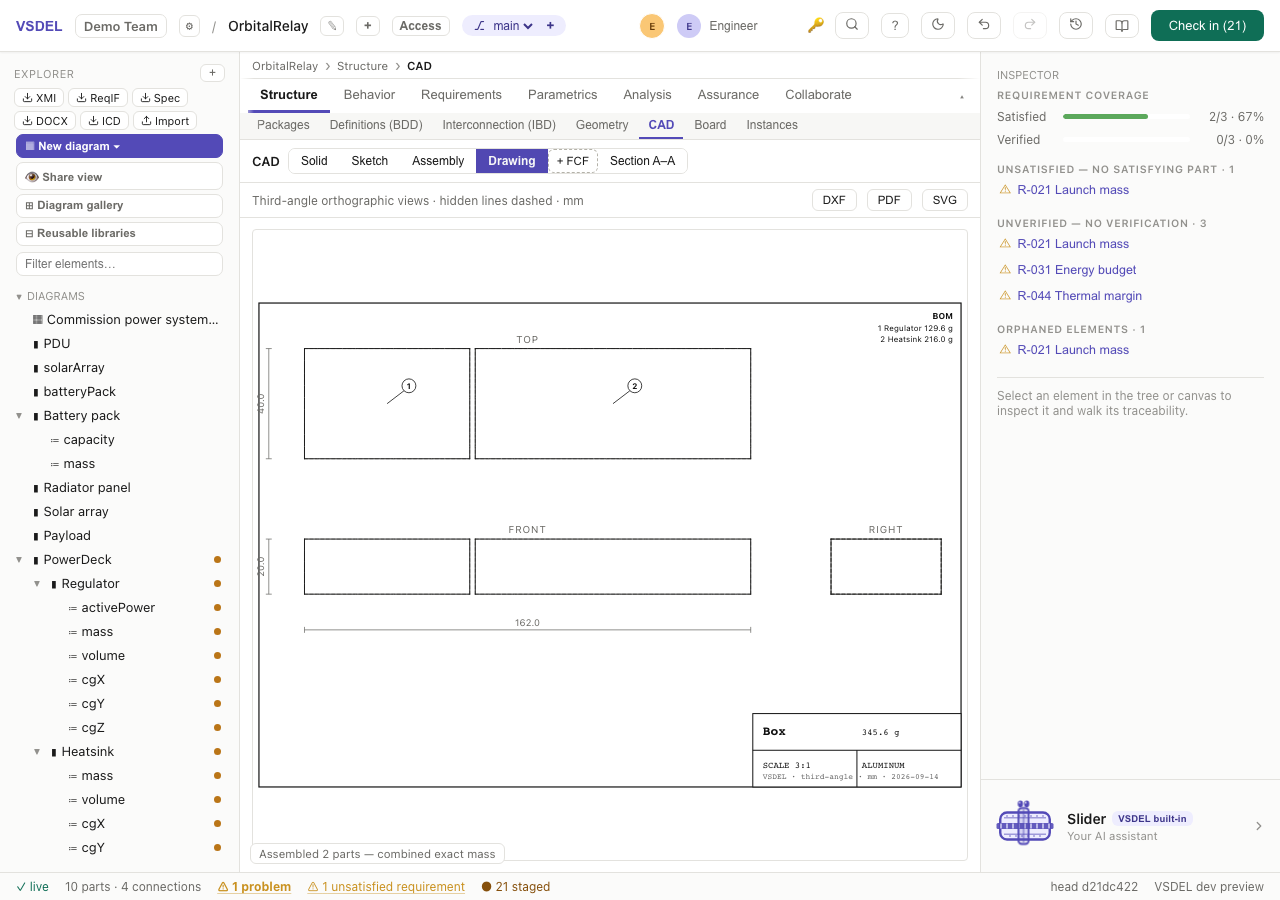
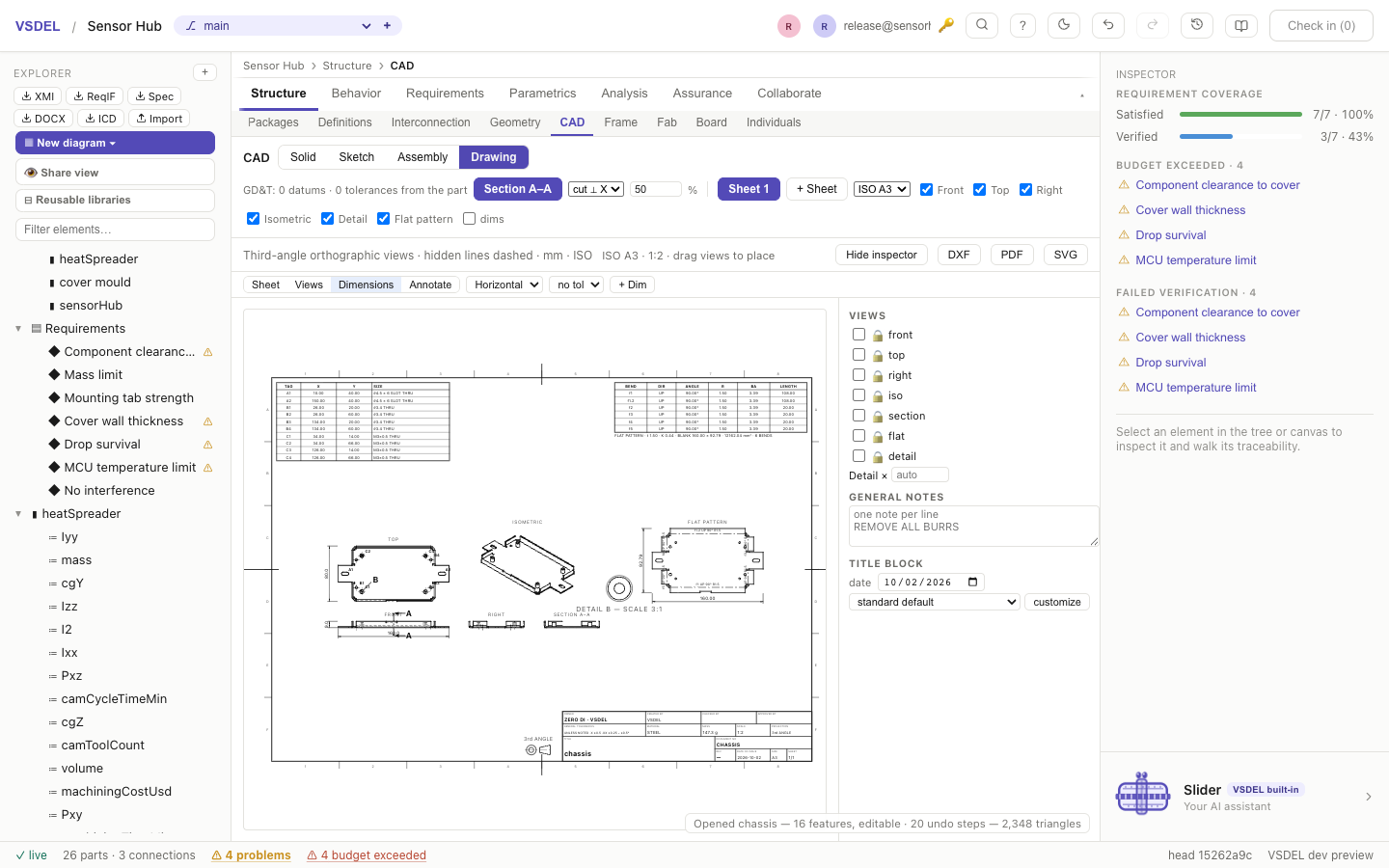
Limits. Dimensions are driven by the model — they report it, they don't drive it. There's no DWG export; DXF opens in any DWG-based tool. The lost-callout check looks down the part's Z axis, so it is coarse for holes drilled along X or Y, and it doesn't flag rotated boxes, sketches or sweeps. The flat-pattern view draws arcs as short chords.
FEA — linear, nonlinear and fatigue
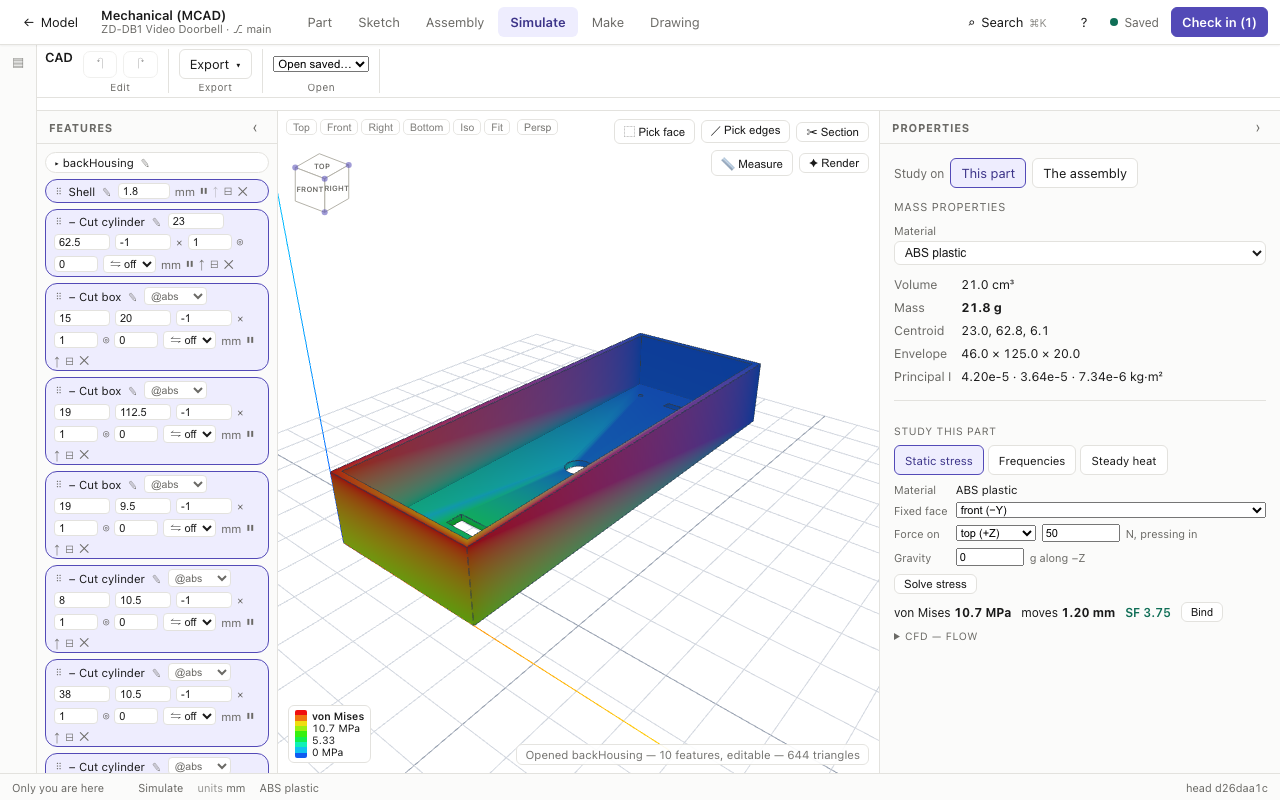
On one part. Simulate → This part (or the right-hand column in Solid mode) studies the open solid with its own material. Static stress: a held face, a force and gravity. The force is a total in a direction — pressing in, or along an axis — spread over a face or at its centre on a small patch, and the panel says what it applies (100 N along −Z, spread over the +X face (50 mm²)); a cantilever's tip load is its END face, along −Z (on the top face the same force is a distributed load). The held face, the load arrows and gravity are drawn on the part, and the deformed shape can be shown. It reads the peak von Mises — or, when the peak is at the support's edge (singular for a clamp), the IIW hot-spot stress there, labelled as such — how far the part moves and its safety factor, with the mesh (TET10, element count, size). Frequencies gives the first three natural frequencies about the held face; Steady heat puts a heat load on its own face (plus any power the model gives the part), cools it by natural convection, and reports the hottest and coolest points, the ΔT across the part, and a warning above the material's service temperature. Bind stages the result with the material it was computed with — a stress only after a finer mesh agrees within 10 %; the set-up is kept with the part. A changed set-up marks the result stale until it's solved again. Picked fixtures, bolts and contacts need the assembly study.
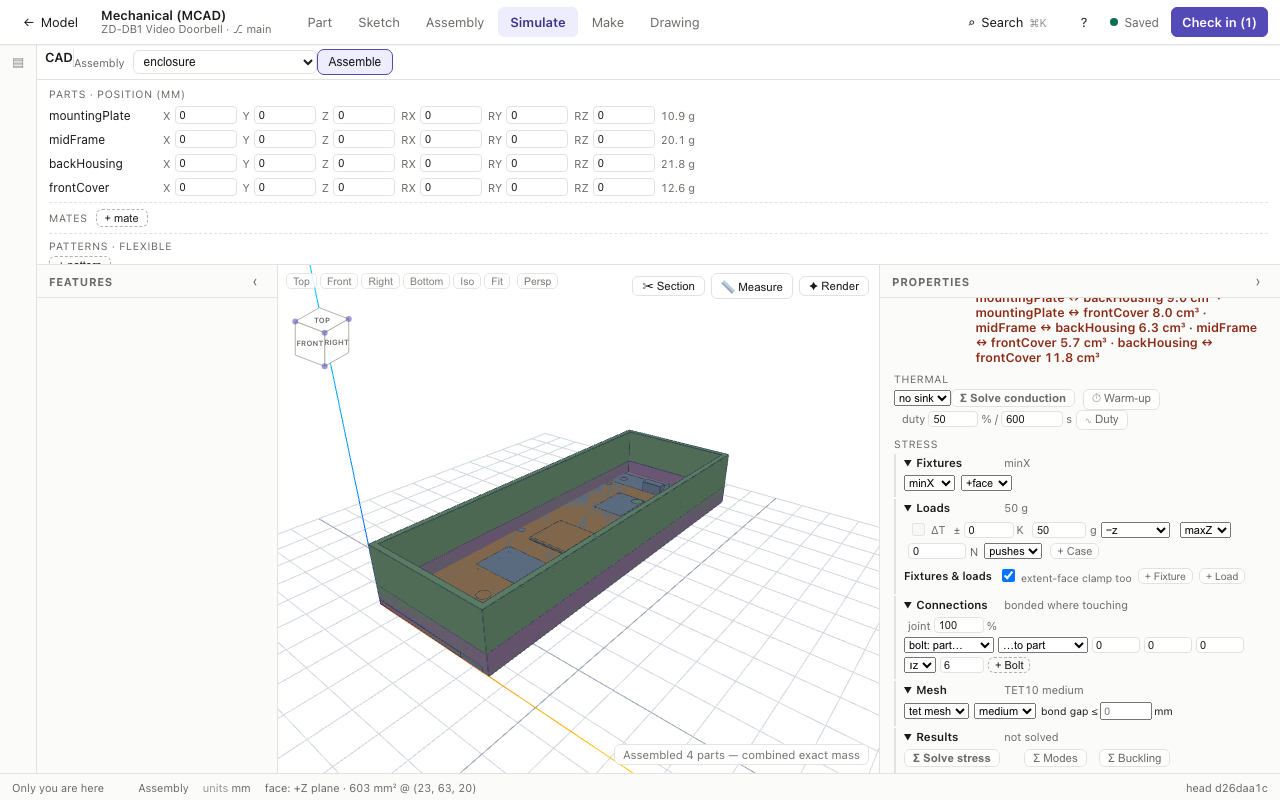
Structural analysis on an assembly runs in Assembly mode, over the realized parts. The study is a tree — Fixtures, Loads, Connections, Mesh and Results — and each node, folded, says what it holds (minZ · 2 picked, 6 g · 100 N on maxZ · 2 cases, SF 2.41 · 98.3 MPa peak), so the set-up reads at a glance. The set-up is kept with the assembly (staged when you solve), so it comes back for anyone who opens it; gravity starts at 1 g. With load cases, a table under Results gives every case's stress, SF and deflection per part, the governing SF in bold. Set up the fixtures and loads, and press Σ Solve stress. The stress row reads each part's peak von Mises, its largest displacement (max |u|) and its safety factor against the material's yield. Bind SF stages minSafetyFactor, maxVonMisesMPa and maxDisplacementMm after a mesh check: the case is re-solved 1.25× finer with the fixture edges and each part's peak refined, a part whose stress moves more than 10 % is refused (only its displacement binds), and a converged part binds the finer value. ✓ Mesh check runs it on its own; Bind N and the load spectrum's solved-peak scaling also need a converged check; Σ Modes and Σ Buckling add firstModeHz and minBucklingSF from the same mesh.
Fixtures and loads
The Fixtures & loads panel (tet mesh) holds as many of each as you need. + Fixture adds a fixed, pinned or sliding support, a bolt (diameter and axis) or a screw in slot, with an optional washer. + Load adds a force, a pressure (+ pushes in, − pulls out) or a remote force and moment acting at a point. Each applies to a region of a part: a whole face, a patch of radius r round a picked point (⌖), an edge strip, a point, or a cylinder. Gravity is the stress row's g field, along ±x, ±y or ±z, or custom… for any (x, y, z) direction. If the fixtures leave a part free to move, the solve is refused and names the free motion (free to rotate about (0, 0, 1)) so you know which support to add.
Contours. Tick contours and choose von Mises or displacement; a legend in the viewer gives the max, mid and min values. mesh overlays the elements, and ⌖ probe reads the displacement at any point you click.
The mesh: boundary-conforming quadratic tets
By default the solver meshes each part with boundary-conforming TET10 elements: quadratic tetrahedra whose mid-side nodes sit on the true curved surface, graded finer around holes and bends. The mesh panel picks the solver (tet mesh or the voxel fallback), the density (coarse, medium, fine), and shows the element count, quality and timings. If the mesher can't mesh a part, the panel shows why and falls back to voxels. A part's mesh is capped at 400 000 elements: when a clamp, fixture or load asks for a finer band than that allows, the band is meshed coarser and the panel says so (⚠ clamp / fixture edge meshed coarser on …).
- Interfaces: touching parts (and mated faces) are bonded; a gap is bridged only if you ask, with bond gap ≤ … mm (0 by default) or per pair. Every interface is listed with its gap and its source — touching, a mate, bridged by the bond gap, or near but not connected — and you set each to bonded, contact (separating, optionally with friction μ) or free. A contact interface then reports closed with its pressure, an edge lift, or OPEN.
- Bolts: + Bolt joins two parts with a preloaded bolt; the bolt's tension is reported under load.
- Refine: ⌕ Refine peak re-meshes finer round the governing part's peak and re-solves the whole model, excluding only the held nodes and one element round them at the clamp. It reports whether the peak converged (within 10 %); a peak that keeps climbing is a sharp edge's singularity, flagged NOT converged and not bound — give that edge its real radius.
- Stress at clamps: a peak at the fixed edge is singular, so the row reports the peak away from it and, at the clamp, the IIW structural hot-spot stress (1.5·σ(0.5 t) − 0.5·σ(1.5 t), from stresses linearized through the wall on a mesh graded to t/2 at the fixture edges), saying which governs.
- Thermal stress: the ±K field applies a uniform temperature change: every part takes α·ΔT, so parts bonded or bolted to a part of another expansion coefficient carry the mismatch stress, and a swing between two temperatures counts as a fatigue cycle.
- Coupling: run Σ Solve conduction first to add the temperature field as thermal strain; named load cases solve as an envelope, and the worst case governs. Each case is labelled with the name you give it, or else by what it loads, how it is held and the mesh (100 N on patch @(60, 40, 1.5) of chassis — slot + bolt · medium mesh).
| BENCHMARK | REFERENCE | TET PATH |
|---|---|---|
| Cantilever tip | Timoshenko beam | −0.7 % (coarse … fine) |
| Cantilever root stress | PLc/I | −3.9 % coarse, −0.9 % medium, +3.2 % fine |
| Plate with a hole | Heywood Kt 3.05 | 3.04 coarse, 3.09 medium, 3.21 fine |
| Euler buckling | π²EI/4L² | +0.06 % coarse, +0.04 % medium |
| First bending mode | beam theory | −0.3 % (coarse … fine) |
Nonlinear
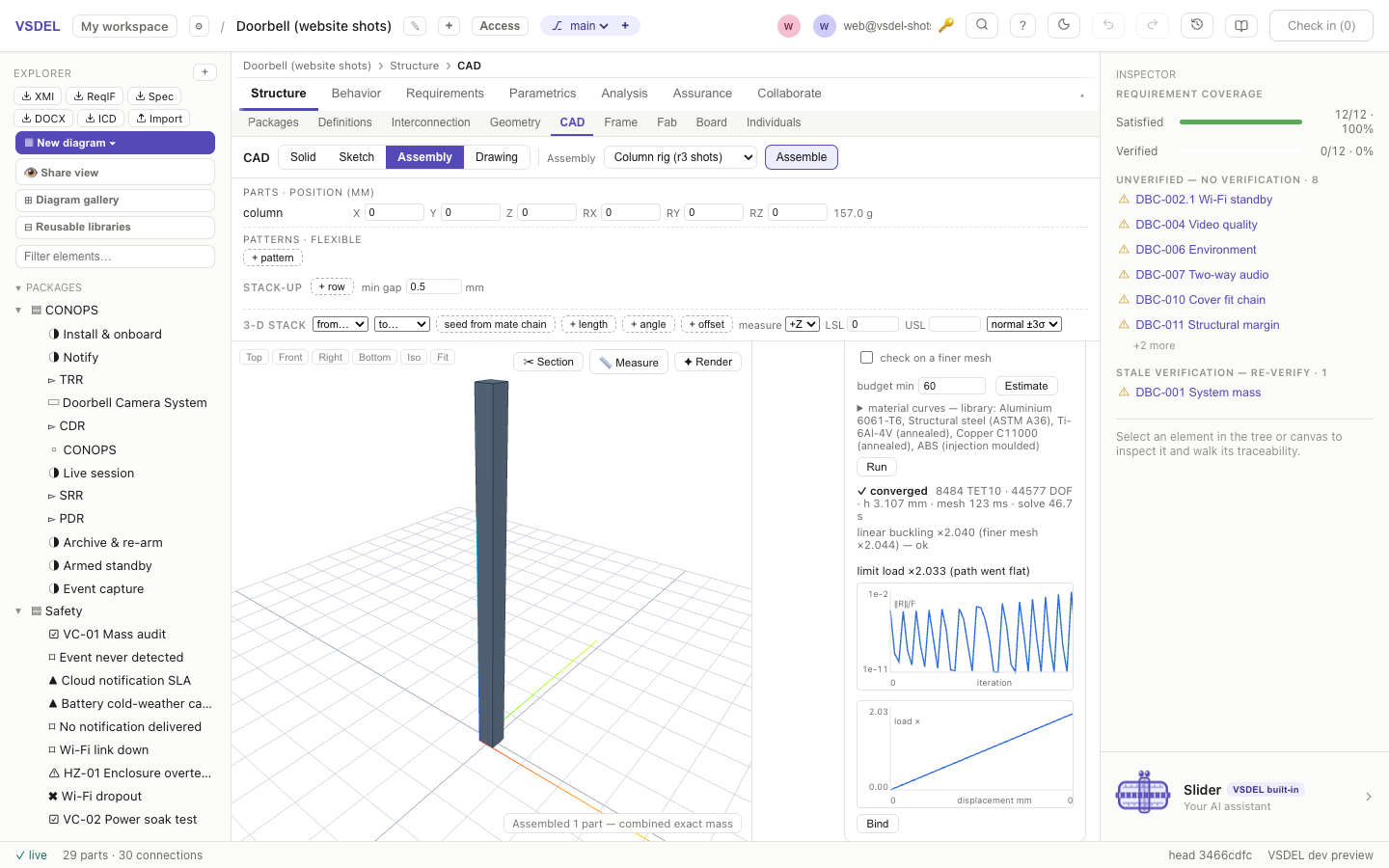
Σ Nonlinear… on the stress row runs on the same mesh, load and interfaces (not ΔT, load cases or bolts); a drop test needs no load set and ignores the row's load. Choose Static (plastic / large deformation), Limit load (arc-length), Drop test (explicit) or Fracture (crack, J-integral); turn on J2 plasticity (the library's curve or your own true stress–strain table) and large deformation; then Run. Static and limit runs track stability and stop at a bifurcation, reporting it as buckling. Every limit load is checked against linear buckling on the same mesh and a finer one: a limit above the buckling load is refused, not bound. Tick check on a finer mesh to rerun the whole limit analysis finer; results more than 5 % apart are not bindable. Static and limit runs on large assemblies show progress as they solve, with Estimate and a time budget: a run that can't finish within the budget is refused up front. Drop tests report the filtered peak g: choose how it lands (a face, edge or corner first, or any direction) and, optionally, an inclined floor and its friction. Leave the duration blank and it runs for 1.5 × the estimated contact time. Estimate meshes and times a few steps before you commit; a running job shows its progress and the time left to the likely rebound, with the time to run its full duration as the upper bound, and ■ Stop ends it at once (nothing is bound). The library's injection-moulded ABS has a true stress–strain curve and fails at 20 % elongation. Fracture runs report K and the margin against KIC. Bind stages maxPlasticStrain, permanentSetMm, limitLoadFactor, dropPeakG, stressIntensityMPaSqrtM, fractureMargin and more. A run that doesn't converge, loses stability, ruptures, or leaves its crack closed binds nothing and says why.
Fatigue
After a stress solve, the row shows each part's high-cycle life (S-N with Goodman mean-stress correction and a surface factor), binding fatigueLifeCycles. For variable loading, open the load-spectrum panel under the worst part: paste a load history, choose S-N, strain-life (Morrow or SWT, with a Neuber notch response) or a weld class (IIW FAT or BS 7608), and read the rainflow table (ASTM E1049) and the Palmgren–Miner damage. Bind spectrum verdicts → stages fatigueDamage, fatigueLifeBlocks and strainLifeCycles.
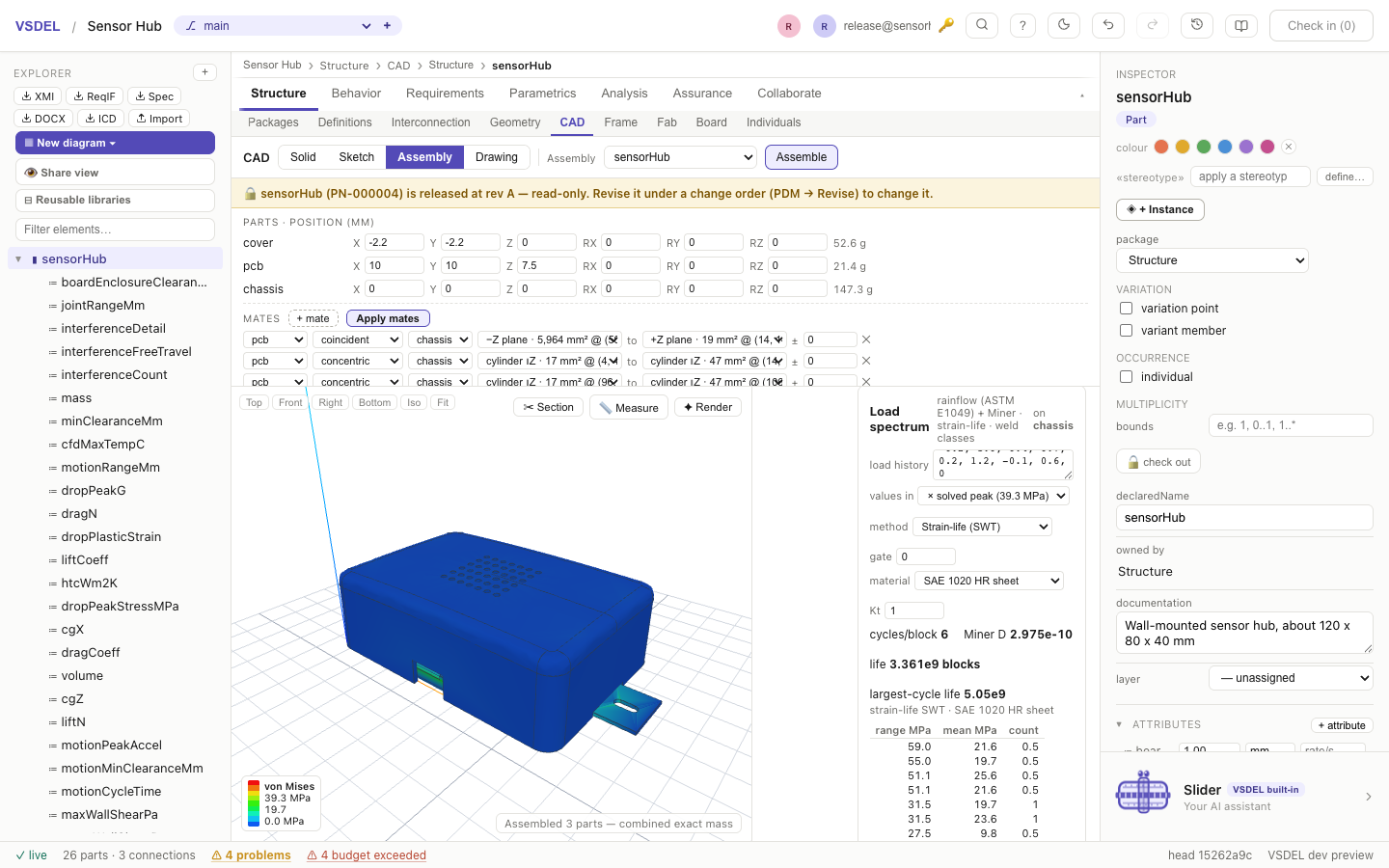
Thermal companions
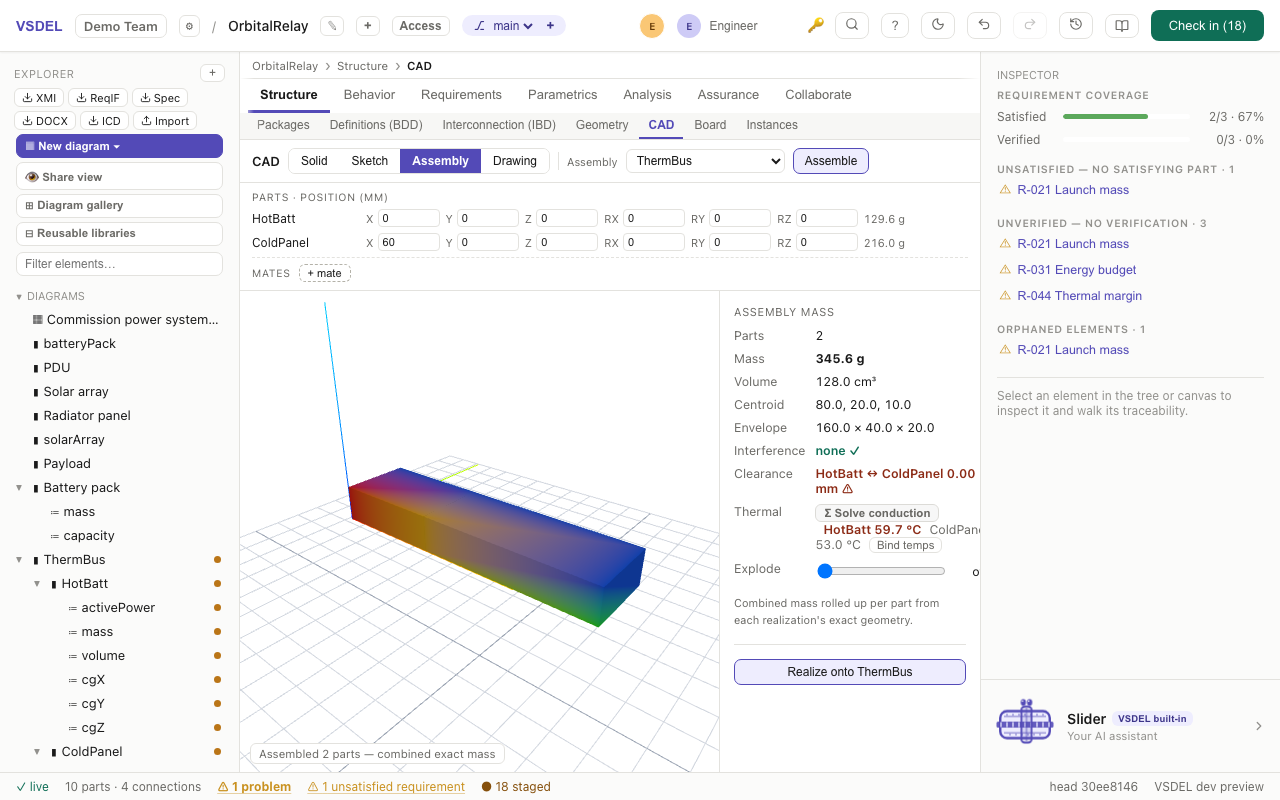
Σ Solve conduction (the assembly's Thermal row) solves steady heat flow over the realized parts on a sub-cell grid: each cell holds the fraction of every part inside it, so thin walls and small parts keep their true volume. Exposed faces lose heat by natural convection (or a filmCoefficient you set), the air enclosed inside the assembly is a node of its own, and every part with an emissivity radiates by ray-cast view factors to what it actually sees — there's no switch to turn on. Choose a sink face to hold it at a set temperature. Heat comes from activePower (or power, powerW…), rolled up from the components below each part; ambient is the hottest ambientMax (or ambientTemp and the like) declared on the assembly, on its parts or on any part above them up to the system, else 25 °C, and the report says which.
The solve checks itself: volume kept within ±2 %, every part still in one piece, heat balance closed within 2 %, the iteration converged, every board component sitting on its board, and no board under a package reading hotter than that package's junction. A wall-resolution check estimates what each thin wall's own temperature drop puts at risk; when an insulating wall in the heat path is too thin for the cell, the row re-solves once at a finer cell, and if that isn't enough, Bind is refused and the report names the cell that would pass. If any check fails, Bind temps stays disabled and the numbers are for diagnosis only. A sensor enclosure with a powered board inside solves in about 8 s. The report lists every input it used and how it read it — method and cell size, ambient and film, emissivity per part, each heat source, board conductivity, components, internal air, heat balance, volume kept, each interface — and every power attribute it didn't use, with the reason. ⇲ Check mesh re-solves at a 1.5× finer cell and shows both. Bind temps stages each part's maxTempC.
Boards. A board conducts through its copper. The laminate is modelled as its copper layers, from its stack-up (pcbStackup, or copperLayers for a preset), each spreading heat in-plane and coupled to the next through the dielectric. Its coverage is the copperCoverage you state, else the routed board's own copper (tracks, pours, pads and vias), else an assumption (20 % on signal layers), and the report says which. The board under each package is re-solved on a fine local grid. Each powered component heats its own footprint, through its thermalVias, and its package's thetaJB and psiJT (from a package-family table when you don't give them) take the board temperature to the junction. A component's maxTempC is its junction temperature, with junctionTempC and caseTempC beside it, so max(maxTempC) <= 125 ['°C'] on the MCU verifies the junction limit.
The warm-up clock reads the time to 90 % of steady (warmupS90), and duty-cycle runs bind the temperature window (tMaxDuty / tMinDuty).
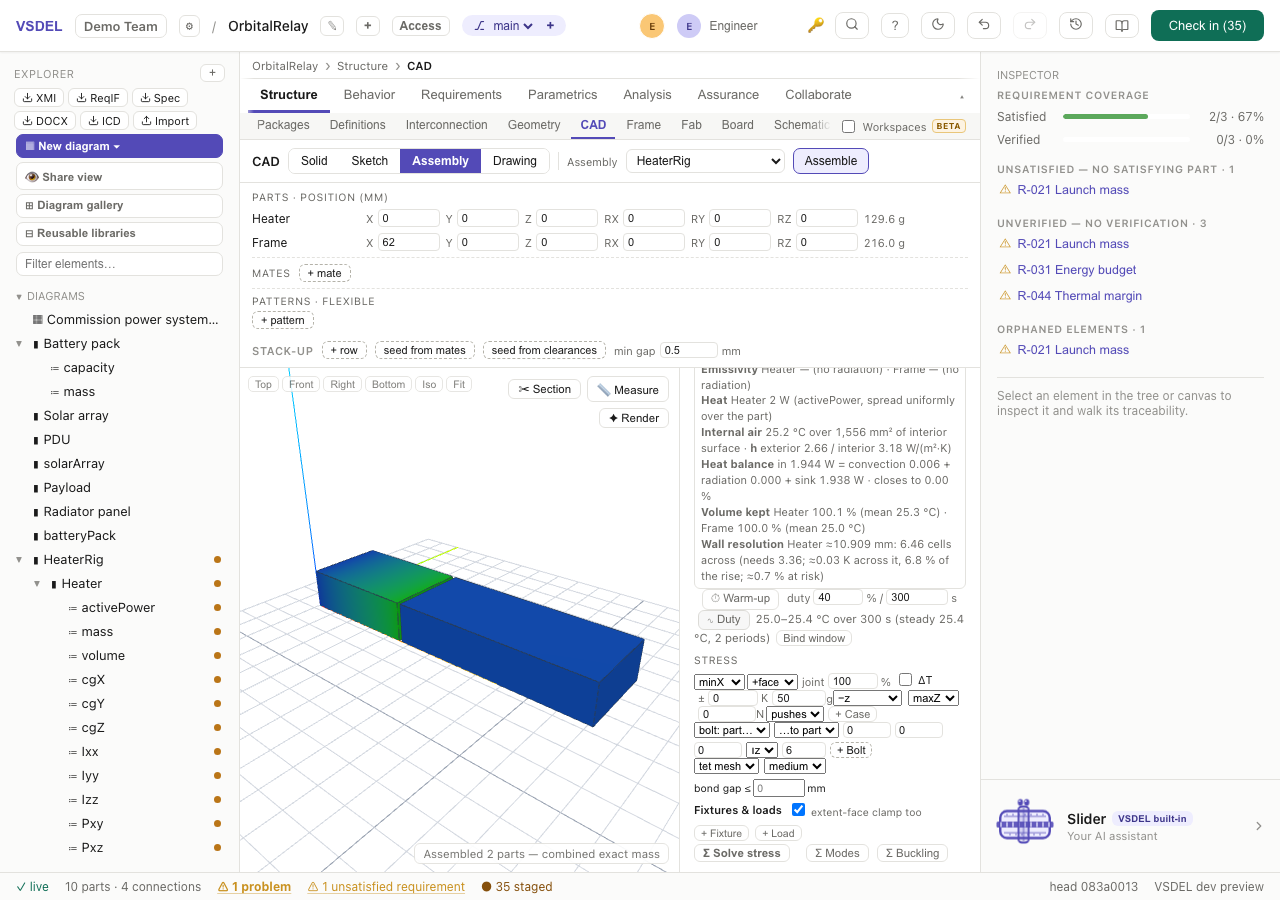
tMaxDuty/tMinDuty.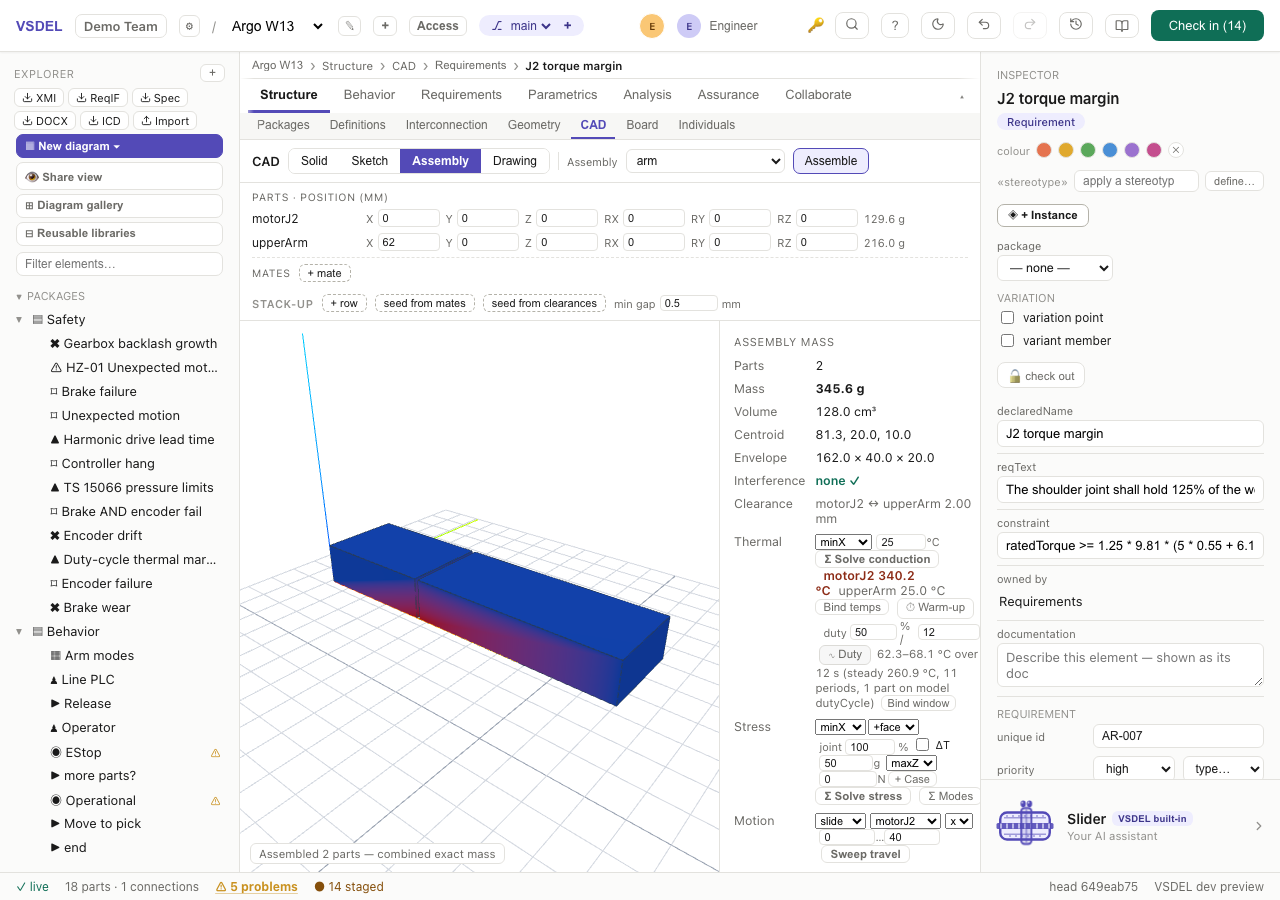
dutyCycle attribute (35 %) and the arm its dutyPeriodS (12 s), so the solve follows the model, not the panel — the joint stack rides 62–68 °C on a 25 °C cold plate.Limits. The idealised clamp is singular, so a peak right beside the fixed face reads high; check stress away from it. Linear contact is small-sliding, so its peak pressure is an order of magnitude, not a Hertz-exact value. Sharp edges that aren't axis-aligned keep a small chamfer in the mesh. Thin sheets mesh slowly (a 1 mm sheet takes several seconds), and a modal or buckling solve of a thin-walled assembly takes several minutes. Density is the only mesh control: there's no mesh size on a chosen face or edge (use ⌕ Refine peak), and there are no shell elements. There's no frequency-response, random-vibration or shock-spectrum analysis. In nonlinear runs, plasticity past about 5 % strain is approximate, stability is a bifurcation check rather than a post-buckling trace, drop tests start at contact and ignore bolts, thermal loads, load cases and the stress row's load, and fracture is linear-elastic with a planar crack. KIC is in the library for 6061-T6 and Ti-6Al-4V only; enter a tested value for other materials. Plastic-strain contours aren't drawn on the model yet, contact interfaces become bonded in a drop, and a drop with bonded ties is slow — about an hour for a flat landing on one core, a third to a quarter of that with every core working, and several times longer for an edge or corner; tick ☁ Run in the cloud to let it run while your laptop sleeps. The IIW hot spot is a plate-structural stress, and a strip support narrower than the mesh acts as a hinge. The thermal solve has one internal-air node per assembly (separate cavities share it), sealed unless a part carries a ventWK conductance (there's no panel field yet); its convection is laminar air only, radiation zones are isothermal, and the junction model sends all of a package's power through θJB (conservative) with no heatsink on the package top. The Geometry lens solves its simple solids (box, cylinder, sphere, cone), and an envelope shell must be a box, cylinder or sphere. Fatigue is uniaxial, weld curves ignore mean stress, and the panel flags the four 7075-T6 strain-life constants it could not re-verify against their source.
CFD — flow and conjugate heat
The CFD panel sits in the right column for a solid and in the assembly rows for assembled parts. Choose External (wind tunnel), Internal (through the part) or Natural convection (still air), a fluid (air, water, glycol mix, oils), the flow direction and speed — or for internal flow the inlet face and a velocity, flow rate or pressure — and the resolution. Turbulence is auto, laminar or LES (Smagorinsky); runs are steady or transient. Tick heat to couple conduction in the parts: each part's power (activePower and the like) is rolled up from the components below it in the model, so a board's MCU heats the board, and spread over the part. A symmetric part can solve as a half model.
Natural convection. For a fanless product, choose Natural convection (still air): the heated parts drive the flow by buoyancy (the Boussinesq model) in a room of still air at the ambient temperature, with the gravity direction and the room's margins set in the panel. The result reads the Rayleigh number and the fastest air speed, and binds cfdMaxTempC, htcWm2K and naturalMaxSpeedMps. A slow forced run over heated parts suggests switching to it.
Before you run, the panel shows the cells, memory and estimated time. Press Σ Solve flow; it runs in a background worker with progress, Stop (keep the current field) and Cancel. With ☁ Run in the cloud ticked (see CAD), the same run goes to a cloud machine and keeps going while your laptop sleeps; there, Stop cancels it.
The result reads Δp, drag and lift (and their coefficients), wall shear, maximum and mean surface temperature, heat flow and the heat-transfer coefficient. View section contours of speed, pressure or temperature, streamlines, and surface maps. Report CSV and Field VTK export the numbers and the field. Bind stages pressureDropPa, flowRateLpm, dragN, liftN, dragCoeff, liftCoeff, maxWallShearPa, meanWallShearPa, strouhal, cfdMaxTempC and htcWm2K.
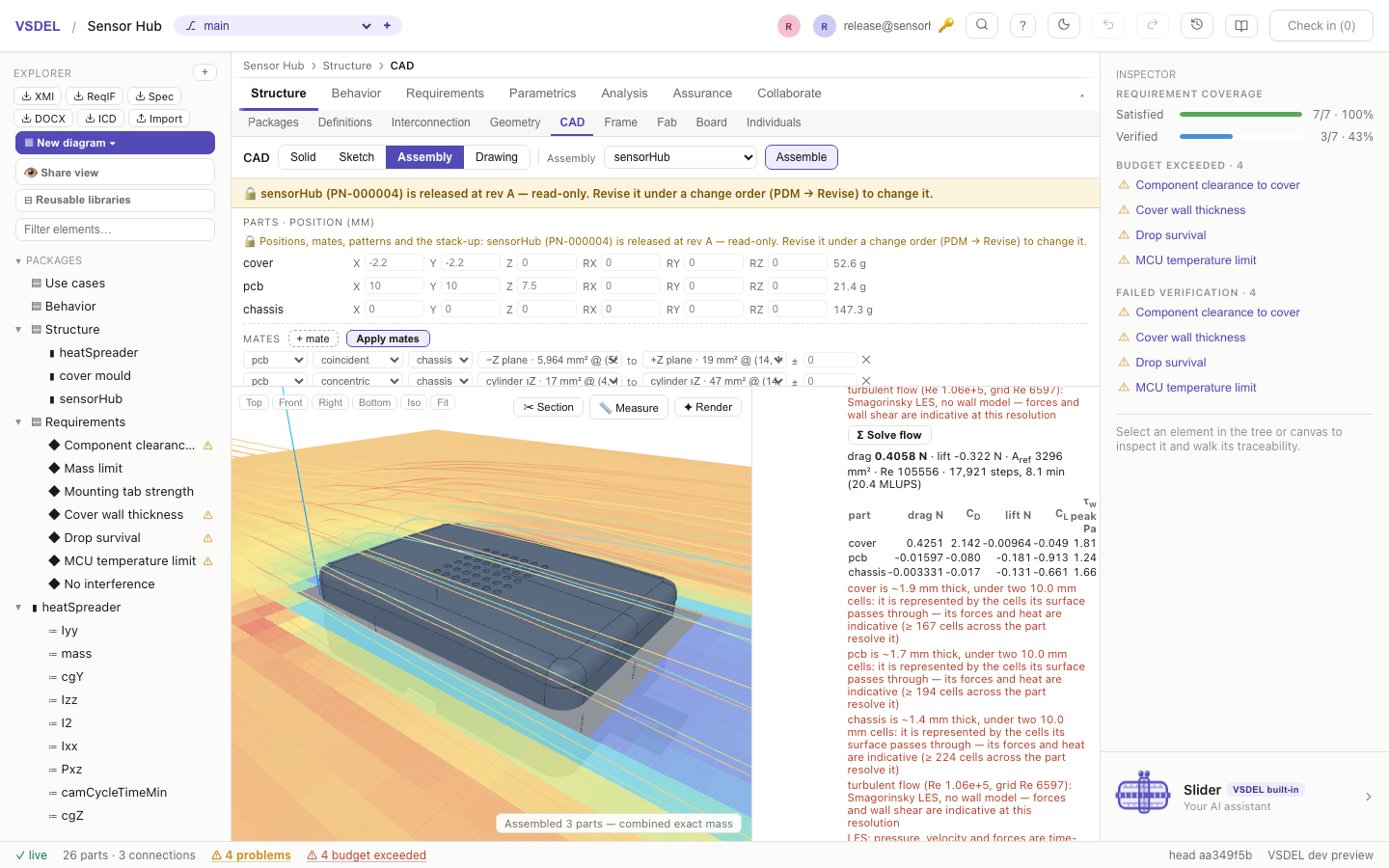
The solver is a lattice-Boltzmann method on the part's voxel grid, with interpolated cut-cell walls that conserve mass, and a finite-volume energy equation over fluid and solid together.
| BENCHMARK | REFERENCE | VSDEL |
|---|---|---|
| Pipe flow | Hagen–Poiseuille Δp | +0.5 % (D = 20 cells) |
| Lid-driven cavity | Ghia et al., Re 100 / 400 | within 0.011 U |
| Confined cylinder | Schäfer–Turek CD 5.5795 | 5.588 |
| Vortex shedding | St 0.164–0.166, Re 100 | 0.1665 |
| Heated plates | Nu 7.541 | 7.535 |
| Heated cavity, natural convection | de Vahl Davis Nu, Ra 10³ / 10⁴ / 10⁵: 1.118 / 2.243 / 4.519 | 1.118 / 2.247 / 4.528 |
Guards. An internal passage is measured on the grid and refined to at least 8 cells across where the budget allows; under 3 cells across it is refused. A part thinner than a cell is kept, a part hidden inside another is named with its lost heat, and a result whose inputs changed is marked stale and can't be bound.
Limits. CFD runs on the CPU, in the browser or on a cloud machine; it is slower than a native solver, and a steady solve needs many steps. The grid is capped at 3 M cells, in the cloud too. There are no fans, perforated or porous plates, or rotating regions, so a fan-cooled product can't be modelled yet. There's no wall model, so LES forces and wall shear at high Reynolds numbers are indicative only. Narrow gaps between parts in an external flow aren't measured. The memory estimate leaves out the energy solve. Natural convection is laminar (above about Ra 10⁹ it is flagged indicative), uses one temperature-independent property set, has no radiation (the assembly Thermal row carries it), and runs at about half the speed of a forced run; the room walls sit at the ambient.
CAM — toolpaths, posts and prove-out
The CAM panel (right column, single parts) takes a part from solid to G-code. Each set-up has its stock (a box around the part, round bar, or a body of the part), material, part orientation, work zero and offset (G54…), machine and fixtures (keep-outs). Add a second set-up (+ set-up) to machine the flipped part on another offset. From set-up 2 on, start from the stock the set-ups before this one leave (on by default) carries the in-process stock forward, so the simulation, gouge, rapid and air-cut checks see what earlier set-ups already cut. The Tools list is a library you edit: type, flutes, stick-out, holder, speeds and feeds.
Operations
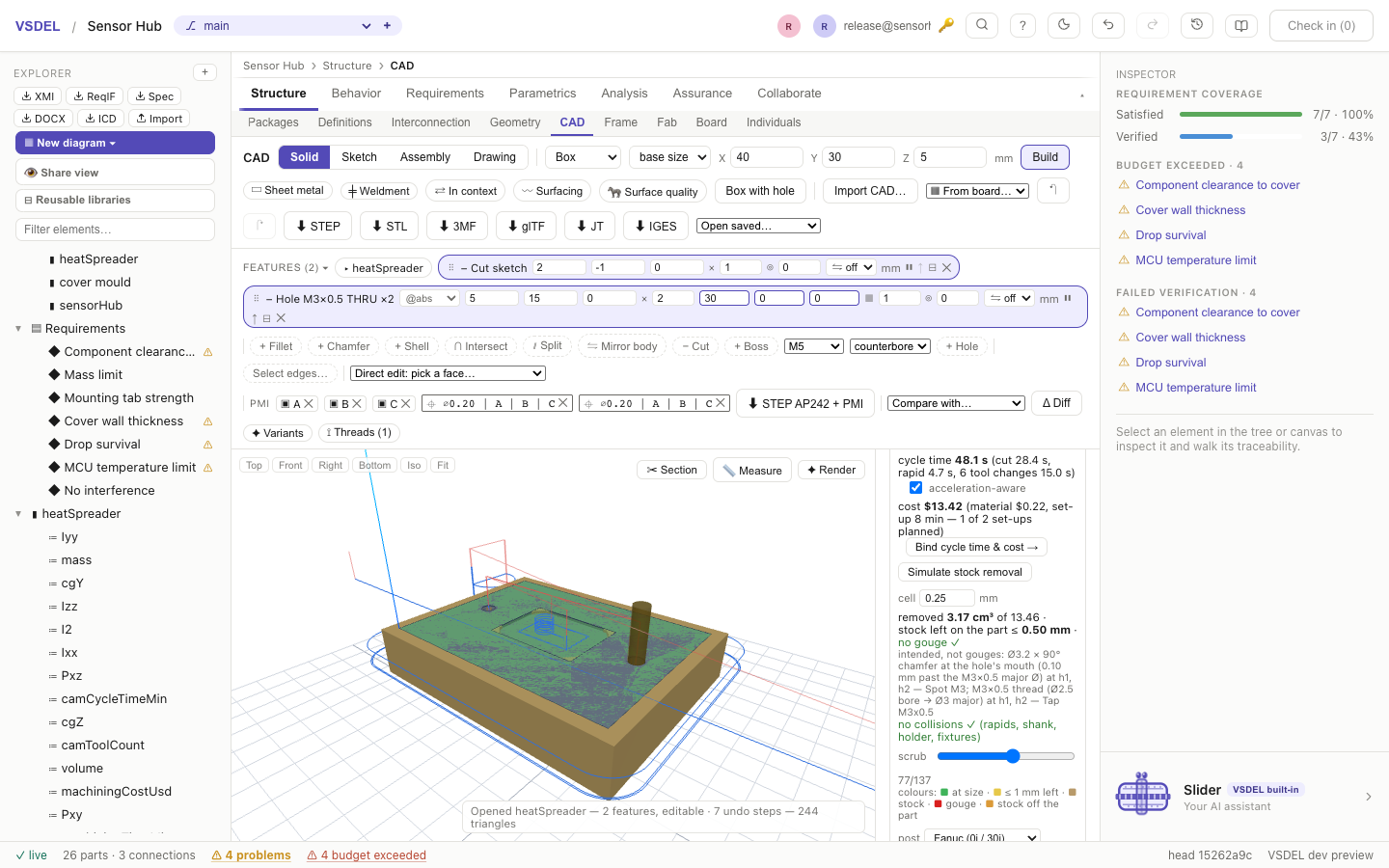
Add operations from + operation…: Facing, 2-D contour, Pocket, Adaptive clearing, Drilling (holes found from the model, with spot, peck, chip-break, dwell, tap, bore and ream cycles) and Chamfer / deburr for 2.5 axes; Z-level roughing, Parallel, Waterline and Pencil for 3 axes. An operation's skip on boxes leave it out of the program for chosen posts — tapping on GRBL, which can't tap, for example. The operation stays in the set-up, the plan lists the work to do by hand, and the prove-out checklist gets a MANUAL OPERATIONS section. Generate toolpaths plans them and refuses a plan whose rapids hit the stock, the part or a fixture. Simulate stock removal shows what's left, with gouges coloured, and a scrub slider steps through the moves. A gouge is how far a tool cut into the finished part, in mm, from the stock simulation or the exact tool check, whichever is deeper. Cuts the program means to make past the model (a tap's thread in a threaded hole, a spot drill's chamfer at a hole mouth, a chamfer operation's edge break) are listed as intended, not reported as gouges.
The cycle time is acceleration-aware, and it feeds the machining cost: Bind cycle time & cost → stages camCycleTimeMin, camToolCount, machiningTimeMin and machiningCostUsd on the part. Every set-up must be planned first. The cycle time sums all set-ups, the tool count is the distinct tools across set-ups, and the material cost comes from set-up 1's raw stock. Save with part keeps the set-ups with the part's CAD document.
Posts and verification
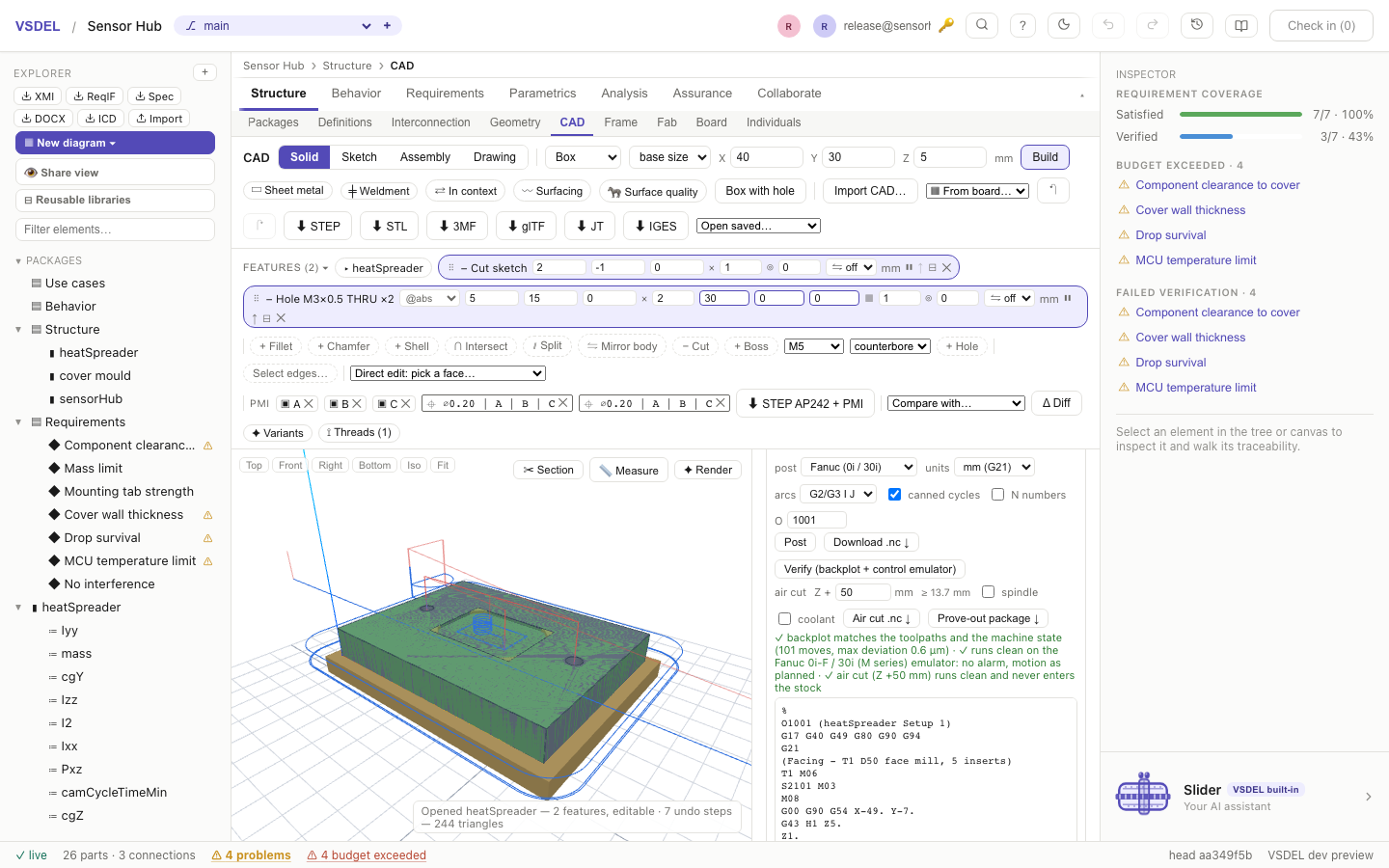
Choose the post for your control — Fanuc (0i / 30i), Haas (NGC), GRBL 1.1, LinuxCNC, Mach3, or generic ISO 6983 — plus units, arc format and canned cycles, then Post and Download. Verify (backplot + control emulator) reads the G-code back, then runs it on an emulator of that control's dialect — its alarms, canned cycles and rapid moves — and compares both with the planned toolpaths. A dog-legged rapid that would clip a boss on your control is caught here.
Proving a program on a real machine
The posts are checked against those emulators and, for LinuxCNC and GRBL, against the real open-source interpreters. They have not been run on every real machine, and your machine's settings are assumptions until you check them. So every program comes with a prove-out package. Set the air cut height (Z +50 mm by default) and whether the spindle and coolant run, then download Prove-out package ↓: a zip with the program, its air cut (every Z raised, marked "AIR CUT - DRY RUN - NOT A CUTTING PROGRAM"), a first-article checklist written for your control, and the emulation report. If the emulation isn't clean, the checklist says so at the top. Air cut ↓ downloads the air cut alone.
Work through the checklist in order:
- Control settings, before loading. Confirm the settings the checklist names for your control — rapid mode, arc tolerance, peck clearances, rigid tapping, dwell units, coolant wiring.
- Work offset. Set it at the set-up's origin as described. Check it in MDI with the first tool at clearance height, and check that the program's envelope and lowest Z are inside travel and clear of the clamps.
- Tools. Load each tool with its length offset (H = T), diameter and stick-out as listed, and measure every length into its own offset. On GRBL, which has no length offsets, each manual tool change pauses over a flat spot the program names — the uncut stock top or a machined flat, with its Z. Jog the new tool down until it just touches that spot and leave it there; don't set zero. On cycle start the program sets the work Z itself (
G10 L20) and retracts. If no flat spot is left for a tool, the plan is refused. - Air cut. Run it with feed and rapid overrides at 25 % or less, single block through the first tool change. Watch the retracts, the approach at safe height and the clamps. The lowest point should be the program's lowest plus the shift.
- Canned cycles and tapping. For each drilling operation, check R, bottom, peck and dwell, and the retract per hole. For taps, confirm rigid or floating and that F = S × pitch. The tap stops one pitch above the depth its pilot is drilled to full diameter; a tap with no pilot drilled before it is refused, because it would tap solid material.
- First cut. Feed override at 50 %, single block through the first tool change. Stop after the first operation and measure.
- First-article inspection. Check each operation's lowest cut and each drilling operation's hole positions and depths, then sign off with name, date and machine.
Limits. 2.5- and 3-axis milling only: no 4- or 5-axis work and no turning. The Fanuc and Haas posts are checked on emulators only (no free interpreter exists); the Mach3 rules are the least certain. The GRBL model is stock GRBL 1.1 and the LinuxCNC model is 2.8. In-process stock is carried along one part axis only, so a set-up on the part's side starts from its own stock. A machined-flat touch-off spot is only as accurate as the tool that cut it, and no tool-length setter or probing cycle is posted. The emulator doesn't model cutter-compensation geometry, G18 / G19 arcs, feed per revolution, macros or subprograms, and reports them rather than accepting them. Nothing here replaces the air cut and the first-article check on your machine.
Mould tooling
Mould tooling (right column) turns a moulded part into a two-plate tool. Set the pull direction, the material (PP, ABS, PC, PA66-GF30, POM, HDPE or PS, each with its shrink range) and the shrink mode (uniform, per axis, or flow / cross-flow), then Check part. The check finds undercut regions along the pull and suggests a slide, a split cavity (two opposing slides) or a lifter for each, with travel. Uncovered undercut blocks the split unless you choose split anyway.
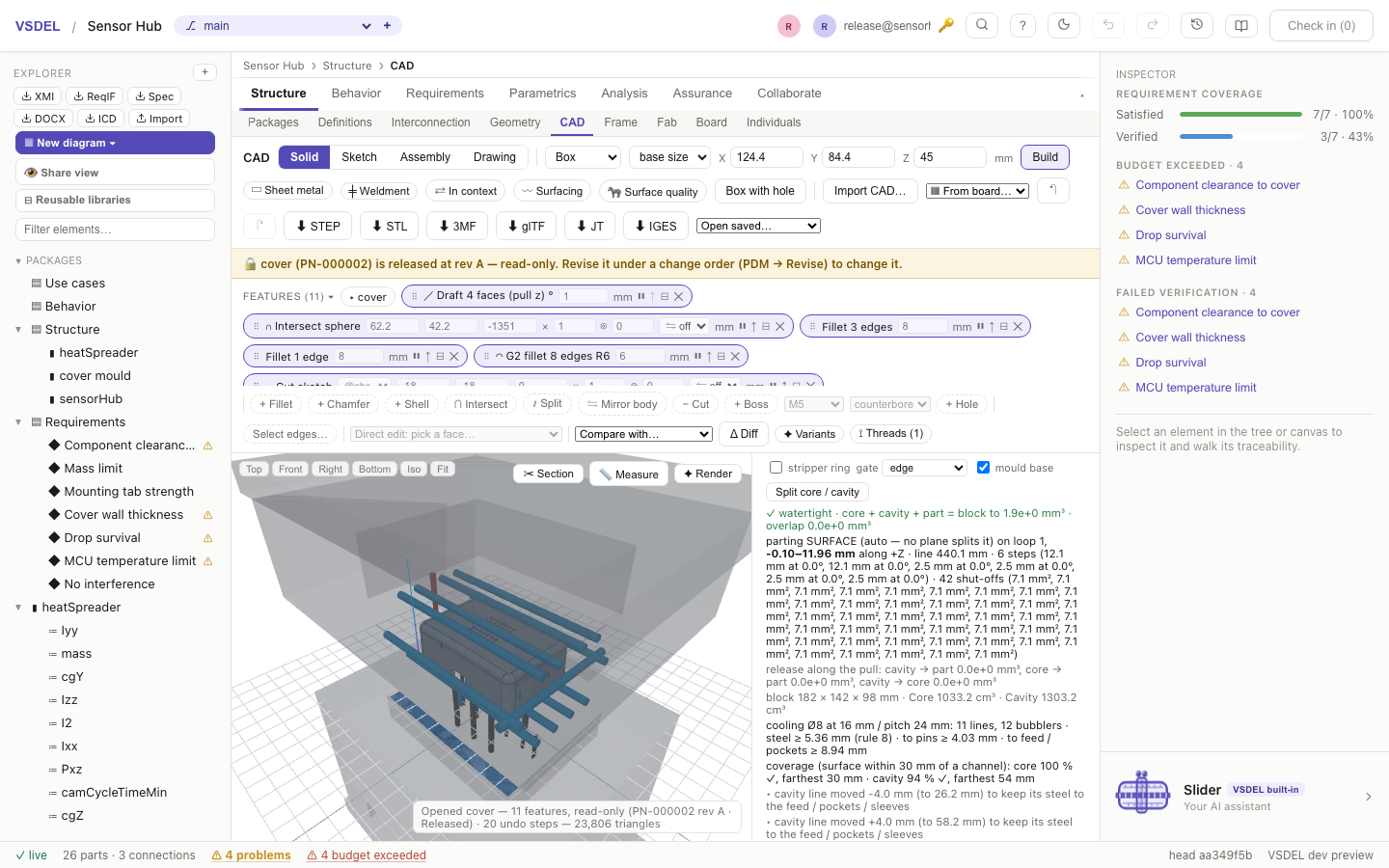
Split core / cavity finds the parting level automatically (or takes yours), shuts off through-holes with patches or stepped shut-offs, and splits the block. When no flat parting plane works, it runs a non-planar parting surface off the part's silhouette, holding every step to the minimum shut-off angle you set (3° by default). Every split is validated: the tool bodies are valid and closed, they don't overlap, they add back up to the block, and every side action and both halves must release. A tool that can't release fails with the reason.
Then the panel lays out the tool:
- Gate (edge, sub / tunnel or pin-point) and runner.
- Cooling: drilled lines, side lines where the faces need them, and bubblers or baffles under any face of the core. A coverage line reports, per half, how much of the moulding surface lies near a channel and flags an UNCOOLED half.
- Ejection: pins on flat or curved core faces (contoured to the face), sleeves round cored bosses and blades on narrow faces, with an optional stripper ring. The layout is checked against the shrink-grip ejection force; if there isn't enough ejector face, Export STEP and Create mould assembly stay disabled and say why.
- Mould base: a parametric base, on by default.
Export STEP writes every tool body. Create mould assembly stages a parent part under the moulded part's package with every body — core, cavity, slides, pins, sleeves, plates — as a realized steel child with its grade (P20 for core, cavity and side actions; H13 for ejectors; C45U for the plates), so drawings and CAM work on each tool part, and marks it as tooling, so a TPM measuring the product leaves it out. If the part already has a mould assembly, it asks whether to Update it (its old tool bodies are replaced) or Add another. The estimate row's Bind stages clampTonnage, coolingTimeS, cycleTimeS, fillTimeS, injectionPressureMPa, shotVolumeCm3, shotMassG, mouldMinDraftDeg and mouldUndercutAreaMm2, and after a split an indicative cost estimate: toolingCostUsd and pieceCostUsd (±50 %, on unverified tooling coefficients). After a valid split with ejectors it also stages ejectionOk and ejectorAreaMm2, each recording how it was obtained. The DFM draft check binds separately, with its own Bind beside Analyze draft (see DFM checks).
Threads. A modelled internal thread can't be released by a slide or a lifter, so the split refuses it at once and names the options. Set modelled threads to mould a cored hole (thread-forming screw) to mould a plain pilot hole instead, 0.8 × the thread diameter (Ø2.4 for M3) and as deep as the tap drill (the panel warns that the tool then makes a different part from the one designed), use a heat-set or ultrasonic insert, or make the thread cosmetic.
Limits. The fill, cooling and clamp numbers are a first-order estimate, not a flow simulation: no flow front, packing, warpage or fibre orientation, on representative material data. A parting surface follows a loop of the part's edges, so a silhouette across the middle of a curved face (a tilted cylinder, an ellipsoid) parts only on a plane; there is one parting surface per tool and no shut-off lands away from the part. Side actions move along block axes as axis-aligned boxes; angled slides and lifters aren't modelled, and there are no unscrewing or collapsible cores. Cooling lines are straight drilled lines and bubblers, not conformal or a connected circuit, and the coverage figure is geometric. Ejector pins go on faces within 20° of square to the pull, blades are straight bars, the stripper ring is built only with a parting plane, and pin buckling isn't checked. The gate location is rule-based, and the mould base has no pillars, bushes or screws. Agents can run the same split with the cad_mould MCP tool.
Additive, lattices and DFM checks
Print prep
Print prep (right column) prepares a part for printing. Choose a build direction or press Optimise, which searches the six axis directions and 64 more for the least print time, generated support volume and build height, and names the runners-up. Set the overhang limit, and Analyse for overhang area, support footprint and volume, and build height. Generate supports builds block supports (support vol is the generated columns' volume — what the supports STL holds and what binds); Slice previews layers and estimates print time and material for an FDM or SLM process (layer height, infill). Generate lattice fills the part with a gyroid or Schwarz P lattice at a cell size and wall thickness; the bound density is what the generated lattice actually holds. Where the grid is too coarse for a thin wall, the lattice regenerates finer by itself, within a size budget, and says so; if it can't, it says the lattice is under-resolved. Download Supports STL ↓ and Lattice STL ↓; Bind → stages supportAreaMm2, printTimeH, printMassG, latticeRelDensity and more. For the part itself, the toolbar's ⬇ 3MF and ⬇ STL export a watertight mesh, with coincident vertices welded.
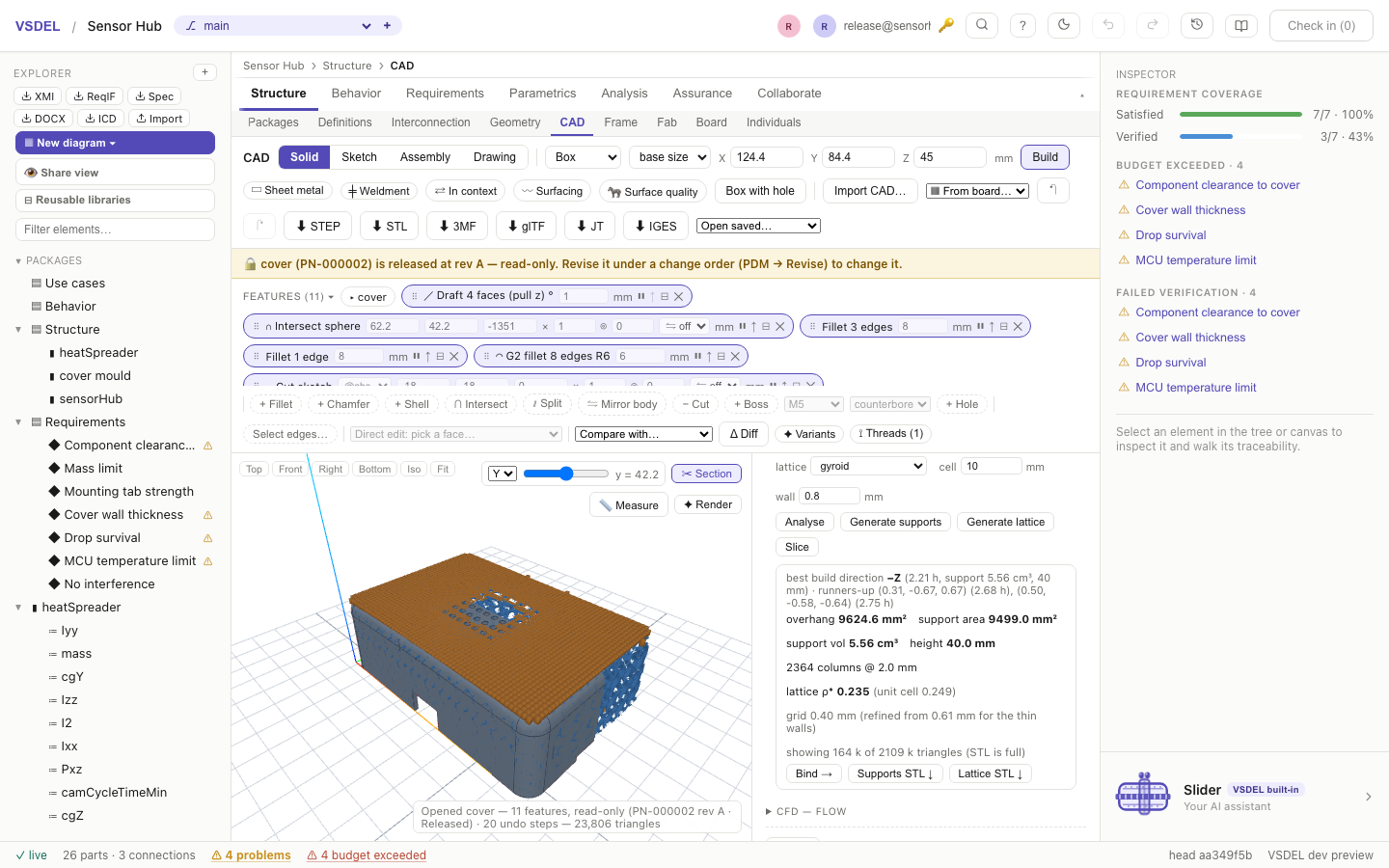
DFM checks
Three checks colour the part. Analyze draft reads the minimum draft about a pull axis, and ◐ Show on part paints green ≥ 1°, amber below. Analyze thickness maps wall thickness (red thinnest, blue thickest) with an area histogram, lists the five thinnest spots with their coordinates (click one to mark it on the part), and re-measures them exactly on the solid. Modelled threads are left out of the map (grey) and reported on their own line, because a thread crest is a knife edge, not a wall; make the thread cosmetic to check the wall round it as a plain bore. Find undercuts shows the faces two tool halves can't see along the pull. The draft check has its own Bind, which stages minDraftDeg; the wall and undercut Bind stages minWallMm and undercutAreaMm2.
Limits. The print estimate is an estimate, not a slicer's toolpath, and supports are blocks, not trees. Optimise ranks every direction on a coarse slicing first, so a direction that scores poorly there is never re-checked. The viewport shows a lighter lattice preview; the STL export and the bound density use the full mesh. Undercut checks, and any thin spot that doesn't verify as a wall on the solid, are as accurate as the part's tessellation.
PDM — revisions, change orders and release
Every Link to part saves a new version of the part's CAD document. ⛁ PDM (under Link to part, in Assembly mode for the assembly in view, or from the PDM lens) manages those versions as one item, named after the model part: a part number (automatic or typed, unique in the project), properties, a lifecycle state, and revisions (A, B, C… skipping I, O, Q, S, X and Z; or A–Z; or 01, 02…), each collecting the versions saved while it was open as iterations A.1, A.2….
The default lifecycle is In work → In review → Released → Obsolete; a project admin can define another, with a minimum role per transition. To leave work, the part must be checked in.
Releasing a part
- New change order: give it a title, the reason and what changes (optionally link a model review), then Raise and Submit it.
- Move the part from In work with Submit for review.
- Reviewers Approve or Reject. Approval needs the required number of distinct people, never the author, and it approves the exact iteration it saw: save again and you need a fresh approval. A linked model review can count as one approval when it is about this exact document and its approver is neither author.
- Release freezes the approved iteration as the revision's document and marks the change order implemented, in one step.
One change order can cover an assembly and its parts (include sub-parts): one approval, and Release moves them all together. The PDM lens (Collaborate → PDM) lists every part, every change order, and what awaits your approval; it flags items whose part is gone from the model and offers Retire (never-released items), Withdraw and Reinstate. Cancelling or rejecting a change order asks for a reason and withdraws the revision it opened: the part returns to its last released revision, and anything saved under the withdrawn revision stays in history.
A released or in-review part is protected by the server against every writer — the lens, MCP, the raw API and agent tokens: no new version, no change to any of its documents, its number or properties, no model change that re-points how it is realized, and no change to its model content — its attributes (including the CAD-derived mass and analysis results), binds, mates and sub-parts. The lens opens it read-only, with a banner saying it is released at rev X. To change it, Revise under a change order: a new revision opens in work, and releasing it supersedes the old one.
Check out takes the part's model lock so nobody else can change it, save a version or move it through the lifecycle; checking in the model releases it, and an admin can break it. Where used lists, per revision, the parts it realizes, the assemblies above it to the top, their drawings, and the parts that reference its geometry, with out-of-date flags. Every action is recorded in the item's history under your signed-in identity.
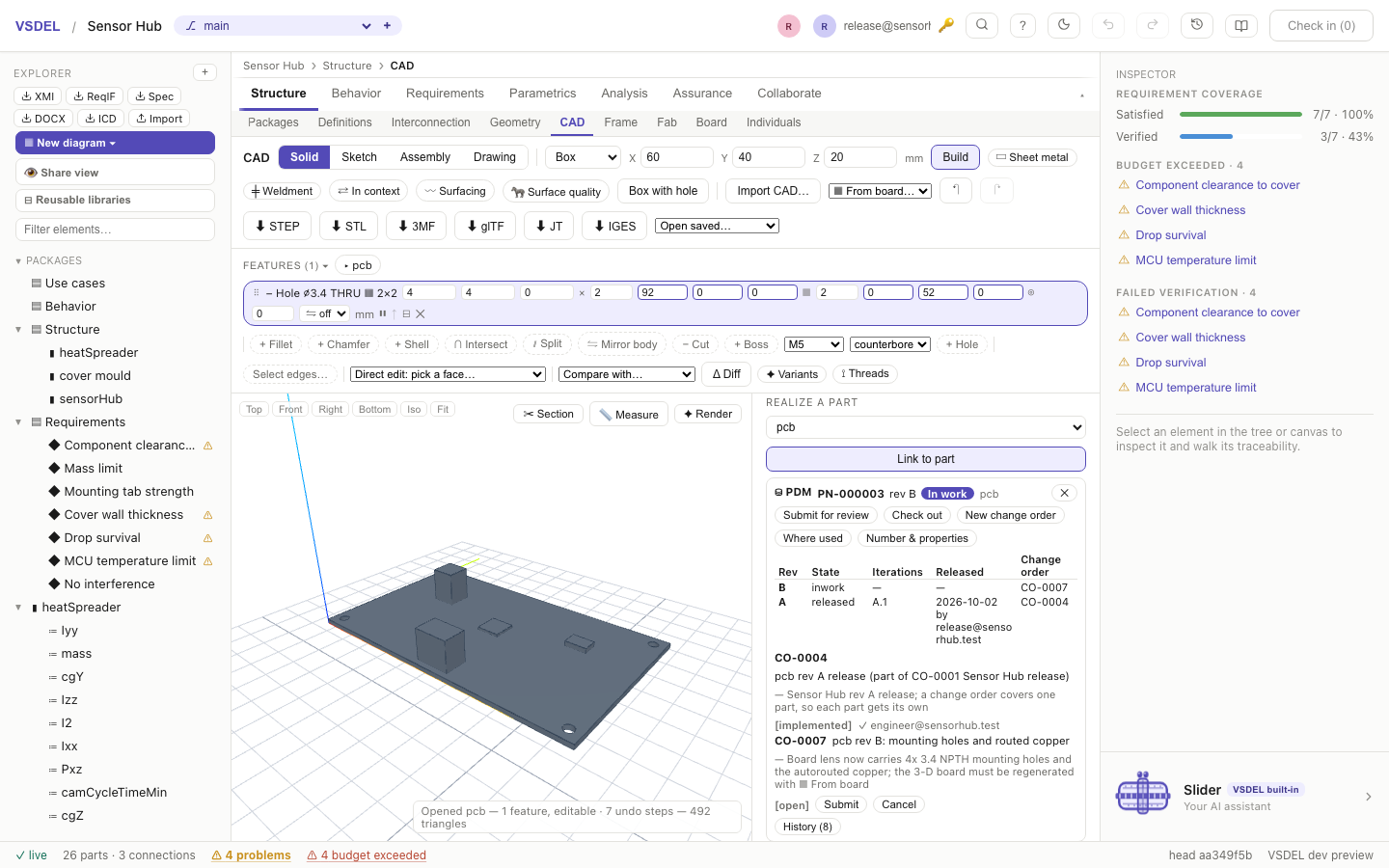
Limits. PDM is project-wide, like a vault, not per branch; which version a branch realizes is still the model's realization link. Agent tokens can read PDM but not change it: pdm_propose only stages a proposal as a comment, which shows in the check-in drawer (the PDM panel doesn't list proposals yet), and an agent's upload of a managed part becomes an iteration only when a person saves it. On a self-hosted install behind an auth proxy, a model review opened before the identity upgrade doesn't count as an approval; approve on the change order instead.
Rendering
✦ Render opens the render studio over the whole lens: a progressive path tracer that refines while you look. Drag to orbit, shift-drag to pan, scroll to dolly, and click to pick a part, a face or the focus point.
- Appearances: 38 physically based appearances — anodised, brushed and polished metals, plastics, rubber, glass, carbon fibre, solder mask, paints, emissive LEDs and displays. Each part's engineering material maps to a sensible default, and you can override per part or per face.
- Environment: a procedural studio, a physical sky + sun (clear or overcast, with time-of-day presets), six bundled photo environments, a uniform clay light, or Your own HDRI file…, read in the browser and never uploaded.
- Scene: a shadow catcher or reflective floor, a solid or transparent background, up to 8 lights, depth of field with click-to-focus, tone mapping, and the assembly's explode.
- Denoiser: AI (WebGPU) is the default for finals and the still preview; Edge-aware is the non-ML filter that runs wherever WebGL2 does. When the browser has no WebGPU adapter, the studio says so as it opens and uses the edge-aware filter.
- Output: Render a final at 720p to 4K or a custom size up to 8192 px, to a sample count or a time limit, then ⬇ PNG (with transparency if you chose it). Render turntable records video (WebM) or a PNG sequence in a zip. Files are named after the part, or the assembly in Assembly mode (sensorHub_turntable.webm).
The whole set-up — environment, lights, camera, appearances — is a model element on the part or assembly, so it versions and shares with the model. An HDRI's pixels aren't stored, only its name, so the studio asks for your file again.
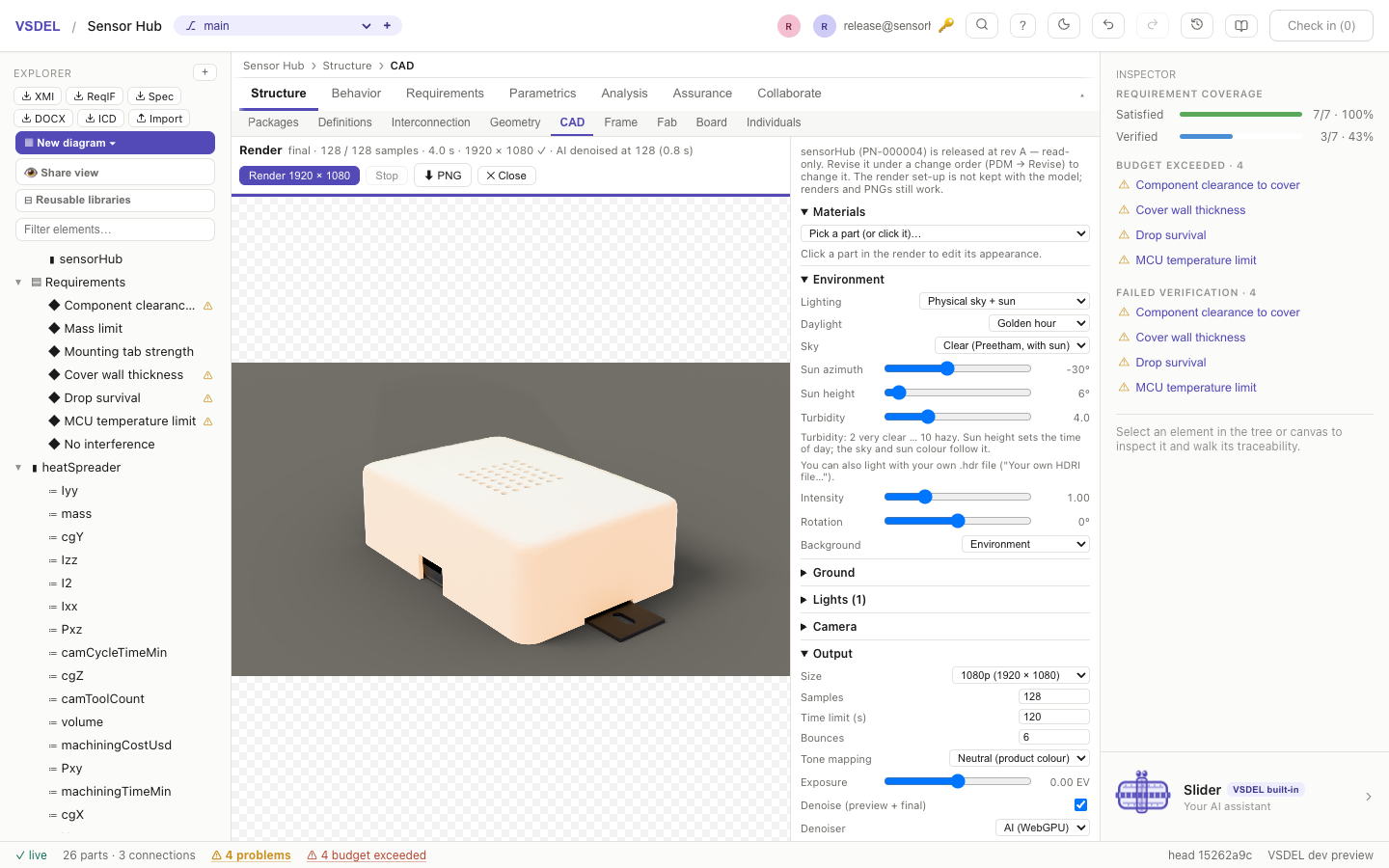
Limits. The AI denoiser needs WebGPU in a secure context; without it the studio says so up front and uses the edge-aware filter. On very fine procedural texture (weave, knurl) at high sample counts, the edge-aware filter can look better: choose it for that close-up. Turntable frames are denoised one by one, so the AI result isn't temporally stable. There are no caustics (a lens casts no focused spot), the sun disc isn't visible to the camera, emissive parts light their surroundings noisily, and rough glass loses some light to the bounce limit. WebM files often lack a duration header; some editors want a remux. Decals aren't supported.
Board — PCB layout, routing and fabrication
The Board lens (Structure pillar) lays out a printed-circuit board on the same model your other views share. Pick a board part from Choose a board part… (the list shows the parts that look like boards; tick show all for every part). Its child parts become the components you place, and the connections between them draw as a live ratsnest. When the placement is right, Route copper here… adds a layer stack-up and opens the Copper panel, which takes the board through routing and checks to fabrication files.
When to use it. Use the Board lens to design a PCB inside the systems model, while the electronics are still tied to requirements, mass and cost: placement, a netlist built from model connections, constraints and impedance, routing, manufacturing checks, a costed BOM and the fab package. Boards from KiCad, Altium, Eagle, PADS, IPC-2581 and ODB++ come in, so you can also pick up a design from a dedicated ECAD tool. Analysis of the routed copper has its own chapter (see Signal and power analysis), as do the Schematic, Harness, RF, FPGA and Package tools.
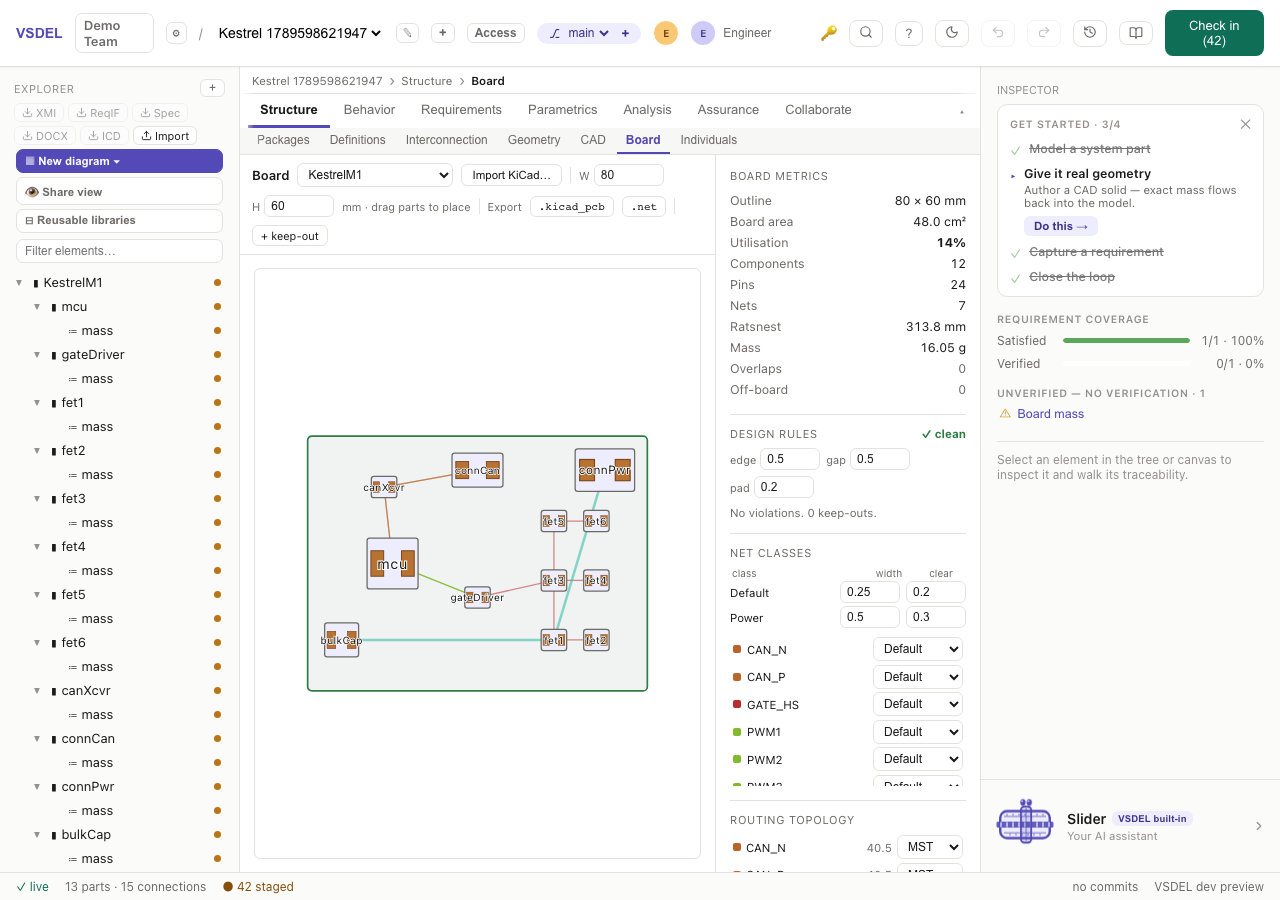
Boards and import
Import KiCad / Altium / Eagle / PADS / ODB++ / IPC-2581 / EDIF / IDF / IDX… brings in a board's outline, stack-up, placed parts with their pads, nets and, where the file has it, copper. It reads KiCad .kicad_pcb / .net, Altium .PcbDoc, Eagle .brd, PADS ASCII .asc, IPC-2581 (.xml / .cvg — Allegro, Xpedition, PADS and Altium all export it), ODB++ jobs (.tgz, .tar, .zip), EDIF, IDF and IDX. Export writes .kicad_pcb, .net, IDF, IDF 4 and IDX; Interchange has the table.
W and H set a rectangular outline; a shaped outline with cut-outs comes in by import. + hole adds a mounting hole (M2 to M4, NPTH or PTH) with a washer keep-out; a plated hole takes a pad and a net. + keep-out adds a placement keep-out for the top, the bottom or both.
Placement
- Move and turn: drag a part, or type X, Y and rot (degrees counter-clockwise from the top) in its inspector; ⟲ 90° turns it and side flips it to Bottom.
- snap lines a dragged part up with other parts' edges, centres and pads, else the grid; hold Alt to drag freely. push makes it shove the parts in its way, which push the next; a locked part or the board edge stops it.
- Groups: shift-click parts, then align (⇤ left, ↔ centre, ⤒ top…), distribute ↔ / distribute ↕, ⟲ 90° each, or Arrange them as a grid or a ring in reference order.
- Auto-place places the selected group, else every part not locked, by its connections: parts pull toward the pads they connect to, decoupling capacitors toward the power pin they serve, then settle inside the edge clearance, courtyards apart and clear of keep-outs and holes. Choose the board or a room, tick turn parts for quarter turns, and press Place.
- Rooms (+ Room in the Copper panel) are rectangular rule scopes with their own clearance and track width. The DRC, router and auto-place honour them.
- Reuse: Save block saves a group's placement and routing as a
.vsblock.json; Place block… places one with the selected part as its anchor. Replicate onto copies a routed group onto another channel's matching parts, and Lay out N channels like this does it for every channel of a multi-channel sheet.
The right column shows Board metrics (utilisation, pins, nets, ratsnest, rolled-up mass, overlaps), Design rules (courtyard edge, gap and pad limits, findings live as you drag) and Layers & vias (est.), a pre-routing estimate of the layer and via count.
Footprints and padstacks
- Footprint picks from a starter library (chip, SOIC / SO, TSSOP, QFN / TQFP, SOT, headers, connectors, radial capacitors, mounting holes) or Generic (box). Each entry shows its IPC-7351 name.
- Load footprint… takes a footprint from a KiCad
.kicad_mod, Altium.PcbLibor Eagle.lbrlibrary, with its real pads, courtyard and 3-D model path. - IPC-7351 wizard… builds an IPC-7351B land pattern (nominal density) for chip, gull-wing and QFN parts from the datasheet's terminal dimensions; Apply to … puts it on the part.
- Edit pads… opens the Footprint editor: edit each pad's shape, size, drill and angle, add pads with + pad or as arrays, renumber them, and Apply to part; it flags overlapping pads and thin annular rings.
- Padstacks: a through-hole pad can have different top, inner and bottom lands (from KiCad, Altium, ODB++ and IPC-2581). The lens draws the land of the layer you're routing, and the DRC, pours and outputs use each layer's own.
- Pads → nets · pin type lists the selected part's pads with their nets; Pin assignment lists model connections not yet on a pad, so you can pick it.
Nets, classes and constraints
Each connection, interface or flow between two parts on the board becomes a pad-to-pad link, and links merge into nets. Double-click a net to rename it; two differently named nets joined by a connection are reported as a short. Electrical rules runs the ERC on the board's netlist (see Schematic).
- Net classes set a width, a clearance, an optional neck width (allowed within 1 mm of the net's own pads) and a clock MHz; power rails are classed automatically. Routing topology sets each net to MST, Star or Daisy.
- Length matching finds pairs and buses by name; + group adds your own, ± sets the tolerance, and a group's target sets a route-to-length goal. Skew shows in mm and, from the stack-up, in ps.
- Constraints holds constraint sets (+ set): impedance (Z0 Ω ±%), length (len ≤ mm, ≥), delay ≤ ps, a match group within ± ps, vias ≤, stub ≤ mm, topology (daisy chain with a pin order, star, T), allowed layers, a pair's uncoupled length and phase, a parallel-run budget, the return path (over a gap ≤ mm, stitch ≤ mm) and via gap ≥ mm. A set can extend another (inherited values show greyed). Under assign:, give sets to every other net, pairs, classes or single nets.
Once there's copper, the constraint table checks each net against its set, ✓ or ✗ per rule; click a ✗ to mark the spot. The sets also drive the autorouter: each net stays on its layers, daisy chains, stars and T-points route in order, nets with a return-path rule seek their reference plane, and short nets and match-group members are tuned up to length.
Stack-up and impedance
Stack-up starts from 2L, 4L, 6L or 8L. Copper layers have a weight (oz), a role (signal, plane, mixed) and a preferred routing direction; dielectrics are core or prepreg with thickness, εr and tanδ. Impedance (IPC-2141) turns a target Z0 or Zdiff on a layer into a width (and gap), delay and loss in dB/in. Field-check solves the real cross-section with the 2-D field solver and Refine by field bisects the width to the target; Apply to class (or Apply field-solved to …) writes it to a net class.
Interactive routing
Click a layer to make it active (double-click hides it), then pick Select, Route or Tune; the mode buttons beside them change how a route behaves.
- Route: click a pad, move, click to lay track, and click a pad or track of the same net to finish. V drops a via and switches layer, Backspace undoes a leg, Esc stops. Each leg is checked against the exact copper as it's laid.
- Push & shove: the head goes where you point and other nets' tracks are pushed aside, cascading, keeping clearance and 45°. Vias in the way move, a pair is pushed as a pair, and V shoves on every layer. / flips the bend. When it can't push, it walks round and says why. With Select, drag a track sideways and its neighbours are shoved.
- Walk around: nothing moves; the head hugs each obstacle along its clearance, pulled taut. any angle gives straight runs between corners instead of 45°.
- Pair (on by default): a route started on a differential pair's pad lays both nets from one cursor at the coupled gap. [ / ] change the gap, N necks down, and a click near the far pads finishes both.
- Arcs lays corners as tangent arcs at radius r; Round rounds settled copper (the selected run, else the layer). Tidy pulls settled lines taut at 45° round what's there; ends never move.
- Tune: point at a routed track and a serpentine is previewed, sized to what the net is short of (its constraint minimum or match target), with a length gauge. S cycles trombone, trapezoid and sawtooth, [ ] set the amplitude, - = the bump count; a click lays it, DRC-checked. A pair's coupled run is tuned as a pair.
Undo (⌘Z / Ctrl+Z) steps back through copper edits; Delete removes the selected item; Unroute … clears a net.
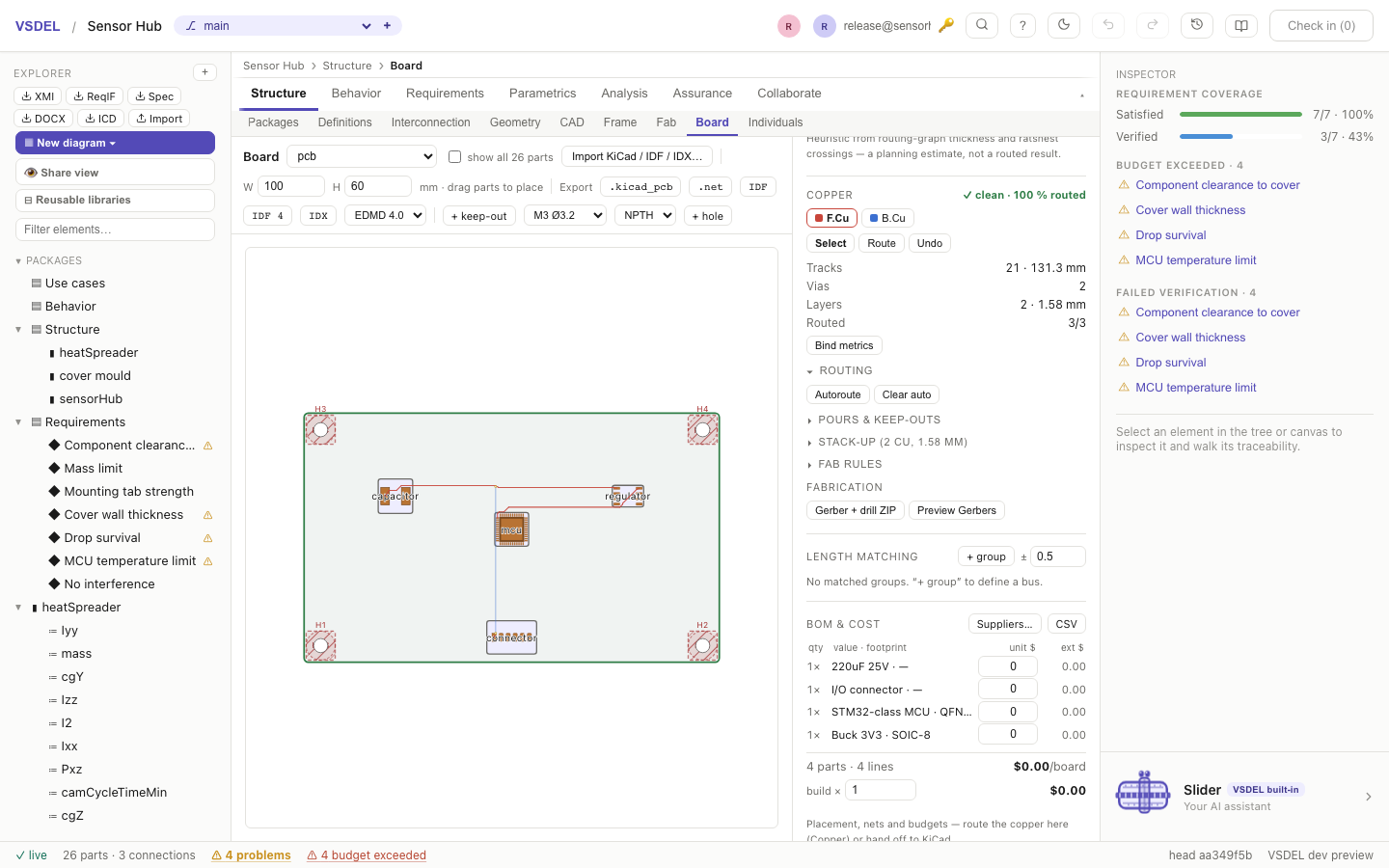
Autorouter
Autoroute routes in a background worker with rip-up and reroute, and follows the constraint sets. Differential pairs go first, coupled (through a via pair where they must change layer), then everything else round them, then the pairs are phase-tuned. Stop (keep routed) keeps what's done; Clear auto removes only autorouted copper. Tick optimise, or press Optimise later, to cut vias, re-route the worst detours and tighten every line — DRC-checked, leaving hand-routed copper, pairs and planned nets alone. Route pair and Phase tune work on one pair; Tune under Length tuning meets a group's target.
Vias, pours and fanout
- Pours: pick the net, then draw it — Pour (P) on the copper tools: click each corner on the board and the first one again (or Enter) to close it; Backspace takes back a corner, Esc cancels. It fills at once on the active layer. Click a pour's fill or outline to select it and its corners show: drag one to move it, drag an edge's midpoint to add a corner, drop a corner on its neighbour to remove it, or click a corner and press Delete; the Pours section lists every corner's x / y to type. Corners land on the snap grid when it's on. + Pour on … still adds a board-sized rectangle, and Fill refills. Set priority, clearance, pad connection (thermal, solid or none) with gap and spokes, minimum width and keep islands; tick hatched for a cross-hatch. + Cu keep-out blocks tracks, vias or pour per layer.
- Fan out pads drops a via beside each SMD pad of the pour net; Stitch stitches its pours on a grid; Return vias adds a plane-net via within 1.27 mm of each signal via that changes reference planes.
- Fan out BGA gives each inner ball of an area-array part a dog-bone via, leaving escape rings to route on the surface; in pad puts the via on the ball for fine pitches.
- Teardrops adds fillets where tracks meet pads and vias. Through-via stubs can be back-drilled with the back-drill tick in Signal integrity. Blind, buried and microvias from an imported board are checked for aspect ratio, and microvias against the laser drill minimum.
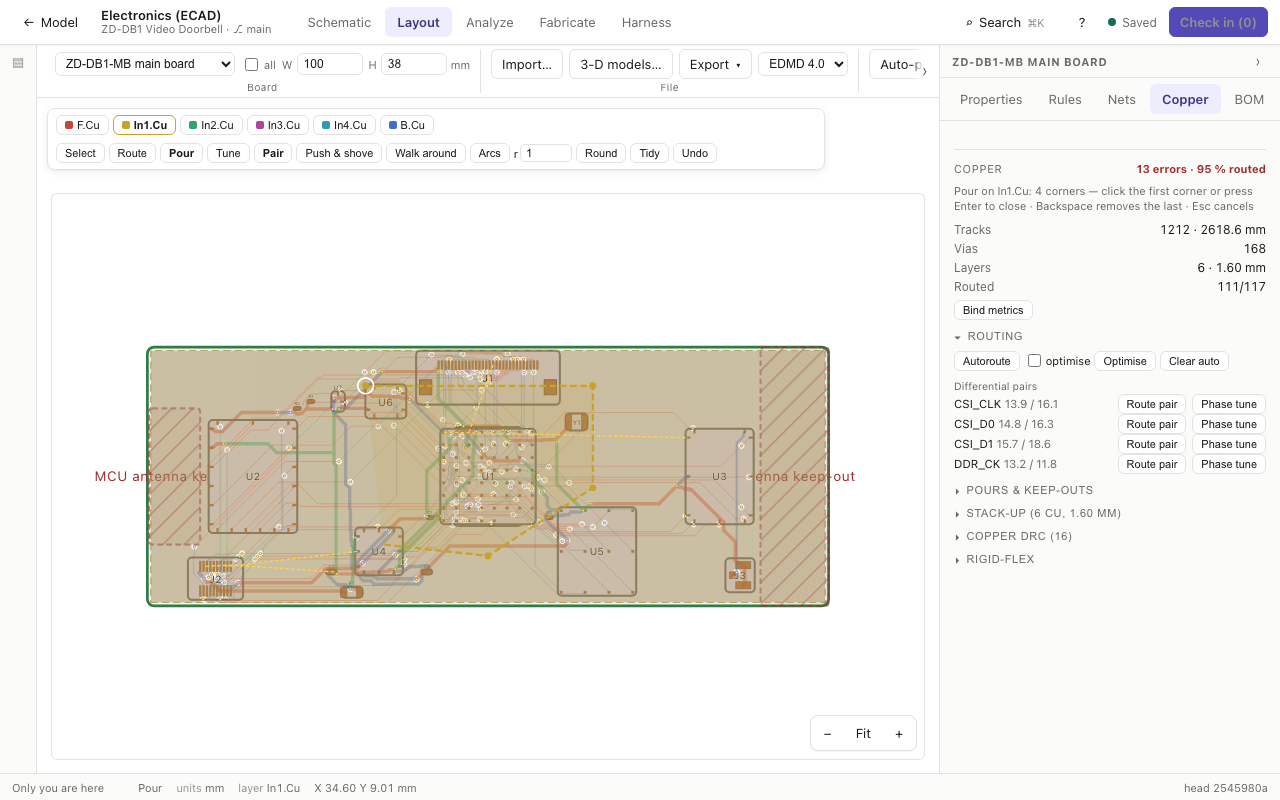
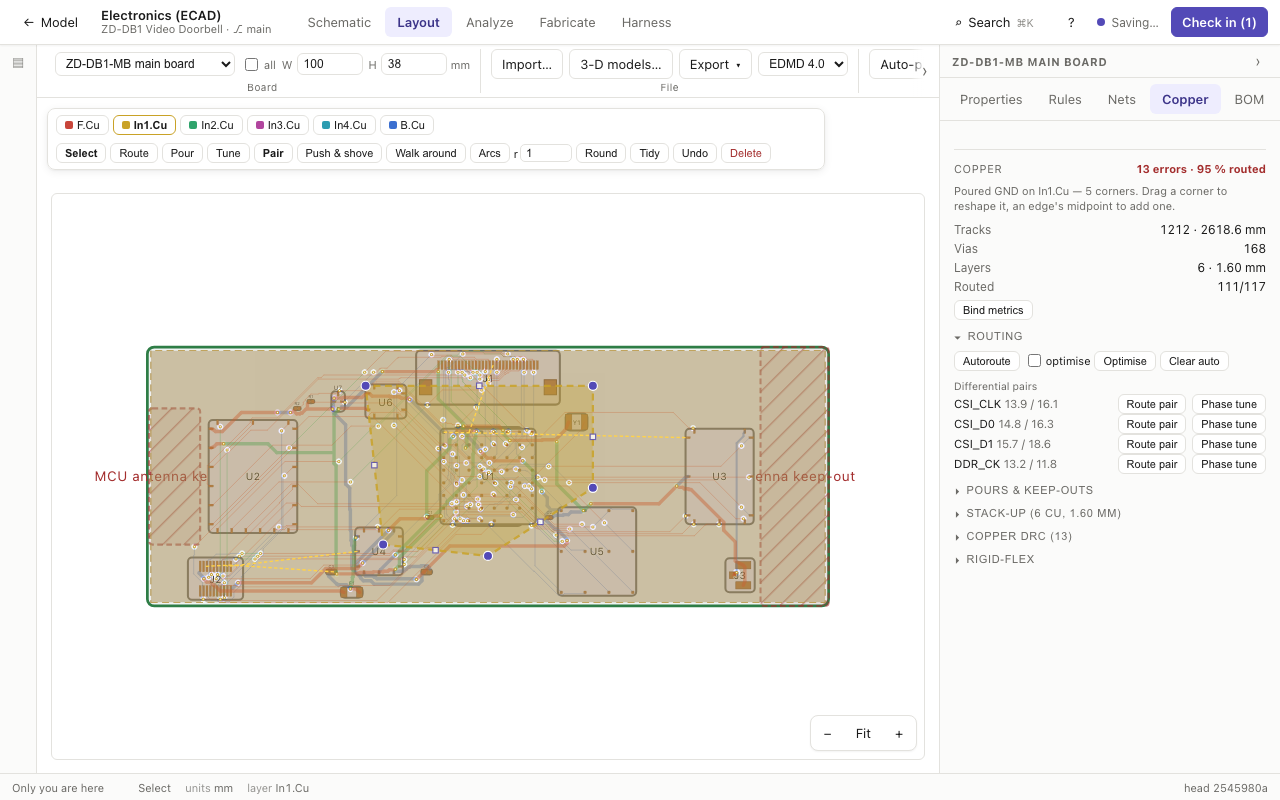
Each tool refills the pours and DRC-checks its result. Flex boards are described under Rigid-flex: regions, bends (with copper strain and flex life) and stiffeners, checked against IPC-2223 and folded in 3-D.
Checks
- Copper DRC: clearance and shorts between tracks, pads, vias and pours; track width against the fab minimum and the class; drills, annular rings and aspect ratios; hole-to-hole; copper near non-plated holes and the edge; keep-outs; dangling ends; stale pours; and unrouted connections. Click a finding to mark it and zoom the board to it.
- Mask & legend: mask slivers, legend over pads or off the edge (the legend Gerber is clipped clear of mask openings).
- Manufacturability (DFM): acid traps, copper slivers, starved thermals, copper balance, tombstoning, fiducials, test-point access and via-in-pad — tick Vias filled and capped when they are.
- Assembly by height (in Design rules): max ↑ / max ↓ limit part height per side, a keep-out with a height is a ceiling, shadow 1: checks short parts beside tall ones, and parts near a BGA are flagged for rework.
- Fab rules: the limits (min track, min clear, via Ø, annular, aspect and more) and a fab deck — economy, standard class 2, HDI or class 3, or Import deck… for your house's. The deck lists what it can't build as drawn; Apply deck rules makes the DRC and DFM check against it.
Fabrication outputs
- The fabrication outputs ask first when copper DRC errors are open or connections unrouted — a fab builds exactly what the files say.
- Gerber + drill ZIP: RS-274X X2 for every copper layer, mask, paste, legend and profile; Excellon (plated, non-plated, per blind / buried span, back-drill); pick-and-place CSV; IPC-D-356 netlist; Gerber job file. Stale pours are refilled first, and open DRC errors are named.
- IPC-2581 (rev C) and ODB++ (8.1) write the single-file hand-off; Drawings PDF writes an A3 fab drawing and an assembly drawing per side.
- Preview Gerbers reads the files back and draws them layer by layer.
- Panel… arrays the board with rails, fiducials, tooling holes and tabs with mouse bites, and coupons adds a TDR coupon per impedance-controlled class. Preview and Panel ZIP run the Panel DFM: panel size, rails, sensitive parts near tabs, copper near mouse bites, overhangs, tab spacing and utilisation.
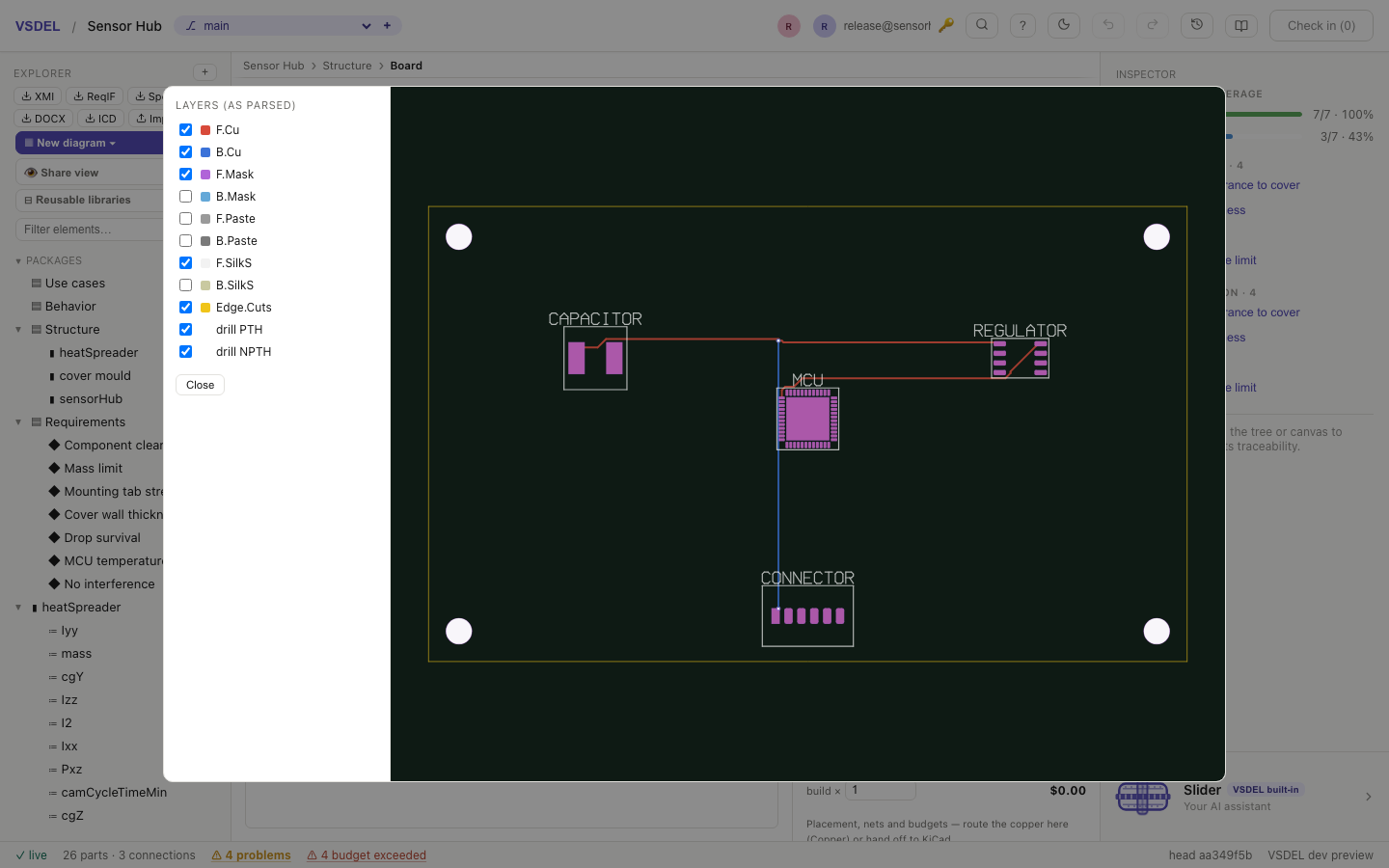
3-D models and the enclosure
3-D model… puts a STEP model on a part (and every part like it), placed as KiCad places it, with editable offset and rotation; 3-D models… matches a folder of STEP files to the board's footprints. Model library matches the team's library models to parts without one (Assign), and Save model to library adds one. A model edited in the CAD lens (Save 3-D model) updates every part sharing it, and the Model library offers Push to library or Update when the copies differ.
In the CAD lens, ▦ From board… builds the 3-D board — the outline at its thickness with holes, pins, slots and vias drilled, each part's model or envelope, and outer copper as foil — ready to assemble into an enclosure. The board-fit row binds boardEnclosureClearanceMm and the Components row binds componentEnclosureClearanceMm; regenerating keeps the assembly's mates.
BOM, variants and review
- BOM & cost groups parts by value, footprint and MPN, with costs per board and per build ×. CSV writes the full manufacturing and purchasing BOM. Type supplier, stock, MOQ and lead time per line, import them with Suppliers…, or, where the server has distributor keys, use Live prices for the best buy per line. Shortages are flagged.
- Variant (+ to add): per part, fitted or not, and its value and MPN in each variant. The active variant drives the view, BOM, pick-and-place, IPC-2581 and drawings; Variants CSV compares them. A DNP part isn't ordered.
- Diff vs draws what changed since a commit; Markup pins review notes (Pin note) with replies and a checklist CSV; Board-to-board checks connectors mated to another board.
What binds. Bind metrics stages copperLayerCount, viaCount, trackLengthMm, routedPct, unroutedConnections and copperAreaMm2, plus emiFindings and emiMarginDb once the EMI checks have run, so min(routedPct) >= 100 can gate release. A board with nothing to route doesn't bind routedPct rather than claim 100 %. The board's mass rolls up from its parts, and Budgets shows the requirement budgets that touch it.
Agents. AI agents connected over MCP run the Board lens's own checks, analyses, placement, routing and exports; whatever they change arrives in your check-in drawer as a proposal.
Limits. Pours are drawn as polygons; copper keep-outs, rooms and the outline are edited as rectangles (polygons and cut-outs there arrive only by import), a pour has no arcs or cut-outs of its own, and there are no negative plane layers. A route starts only from a pad, V drops a through via (no blind or microvia while routing), an interactive pair can't change layer (use Route pair), and width can't change mid-route; placed tracks and vias have no property editor, and selection is one item at a time. The autorouter is a grid router using through vias and won't reach 100 % on dense boards, so plan to finish some nets by hand. Each class has one width and clearance (rooms override locally), with no class-to-class matrix or per-layer rules. The DRC has no waivers or report export, there's no silk-to-silk check, and courtyards are rectangles. Pours come from a sampled field, so large boards keep a slightly wider margin rather than undercut a rule. There's no generic pin or gate swap (FPGA pins only), no Specctra DSN, no native Allegro .brd (use IPC-2581 or ODB++), and Altium design rules aren't imported. The footprint library is a starter set: check each land pattern against its datasheet. The 3-D board doesn't model plated barrels and is one material, FR-4, STEP models included, so component masses aren't modelled; a board with more than 6 000 pin and via holes drills only its mounting holes, and a part with no height and no library body stands 1 mm tall. The built-in fab decks are typical tiers, not a named house's.
Moving around the board
Scroll the wheel to zoom at the cursor; drag empty board (or hold Space, or use the middle button) to pan; Fit (or F) brings the board and every part back into view. Parts can wait off the board in the margin around it — the Off-board count says how many — until you place them. A part's body takes its footprint's size, and reference designators are drawn at silkscreen size, above parts too small to hold them.
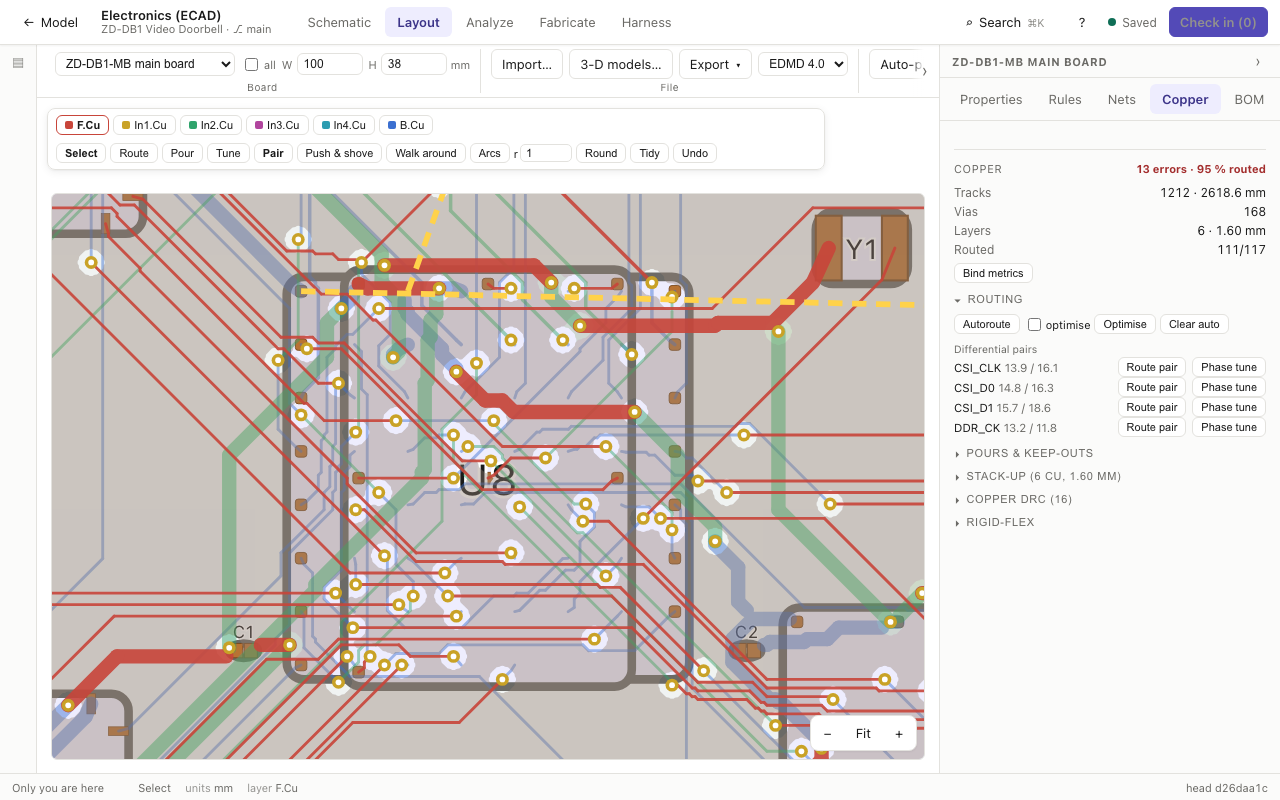
Changing the stack-up to fewer copper layers moves the copper with it — the outer layers stay outer — and asks before removing what was routed on inner layers the new stack-up doesn't have; analyses made on the old stack-up clear. The copper header reads ✓ passes · N warnings while warnings remain.
Schematic — the electrical view of the model
The Schematic lens (Structure pillar, beside Board) draws the model's parts, ports and connections as an electrical schematic. It isn't a separate document. A sheet is a part whose child parts are its components; their ports are the pins, and the connections between those ports are the nets. A wire on the sheet is the same connection the IBD makes, and a component on the sheet is the part the Board lens places. With one model there's no netlist to pass forward and no back-annotation to run: rename a part or move a pin to another pad, and the sheet and the board both show it.
When to use it. Open the Schematic lens to read or edit a board's circuit the way an electrical engineer expects to see it — symbols, net labels, power symbols, sheets, reference designators — and to run the electrical rule check, annotate, repeat a channel, place library parts, export a PDF or simulate. The circuit stays tied to the requirements, mass and cost in the rest of the model.
Sheets
Any part with child parts can be a sheet: a board, a module, a system assembly. The Sheet list shows them all, boards first. A child part with parts of its own is drawn as a dashed box: double-click it to open its sheet, and use the breadcrumbs to climb back. The sheet part's own ports are its sheet pins, drawn down the left edge; on the board they join nets across the sheet and are never pads. In a project where no part has parts yet, the lens offers to import a schematic instead.
Parts and symbols
A sheet's components are the sheet part's child parts: add them in the model (explorer, IBD or text lens), import them, or place them from the part library. A part's reference is its name, and its value prints below its symbol.
- Generated symbols: a part with no symbol is a box built from its ports — inputs left, outputs right, supplies on top, grounds at the bottom — so every model can be drawn. Pin names read along their pins (on the top and bottom, turned to run up the pin), and each pin carries its number on the pin line. A power or ground symbol on a left or right pin points out along the pin's row, clear of its neighbours.
- Built-in symbols: Auto symbols gives each part still drawn as a box a built-in symbol by its reference and pin count: R, C (polarised when the value or footprint says so), L and FB, D, LED, F, Y, Q (bipolar, or a MOSFET when its ports are G, S and D), J / P / CN / H / X connectors, and a five-pin op-amp. To choose one by hand, select a part and pick from built-in….
- KiCad symbols: KiCad symbols… reads a
.kicad_symlibrary for this session; select a part, filter, and pick its symbol. The symbol is captured on the part, so it travels with the model. Generated goes back to the box. Picking a symbol stages its pin types on any ports that have none. - Multi-unit symbols (a dual op-amp, a quad gate) draw one symbol per unit, all one part.
- Placing: drag a symbol to move it. Click a symbol or unit, then ⟲ Rotate (R, a quarter turn counter-clockwise) or ⇋ Mirror (X, left to right). Positions are kept with the sheet's layout and change nothing in the model; Auto-layout forgets them. Scroll to zoom, drag the background to pan, and Fit to reset.
- No-connect: double-click an unconnected pin to mark it no-connect (an X, its
pinTypenc); double-click again to clear it.
Wiring, labels and buses
Drag from a pin to a pin to connect them (releasing near a pin snaps to it; Esc cancels). That stages a connection between the two ports, as the IBD does. Click a wire and press Delete wire or Delete to remove its connection. The lens routes wires itself: an unnamed net between two pins is drawn as a wire, and so is a named one whose two pins sit close (with its name as one label on the wire); every other net is a label at each pin. Rotate and Mirror stay on the ribbon, enabled once a symbol is selected. Power and ground nets draw as power and ground symbols. Hover a net to light it across the sheet.
- Label…: type a net name, choose global (board) or local (this sheet), and click a pin. A connected pin's net is renamed; an unconnected pin joins the net of that name, so pins with one label connect without a wire.
- Bus…: give the bus as
D[0..7]and click the two symbols. Each member's pins (D0,D[0]orD_0) are connected under its name. Three or more such nets between two symbols draw as one bus. - Class…: pick a net class and click a pin; its net takes the class's width, clearance and routing rules, shown in brackets beside its labels. Classes are defined in the Board lens.
DNP and cross-probing
A part not fitted — by its own dnp or the board's active assembly variant — is drawn faded, crossed through and marked DNP. Board ◫ opens the board beside the sheet: the hovered net's pads (or the selected wire's, or a bus's members) light up, the selected part is highlighted, and clicking a part there selects it. Selection belongs to the model, so the Board lens and the inspector show the same part.
Annotation and multi-channel
Annotate… assigns references across the whole board, through its sheets. Choose the scope (unannotated only (R?, repeats), every reference (renumber) or every part (descriptive names too)), the order (sheet by sheet, as drawn or by place on the board (top, then bottom)) and the numbering (first free number or sheet × 100 (R101, R201 …)). Preview the renames, then Apply stages them. Annotating by place on the board is what other tools call back-annotation.
On a sheet under a board, Repeat… uses it as a channel 2 to 64 times: it copies the sheet's parts, ports, attributes and internal wiring, offsets each copy on the board and annotates the copies sheet × 100. Wire each copy's sheet pins yourself. Edit the master; Sync channels (N) carries its changes to every copy, which keeps its own references and place. A change made only on a copy to what the channels share is replaced at the next sync. In the Board lens, Lay out N channels like this places the copies to match the master.
Symbol editor and parts table
Symbol… edits the selected part's symbol. Drag pin tips on the 1.27 mm grid; add pins with + pin left, right, top or bottom and graphics with + rectangle, + line and + circle; edit a pin's number, name, type, side and length. It warns of repeated or missing numbers, off-grid pins and ports with no pin. Save symbol captures it on the part.
Parts… lists the board's parts (Ref, Value, Footprint, MPN, Manufacturer, DNP, Description). Filter by words (10k 0603) or a field (value=10k), use Select shown or Select similar (same value and footprint), set one field and press on N selected.
ERC
ERC checks the whole board on the netlist the Board lens builds. A pin's type is its port's pinType (in, out, bidir, tristate, passive, power_in, power_out, open_collector, open_emitter, nc), else its SysML direction, else passive. Names are never guessed into types, so the panel says how many pins are typed; the Board lens's Suggest pin types stages types from pin names for you to review. A port flagged netPort: power declares its rail driven.
There are eight rules: pin-conflict, undriven-power, unconnected-power, nc-connected, no-driver, single-pin, duplicate-ref and unannotated. Findings are marked at their pins (red rings for errors, amber for warnings); click one to select its part. Waive… accepts a finding with a reason, recorded with who and when, until the circuit it describes changes; Unwaive brings it back. Rules… opens the pin-conflict matrix (click a cell to cycle fine, warning, error) and each rule's severity (default, error, warning, off). Waivers and rules are stored on the board as staged edits, reviewed and versioned with it.
The part library
Library… lists the parts in the team's library projects (Reusable libraries → This project is a library). A library part carries the whole component: MPN, manufacturer, value, footprint and pads, symbol, typed pins, SPICE model, datasheet, lifecycle and 3-D model.
- Place puts a searched part on the sheet as an ordinary part, everything copied, its reference
R?for annotation. - Update N out of date brings placed parts in line with a changed library part, keeping the design's reference, place, DNP and channel marks.
- Save to library stages a part of yours in a library project for its owners to check in. Where used shows which projects place each part, and which copies are out of date.
- Lifecycle: click a part's name to see its history and stage its next step (Preliminary, Active, NRND, EOL, Obsolete) with a note and a replacement. Stage puts it in the library's change set; Route for approval opens a review for named approvers, who Approve it before Merge. Placed parts that become at risk are flagged, and Replace swaps in the named successor, keeping the wiring by pad.
- Refresh supplier data (servers with distributor keys) stages RoHS, datasheet and manufacturer on library parts by MPN, and proposes any lifecycle the distributors report (Take as a step).
Import and PDF
Import schematic… reads KiCad 6+ .kicad_sch, Altium .SchDoc (pick a project's sheets together) and Eagle / Fusion Electronics .sch. Each reference becomes a part with a port per pin (pad its number, pinType from the symbol) and its symbol captured; each net becomes named connections. A KiCad sheet also brings its simulation fields. The import is staged for Check in, and a note lists what was skipped. EDIF netlists import through the Board lens.
PDF writes the board's sheets as one PDF, a page per sheet in an ISO frame with the project's title block (name, revision, author, date), unfitted parts marked DNP and junction dots where three or more wires meet. Agents over MCP can use schematic_import, schematic_annotate, schematic_erc and schematic_simulate.
Limits. The sheet is drawn from the model: you connect pins pin to pin or by label, but the lens routes the wires. You can't bend or drag a wire, place a junction (dots appear only in the PDF), add free text or graphics, or copy and paste. Sheet pins aren't wired on the sheet; connect them in the IBD or text lens. Parts are added and deleted in the model or from the library, not from a symbol palette. Imports keep parts and nets but not the original drawing — sheets are laid out again. KiCad hierarchical sheets aren't followed (import each file), Altium hierarchy is read flat, and KiCad 5 .sch isn't read. There's no schematic export to KiCad or Altium. KiCad symbol libraries last the session, and none are bundled. The ERC has only the eight rules above — no floating-input, multiple-names, sheet-pin direction or symbol-to-footprint checks — and its counts can't be bound to a requirement. Library search is by keyword only. There's no graphical schematic diff and no comments on the sheet.
Drawing the sheet
The first wire, label or bus you draw pins every symbol where it is: the sheet stays as you draw it (Auto-layout re-flows it when you ask). Wires route around symbols and other pins. A net that any ground pin is on shows the ground symbol at every pin on it.
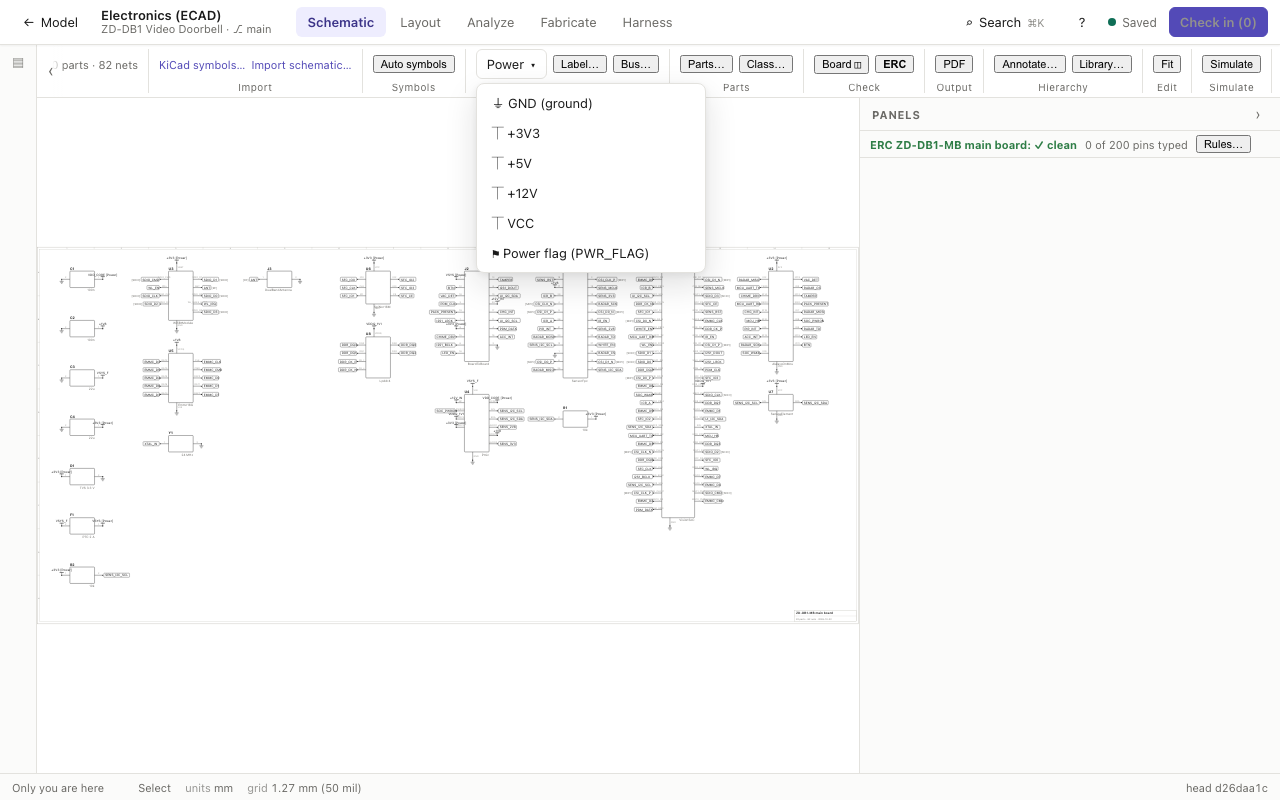
Power ▾ puts pins on a rail — GND, +3V3, +5V, +12V, VCC: pick one, then click pins — or arms the power flag (KiCad's PWR_FLAG): click the pin a rail enters by to mark it driven. The electrical rule check's nothing drives this rail finding has the same fix as one click, ⚑ Flag … as driven. Esc leaves any of these tools. The sheet's frame — zone numbers and letters, and a title block with its name — is drawn on the canvas.
Circuit simulation
Simulate in the Schematic lens opens a simulation panel over the sheet you're viewing. It runs on the sheet's own parts and nets, so there's no netlist to export and keep in step: change a value in the model and the next run uses it. Two engines are available. The built-in solver is instant and needs nothing but values. ngspice is the full SPICE engine, compiled to WebAssembly, served by VSDEL itself and run in a background worker in your browser. It runs real device models, and it works on self-hosted installs too, because nothing is fetched from another site.
When to use it. Use it to check the circuit a systems engineer would check by hand: a divider, a filter's corner, RC timing, an LC tank, a clamp, a transistor stage's bias. Use sweeps and Monte Carlo to see how the result moves with part values, temperature and tolerances. It's a quick check inside the model, not a replacement for a dedicated SPICE seat on a large analogue design.
What a sheet becomes
Each part's kind comes from its reference letter: R, C, L, V and I sources, and D (LED too). Its value attribute is parsed with SPICE prefixes (4k7, 100n, 1meg). A source's value is a DC level (5), DC 5 AC 1, PULSE(…) or SIN(…); its pin 1 (or a port named +) is positive. A diode's anode is its port named A, otherwise pin 2, as in KiCad. Parts that aren't two-terminal elements, or whose values don't parse, are listed as skipped rather than guessed; hover the list to see why.
With ngspice, a part can also carry its own SPICE line in a spice attribute, with its pins as {1} {2} (pad numbers) or {B} {C} {E} (port names) and {ref} for its reference (Q{ref} {C} {B} {E} 2N3904). Its spiceModel holds the .model or .subckt text it needs. That's how transistors, MOSFETs and op-amp subcircuits run.
Analyses
- DC operating point: every node voltage and each source's current.
- DC sweep: a source or a resistor stepped through a range (
0..5/11: start, stop and points, with*logfor log spacing) or a list (0, 1, 2.5). - AC sweep: from a start to a stop frequency, the probed nodes' magnitude in dB and their phase, around the operating point.
- Transient: to a stop time at a fixed step.
- Noise: choose the output node and the input source. The panel reads the output and input-referred noise density, the total rms noise at each, and each part's share. The built-in solver counts resistors' thermal noise and diodes' shot noise.
Tick the nets to probe (the first two are probed by default) and press Run.
Sweeps and Monte Carlo
The repeat row runs the analysis again and again, every run a curve:
- over a part's value: a resistor, capacitor, inductor or source through a list (
1k, 2k, 5k) or a range. - over temperature: a list of °C (
-40, 27, 85). Diodes follow temperature, and resistors follow theirtempcoattribute (100ppmor0.004). - Monte Carlo: 2 to 1,000 runs from a seed, so a run repeats exactly. Every R, C and L is drawn within its
toleranceattribute (1%or0.01), else 5 % for a resistor and 10 % for a capacitor or inductor, from a Gaussian with the tolerance at 3σ. The first run is the nominal one.
Once there's more than one run, the measure row picks a node or a curve and how to read it (final, max, min, or at x = a value), with optional low and high limits. It reports the number of runs, the mean, σ, min and max, and the yield inside the limits, plus each run's value when there are 12 runs or fewer. Sweeps and Monte Carlo work with both engines.
The waveform viewer
Curves open in the waveform viewer, with a log frequency axis for AC and noise.
- Zoom: drag across the plot for an x range; double-click or Reset zoom to see it all.
- Cursors: click to place cursor A and shift-click for B. Each curve's value at both, the difference, Δx and 1/Δx are shown. Clear cursors removes them.
- Measurements: choose a curve. Over the view, or between the cursors when both are placed, the viewer reads min, max, peak-to-peak, average and rms, 10–90 % rise and fall times, overshoot, and frequency. For an AC magnitude it reads the peak, the −3 dB points and the 0 dB crossing.
- Phase shows an AC run's phase in degrees instead of its magnitude.
- Click a name in the legend to hide or show its curve. CSV downloads the visible curves.
SPICE model libraries
With ngspice selected, Model libraries (N) lists the libraries kept on the sheet, and load… adds vendors' .lib, .mod, .sub or .cir files. Each lists its models and subcircuits; a library that includes another file names it, so you can load that too. The files are stored on the sheet part, staged and versioned with the design.
Parts take their models from KiCad's simulation fields: Sim.Device (D, NPN, PNP, NJF, PJF, NMOS, PMOS, SUBCKT), Sim.Name, Sim.Pins (1=C 2=B 3=E), Sim.Params and Sim.Library, plus the older Spice_* fields. A KiCad schematic import brings them. For a part that's still skipped, the model for row lets you assign a model from the loaded libraries; the choice is staged on the part. The deck includes only the cards each part needs.
The netlist
With ngspice selected, Netlist shows the exact deck that will run: nets as safe SPICE node names (ground as 0), the element lines, the model cards and the analysis. Results map back to your net names. Check it when ngspice reports an error, or copy it into another SPICE tool.
What binds
Nothing from a simulation binds to the model. Results, measurements and yields are for reading and export only; no simulation result becomes a derived attribute a requirement can test. What the panel stages is setup: the sheet's model libraries and the models you assign to parts. Agents can run the built-in solver over MCP with schematic_simulate, which takes the same analyses, sweeps and Monte Carlo.
Limits. The built-in solver runs only R, C, L, V and I sources and diodes; transistors, op-amps, controlled sources and anything else need ngspice and a model. Sweeps and Monte Carlo vary R, C and L values and source levels only, not model parameters, and the panel's Monte Carlo is Gaussian. There's no sheet-level SPICE directive text (.param, .meas, .func, .options, coupled inductors); an .include is read only inside a library file. The analyses are the five above: no transfer function, pole-zero, sensitivity or worst-case analysis, no FFT, THD or .four, and no waveform maths. There's no XSPICE or mixed-signal simulation, and no S-parameter or IBIS elements inside SPICE. The built-in noise has no flicker noise. A built-in transient runs at a fixed step and is limited to 200,000 steps. ngspice gives each run 60 seconds, and its DC sweep takes evenly spaced values only. The viewer and its CSV hold about 1,000 points per curve. Results can't be bound to a requirement.
Signal and power analysis
Once a board is routed, the Copper panel in the Board lens analyses the copper you actually laid: how each net's edge arrives at its receivers, what it couples onto its neighbours, what a serial link's eye looks like after loss and equalization, how far each rail sags and rings, and what the board is likely to radiate. Each section (Signal integrity, PDN DC drop, EMI check) opens from its heading and reads the stack-up, tracks, vias and filled pours, so a routing change changes the answer.
When to use it. Reach for it after routing and before release: to find overshoot and the series resistor that cures it, check a DDR byte lane's setup and hold, see whether a SerDes channel opens with the equalization you plan, size decoupling against a target impedance, and catch the layout mistakes that fail an emission scan. It is a post-layout screen; for sign-off on a fast link, run the full-wave project or take the channel to a dedicated SI tool.
Reflections at the receivers
In Signal integrity, choose a net and the part that drives it (driven by), then the driver's output resistance (Ω), the 10–90 % edge (ns), the swing (V), each receiver's load (pF) and any series resistor already fitted (Rs). Simulate treats every routed track as a transmission line, with its Z0 from its width on its layer and its delay from its length, and runs the transient. Each receiver reads its overshoot, ringback, flight time, insertion loss at the edge's knee and settling time, and a false edge when it falls back through 70 % of the swing. When the net overshoots, the matching series resistor is tried and drawn dashed, with the overshoot it leaves. Click a receiver to mark its pad.
lossy (on by default) adds conductor (skin, roughness) and dielectric loss. For through vias the row lists the longest stub and its quarter-wave resonance; back-drill has the fab set drill this net's stubs out.
IBIS buffers and packages
IBIS… reads a vendor's .ibs file. Pick the driver model (an output or I/O buffer with pull-up and pull-down tables) and the receivers model, and a corner: typ, min (slow-weak) or max (fast-strong). The net is then driven by the buffer's I-V tables, clamps, C_comp and ramp, with any [Package] or per-pin R, L and C between die and pad. A package-only file, such as the package designer's, adds just its parasitics. clear goes back to the ideal driver.
Field-solved crosstalk
Crosstalk finds every run where another net runs parallel within 1 mm on the same layer, or broadside on the adjacent signal layer, and solves each coupled cross-section with the 2-D field solver. Each victim reads its backward (NEXT) and forward (FEXT) crosstalk in % of the swing and mV; over 5 % is flagged. Ground and power rails, and a differential pair's own partner, are left out.
Batch SI and crosstalk
Under Batch:, choose every signal net or one net class, set the overshoot ≤ limit (15 % by default) and, if you want it, tick crosstalk ≤ with its limit (5 %). Batch SI runs every routed net from its own IC (else its connector) with the edge set above, and lists failing nets first, with overshoot, ringback, false edges, a suggested series resistor and the worst crosstalk victim. Click a row to load that net; CSV writes the report.
Eye diagrams on lossy lines
Set the bit rate (Mb/s) and press Eye: the net is driven with a PRBS-7 stream through the same model (ideal or IBIS driver) and each receiver's waveform is folded at the unit interval. With lossy on, loss rises with frequency, so the eye shows loss ISI with the reflections. Each receiver reads its height and width; an eye under 30 % high shows red.
S-parameter channels
The Touchstone channel runs a link through an S-parameter model instead of the routed copper. Load a connector, cable or package vendor's .sNp… (Touchstone 1.0, .s1p to .s8p), or after a cloud full-wave run, use the full-wave run. A four-port model opens as differential (set the in P/N and out P/N ports) or single-ended (port → port). Set the driver's swing, edge and resistance (drv) and the receiver's termination and capacitance (rx), then press Eye at … Mb/s. You get the eye, the step response, the loss at Nyquist, delay and DC gain, and a warning when the model fails its passivity or causality check.
Crosstalk in the channel. On a model with more than two ports, aggressors names the other lines driven at once: ports for a single-ended victim (3, 5), pairs for a differential one (5/6, 7/8). The result compares the quiet eye with the eye under the aggressors.
Cut and stitch. For a routed two-pad net (or a differential pair), choose it under or cut & stitch and press Cut. The net is cut at each via: each run is modelled from the stack-up, with loss rising with frequency (a pair from its odd and even modes), and each via by a quasi-static model. Click a via to put a full-wave model of its region (.s2p, or .s4p for a pair) in its place. Stitch → channel cascades the pieces into one channel for the eye, so a channel too big to field-solve whole is extracted piece by piece.
Equalization and the statistical eye
The EQ: row adds the transmitter's and receiver's equalizers:
- FFE (transmitter): off, auto (give the number of pre and post cursor taps; the taps are solved for you) or taps (type them, pre-cursors first, such as
-0.1, 0.7, -0.2). - CTLE (receiver, the IEEE 802.3 Clause 93A form): off, auto (the peaking from 0 to 15 dB that opens the eye most) or dB for a fixed peaking.
- DFE: the number of decision-feedback taps, solved by zero-forcing.
Every run also computes the statistical eye at the target BER (1e-6 to 1e-15), with the receiver noise (mV rms) and random jitter RJ (mUI rms) you give. It reads the height and width at that BER, the best sampling phase and threshold, and draws the bathtub (BER across the unit interval, target dashed). With equalization on, the result shows the eye before and after, and the taps, peaking and DFE weights used.
PAM4 and jitter. Switch NRZ to PAM4 for four levels (Gray-coded, the symbol rate half the bit rate): the statistical eye then reports all three eyes and judges the worst. Add deterministic jitter (DJ), duty-cycle distortion (DCD) and sinusoidal jitter (SJ) in mUI peak to peak, and the result gives the total jitter at the BER (DJ + DCD + SJ + 2·Q(BER)·RJ). With jitter ticked, the received waveform's jitter is split into data-dependent, duty-cycle, periodic and random parts, as a scope's jitter package reports it. scope CSV… does the same for a measured waveform (time in seconds, volts).
IBIS-AMI
.ami… reads IBIS-AMI parameter files and lists each model's role, settings and reserved parameters (Init_Returns_Impulse, GetWave_Exists, modulation). Where a model names its DFE taps or transmitter tap weights plainly, use its … copies them into the built-in equalizers.
A vendor's AMI library is native code, so it never runs on the hosted service, only on your machine or a self-hosted instance. After running the eye, impulse .csv (under vendor AMI (run locally):) downloads the channel's impulse response. Run it through the vendor's model with the AMI runner that ships with VSDEL, clients/python/ami_runner.py impulse.csv --lib <model library> --ami <model .ami>. Add --tx-lib and --tx-ami to chain a transmitter model in front: the link runs Tx Init on the channel and Rx Init on what it returns, and with GetWave the stimulus goes through Tx, the channel and Rx (--pam4 for a PAM4 stimulus). Open what it writes with AMI result…: the -ami-impulse.csv becomes a statistical eye and bathtub at your BER, and the -ami-wave.csv waveform is decomposed into its jitter.
DDR and bus timing
Bus timing: finds a memory bus from the net names: byte lanes (DQ0–7 and DM0 with the DQS0 pair, and so on) and the address and command group with its clock, per channel prefix (DDR0_, DDR1_). Choose a preset (DDR3-1333, DDR3-1600, DDR4-2400, DDR4-3200, LPDDR4-3200 or DDR5-4800) and press Check. Each line's routed delay is compared with its strobe or clock, and the setup and hold left once that skew is spent are listed per line and per group; a negative margin fails. The presets are approximate, so confirm them against your memory's datasheet; the board's busTiming attribute can carry your own spec and groups.
Full-wave openEMS and hosted cloud runs
The Full-wave: row takes the nets (comma-separated), the top of the band in GHz and the reference net (auto or one you choose). openEMS project downloads a ZIP to run on your own machine, air-gapped if need be: geometry.json (the nets' copper and reference pours in a region round them, the stack-up, a lumped port at each pad, the mesh), a fixed sim.py that writes S-parameters and a Touchstone file, and a README.
Where your team allows it, ☁ Run in the cloud runs the same model on a hosted openEMS machine. A team admin turns on Allow cloud solver jobs in Team settings (off by default, because the model's geometry leaves your browser). Every port is excited in turn and the S-parameters come back as a plot with a Touchstone .sNp download, ready for the Touchstone channel. A model over about 30 M cells is refused before sending, a worst case past the 55-minute limit asks for a second click, and a port stopped at the timestep cap before its field died away is flagged.
PDN DC drop
In PDN DC drop, choose a rail, the part that feeds it (from) and its voltage (at). Enter the current per load (U1=0.5, U2=200mA), or a total that is shared over the other parts on the rail (passives excluded), and press Solve. The rail's tracks, pours and via barrels become a resistor network. Each load reads its voltage, drop and current; a load with no copper path to the source is named, and tracks over 35 A/mm² and overloaded vias are listed.
Self-heating (at the ambient you give) iterates the drop with each track's IPC-2221 temperature rise and its resistance at that temperature until it settles. It reads the drop cold and hot, each track's rise and temperature (over 10 °C flagged), and a thermal runaway if a track would fuse first.
AC impedance and decoupling
Set the allowed ripple (%) and the transient current (A step) for the target impedance, and press Impedance sweep. The rail is modelled from 1 kHz to 1 GHz: the regulator as an R–L, each decoupling capacitor with its ESR, ESL by package and mounting loop, the plane pair's capacitance, and the spreading inductance to the load. The chart draws |Z| against the dashed target, shades the bands above it, and marks the plane cavity's modes as dotted lines.
- 2-D plane solves the rail's pour over its reference plane as a mesh, with each capacitor, the regulator and the load in place, so spreading and cavity resonances come from the solve (drawn in orange).
- Optimise decoupling adds MLCCs (value and package) one at a time, each time the one that lowers the worst |Z| against the target most up to 200 MHz, until the rail meets the target or 20 parts are added. The result is drawn dashed in green and listed (+ 2× 100n 0402); you place them.
- Load step runs the same network in time: the current steps on in the rise time (step in … ns) and off halfway through the run (for … µs), returning through the load's ground path (ground … nH). It reads the droop, overshoot on release and ground bounce against the ripple budget, and draws the rail in the waveform viewer.
EMI rules and screening
Run EMI check looks for layout mistakes on the fast nets (clocks, high-speed interfaces, differential pairs, impedance-controlled classes): a track over a gap in its reference plane, a layer change with no return via nearby, a fast net near the board edge, and an IC power pin with no decoupling capacitor in reach. Each finding names the place and the fix.
Screen emissions estimates each clocked net's differential-mode emission from its loop area and clock harmonics against CISPR 32 B, CISPR 32 A, FCC 15 B or FCC 15 A, and reports the worst margin in dB and each net's. Only nets with a clock are screened: set MHz on their class in Net classes.
Board thermal
Board temperatures come from the assembly's thermal solve (FEA → Thermal companions): the board as its copper layers with the routed copper's real coverage, thermal vias, and each package's θJB and ψJT to its junction. For a package you design, the Package panel (below) estimates the die-to-bottom thermal resistance through its die flag and thermal vias, spreading through the substrate.
What binds
Bind metrics in the Copper panel stages emiFindings once the EMI check has run and emiMarginDb once emissions are screened, beside the routing metrics. So emiFindings == 0 or emiMarginDb >= 6 can gate a release. Temperatures bind from the assembly's thermal solve (maxTempC, junction and case). SI, crosstalk, eye, channel, bus-timing and PDN results are shown in the panel but not bound as attributes yet.
Limits. All of it is post-layout: it analyses routed copper, with no pre-layout what-if topologies. IBIS drivers switch by their ramp; Rising / Falling Waveform tables, [Model Selector], [Diff Pin] and EBD files are not used. The reflection run doesn't model via stubs or coupling (crosstalk is its own analysis). Line models assume rectangular traces (no etch trapezoid, no coplanar ground) and Hammerstad roughness, and the stack-up has no material library. Eyes and BER are not judged against PCIe, USB or Ethernet compliance masks, and there is no COM. Bus timing is a static skew budget against approximate presets, with no ODT, Vref or write-leveling simulation. The DFE is ideal (no error propagation). The decoupling optimiser picks values and counts, not placements; the regulator is an R–L with no control loop; and the lumped PDN model doesn't hold at the cavity modes it marks (use 2-D plane there). Self-heating uses the IPC-2221 per-track fit in still air, ignores the board's other heat, and is not coupled into the 3-D thermal solve. EMI is rule-based screening (±10–20 dB): no cables (usually the bigger emitter), near-field, shielding or ESD paths, and no substitute for a pre-compliance scan. A cloud full-wave run is limited to about 30 M cells, 16 ports and 55 minutes. A whole package or connector field-solved in one run is out of scope: cut and stitch covers channels instead.
Harness, rigid-flex, RF, FPGA and packages
The parts of electronics design that sit between the boards and around them: cable harnesses in their own Harness lens, and rigid-flex, RF copper, FPGA pin planning and package design in the Board lens. Every edit is staged for check-in.
When to use it. Reach for these when a product has several boards, a flexing interconnect, an RF path, an FPGA or a custom package, and you want those decisions in the same model as the boards and enclosure: wires that follow the boards' nets, a harness routed through the real assembly, bend radii checked before fab, and FPGA balls and package parasitics that feed straight into layout and SI.
The Harness lens
A harness is a part whose child parts are its plugs. + New harness stages one under the lowest owner the boards share; + Plug adds a plug with the number of pins you give. Mate each plug: choose a board connector (or any board part) under mate to…, add a pin map if the pins don't match one for one (1:1, 2:3), and press Mate. A plug can also end on an off-board device, such as a speaker or battery from the Geometry lens, listed as device · name. Give each plug its housing and contact part numbers and the AWG range its contacts take.
- Wires: Propose wires adds a wire for every net that reaches two plugs (power AWG 20, signals AWG 24) and lays out a starting formboard. + Wire adds one by hand. Each wire has its ends (a plug and pin, or a splice), gauge, colour, current and group.
- Gauge from current: Size gauges gives each wire with a current the thinnest gauge that carries it in its bundle (single-wire ampacity derated for the busiest segment on its route), drops no more than 0.5 V over its cut length, and fits both ends' contacts. It says when no gauge can.
- Formboard: Star layout places each plug 300 mm from one breakout; drag nodes, shift-click two nodes to add a bundle segment, set each segment's length, and add + Breakout and + Splice nodes. Each segment shows its wire count and bundle diameter.
- Groups: wires sharing a group run together as twisted or shielded; a shielded group takes a drain termination.
3-D routing. Under 3-D route, choose the assembly (in) and press Route in 3-D. Each segment is routed round the boards, their components and every other part's CAD bounding box (or its own surface, with part shapes). Set the straight exit from each plug (25 mm), the clearance (5 mm), the minimum bend as a multiple of the bundle diameter (10×) and the slack (5 %). Findings flag a segment with no path, a bend too tight and a formboard length more than 10 % off; Apply 3-D lengths writes the routed lengths back. Show in 3-D draws it. Where no CAD assembly places the boards, place each board as its Geometry-lens part (Place … as) and route there.
Checks confirm each wire carries one signal end to end, that every net reaching two plugs is wired, pins and contacts, current against the derated gauge, voltage drop, splices, and that twisted and shielded groups run together.
Builds and outputs. + Build adds a named variant; in a build, untick the wires it leaves out. The build selector sets which build the outputs describe: Wire list, Cut sheet (the bench's order, by gauge, colour and length, with cut and strip lengths, contacts and marker text) and Cut sheet PDF, Pin-outs, BOM and Formboard PDF. Builds writes each wire's gauge in each build.
Rigid-flex
The Copper panel's Rigid-flex section turns parts of the board into flex. + Flex region adds a region with its extent, the copper layers that run through it (the rest stop at the rigid edge), coverlay per side (cov T, cov B), dynamic if it flexes in use (with the cycles it must survive), and its foil, RA or ED. Each region shows its finished thickness and the least inner bend radius IPC-2223 guidance allows. + Bend adds a bend axis across a region (a to b) with its radius (R) and angle (∠); + Stiffener adds a backer on one side.
- Checks: bend radius against IPC-2223 guidance, nothing but tracks in a bend (no vias, pads, parts or solid pours), tracks crossing square with no corners, top and bottom tracks not stacked in a bend, copper only on the region's layers, parts, pads and vias kept back from the rigid-flex edge, and stiffeners out of bends.
- Flex life: each bend reads the copper's strain and the least radius it allows; for a dynamic region, the cycles to copper fatigue, red when short of the cycles asked.
- Folded in 3-D: with 3-D folded ticked, the CAD lens's board body folds along its bends to its installed shape; untick it for the flat board.
- Out: the fab set adds coverlay layers, the rigid-flex map and stiffener layers, and IPC-2581 and ODB++ carry each region's own stack-up and the bends.
RF
The RF shapes section draws the copper an RF line needs, sized from the stack-up at the frequency f you give. Choose the net (the 50 Ω width on the current layer is shown) and select a track to read its Z0, effective permittivity, guided wavelength, λg/4, open-end extension and optimal miter. Miter bends cuts the net's right-angle corners back; Via fence adds ground vias either side of its tracks at λ/20 to the ground net you choose. On the selected track (at its start, middle or end; left, right or both sides) add an Open stub (λg/4, a notch at f, at the Z you give), a Radial stub at the angle you give, or Taper to another impedance. Each shape is a pour of the net, so DRC and the Gerbers see it; Remove takes them off.
The RF design calculator below it works at the Z0 you set. Frequencies and values take SI suffixes, such as 500meg.
- L-match: a load (R + jX) at a frequency, with its |Γ|, VSWR, return loss and mismatch loss, and both lossless L-networks as part values, each drawn on a Smith chart.
- stub match: a shunt open (or shorted) stub, both solutions in wavelengths, and in mm on the selected track.
- attenuator: π and T pads for a loss in dB.
- λ/4 · Wilkinson: the quarter-wave transformer to a real load, and an equal-split Wilkinson's arm impedance and resistor.
- LC filter: a Butterworth or Chebyshev low-pass or high-pass of order up to 9 at a corner, as part values, with its |S21| in the waveform viewer.
FPGA pin planning
Select an FPGA part in the Board lens and press FPGA pins…. Its ports are its signals. Load pin-out… reads the package pin-out from an AMD / Xilinx pkg.txt, an Intel pin-out .txt, a Lattice Diamond / Radiant CSV, or a generic CSV with Pin, Name and Bank columns. Each bank shows its VCCO voltage (from the net its VCCO pins sit on) and I/O used; click one to filter the balls. Give each port its ball and I/O standard.
- Checks: a ball the package doesn't have or that isn't user I/O, a ball used twice, a standard whose VCCO isn't its bank's, mixed VCCOs in one bank, 2.5 or 3.3 V standards in a high-performance bank, a differential pair off a pair's P and N, a clock off the clock-capable pins, and a bank in use with no supply.
- SSO per bank: each bank's switching outputs (ports with
directionout or inout, theirdriveandslew) estimated as bounce through the package inductance of its VCCO pins, against 10 % of VCCO, with the most outputs the bank could switch at once. - Swaps: Suggest swaps moves signals within each bank to the balls nearest where their nets go on the board, keeping pairs on pairs, clocks on clock balls and locked ports (
pinLocked) in place. Review the moves, then Apply. - Constraints: XDC, QSF, LPF and PCF write Vivado, Quartus, Lattice and iCE40 files; Import XDC / QSF… reads balls and standards back by port name.
Package and substrate design
Select a part and press Package… to design a BGA on it. Set the body and die sizes, wire bond or flip chip, and the ball grid (pitch, rows, columns, ball diameter and a depopulated centre). Give the die pads as a Ring (n per side at a pitch), a flip-chip Bump array, or a list (name,x,y[,net], then Set pads). Assign balls maps each die pad to a ball, supplies to the core and signals to the outer rows. Checks cover bond-wire length and angle, crossing wires, finger and bump pitch, and unmapped pads.
- Substrate: choose 2 or 4 layers (on 4, the inner layers become ground and supply planes), tick thermal vias for a die flag with vias at a pitch, and press Route substrate: the board's autorouter routes each finger to its ball, and the board's DRC checks it. Substrate Gerbers writes its fab files. With thermal vias, the panel estimates the die-to-bottom thermal resistance.
- Electrical: each pin's R, L and C from die pad to ball (bond wire or bump, substrate path, ball), with the median and worst; IBIS package writes them as
[Package]and[Pin]data to merge into the die's IBIS file, and the SI analysis applies them. - Onto the board: the escape estimate gives the board routing layers needed; Apply land pattern puts the lands on the part and moves ports named after die pads to their balls; Ball map CSV writes the map.
Limits. Harness contacts are a part number and an AWG range: there's no contact, seal or backshell library, no harness cost, no KBL or VEC exchange, and the ampacity and derating are typical tables, so check your wire's datasheet and standard. Builds leave wires out; plug and gauge changes per build aren't in the panel. The 3-D router treats parts as boxes unless their shapes are loaded. Rigid-flex bend-radius and flex-life numbers are IPC-2223 guidance and typical foil properties, not a test result. RF matching takes a typed impedance (no Touchstone or measured data, no noise or gain budget), filters are lumped LC low- or high-pass only, and T-junction and bend parasitics beyond the miter aren't modelled, so check an RF filter in a field solver before fab. FPGA LPF and PCF are export only, transceiver pins are not classified as user I/O, symbols aren't generated from a pin-out, and SSO is a screen: the vendor's SSO tables rule. Package design is a single wire-bond or flip-chip die on a laminate BGA: no multi-die, SiP, RDL or interposer, the pin parasitics are lumped low-frequency values, and the thermal estimate is one-dimensional with the board below left out.
Interchange — STEP, JT, IDX, IDF and more
VSDEL reads and writes the neutral formats, so parts, assemblies, drawings, programs and boards travel to and from suppliers and other tools.
| FORMAT | IN / OUT | WHAT TRAVELS |
|---|---|---|
| STEP | in + out | Exact solids. Assemblies import with their product names, colours and positions (or split by body). From Assembly mode they export as STEP AP242 with the product tree, names, colours and materials. |
| STEP AP242 + PMI | out | Semantic datums, geometric and size tolerances, datum targets and graphical PMI, attached to faces by persistent name. |
| IGES 5.3 | in + out | Exact solids and surfaces. |
| BREP | in | The kernel's native solid format. |
| STL, 3MF | out | Watertight meshes for printing; lattices and supports as STL. |
| glTF 2.0 (.glb) | out | One mesh per part, the assembly tree as named nodes (a node per instance from Assembly mode), colours, metres, Y-up — for web viewers, AR and digital twins. |
| JT 9.5 | out | ISO 14306: the assembly structure with placed instances, names, units, colours and a tessellated shape per part, with normals. |
| DXF, PDF, SVG | out | Drawing sheets at true size; sheet-metal flat patterns as layered DXF. |
| G-code | out | Posted programs and air cuts (see CAM). |
| CSV, VTK | out | CFD reports and fields; weldment cut lists; board BOMs. |
| Mouser, DigiKey, Octopart | in | Live stock, price breaks, MOQ, lead time and lifecycle for a board's BOM by MPN (Live prices in the Board lens) on servers with distributor keys; off in government mode — import a supplier CSV there. |
| KiCad | in + out | Boards (.kicad_pcb) and netlists (.net) with the stack-up, placement, pads, nets, classes, keep-out areas, mounting holes and copper — tracks, vias and pours with their fills, hatched pours included. Export adds a .kicad_pro carrying the board's design rules. Footprints (.kicad_mod) load onto a part through Load footprint…; KiCad 6+ symbols (.kicad_sym) and sheets (.kicad_sch) import into the Schematic lens. |
| Altium Designer | in | Binary .PcbDoc boards (stack-up, outline, placement, every pad, nets, tracks, vias, pours, keep-outs) through Import KiCad / Altium / Eagle / EDIF / IDF / IDX…; .PcbLib footprints onto a part through Load footprint…; .SchDoc sheets (a project's together) into the Schematic lens through Import schematic…. |
| Eagle / Fusion Electronics | in | XML boards (.brd), libraries (.lbr, through Load footprint…) and schematics (.sch, through Import schematic…). |
| EDIF 2 0 0 | in | Netlists from OrCAD Capture, Altium ("EDIF for PCB") and most CAE tools (.edf, .edif, .edn): parts with references, values and footprints, and their nets — placed on a grid for layout. |
| PADS ASCII | in | PADS Layout and PowerPCB boards (.asc, V5 to VX): stack-up, outline, parts with their pad stacks, nets, routed copper, vias and pours. |
| STEP component models | in | A STEP model per board part, placed as KiCad places it, or a folder of models matched to a board's footprints at once; the team's model library matches them to any board. The 3-D board in the CAD lens carries them. |
| Harness | out | From the Harness lens, per build: wire list, pin-outs, harness BOM and cut sheet (CSV), the cut sheet and the formboard drawing (PDF), and a matrix of every build's wires (CSV). |
| FPGA constraints | in + out | Pin plans from a Board-lens part (FPGA pins…): Vivado XDC and Quartus QSF in and out, Lattice LPF and iCE40 PCF out. Package pin-outs from AMD / Xilinx package files, Intel device pin-out files, Lattice Diamond and Radiant CSVs, or a plain CSV. |
| SPICE model libraries | in | Vendor .lib, .mod, .sub and .cir files on a schematic sheet — .model and .subckt cards — and the KiCad Sim.* fields a schematic brings, so real device models run in the built-in ngspice. |
| Touchstone | in | S-parameters (.s1p to .s8p, Touchstone 1.0) from a connector, cable or package vendor, or from a full-wave run, as a channel for the eye and statistical analysis. Touchstone 2.0 keyword files aren't read yet. A scope's waveform CSV also reads in for jitter decomposition. |
| IBIS | in + out | In: buffer models (.ibs, IBIS 3 to 7) and their package data drive and load a net in signal-integrity runs. Out: a designed BGA package's pin parasitics as an IBIS package model. |
| IBIS-AMI | in | Parameter files (.ami) read and their settings offered to the built-in equalizers. The vendor's compiled library never runs on the server: export the channel's impulse (CSV), run the model on your own machine with the bundled Python runner, and read its result CSV back. |
| openEMS | out | A full-wave FDTD project for chosen nets — geometry, a ready-to-run script and a README — to run on your own machine or in the cloud. |
| IPC-2581 | in + out | Out: revision C, the whole board in one XML file — stack-up, packages, parts, nets, copper, holes and BOM, with a stack-up per zone and the bend areas on a rigid-flex board. In (.xml, .cvg): the open export of Allegro, Xpedition, PADS and Altium — stack-up, outline, parts with their placed pads, nets, tracks, vias, pours and holes. |
| ODB++ | in + out | Out: ODB++ 8.1 job (.zip) — the layer matrix with the stack-up, copper, mask, paste and legend features, drill spans, parts and nets, and the flex, coverlay and stiffener layers of a rigid-flex board. In: a job as a .tgz, .tar or .zip — parts with each pin's lands, nets, tracks, vias, pours and holes. |
| IDF 3.0, IDF 4.0 | in + out | Board outline, cut-outs, thickness and placed parts with heights. Export also writes the mounting holes and placement keep-outs. |
| IDX | in + out | ECAD–MCAD baseline exchange (see below). |
| Gerber, Excellon | out | The fab package: Gerber X2 per layer, Excellon drill files, an IPC-D-356A netlist, pick-and-place and a Gerber job file, in one ZIP (see Board). Preview Gerbers reads them back to check. |
| Board drawings | out | One A3 PDF: the fabrication drawing (dimensioned outline, drill chart, stack-up table, notes) and an assembly drawing per populated side. |
| Production panel | out | The board stepped onto a panel with rails, fiducials, tooling holes, break-away tabs with mouse bites and, optionally, impedance coupons, as its own Gerber, drill and pick-and-place ZIP. |
| Schematic PDF | out | A page per sheet in its standard's frame and title block, DNP parts crossed through. |
| Package design | out | From the Package panel: the ball map (CSV) and the routed substrate's Gerbers (ZIP). |
| VSDEL JSON | in + out | A fab's rule deck and reusable layout blocks, to share between boards and projects. |
JT
⬇ JT writes JT 9.5 with the assembly structure and a tessellated shape per part. Its output is checked by an independent conformance checker written from the JT reference, and read cleanly by an independent production JT reader. Files carry vertex normals. Exported from Assembly mode, a JT has named instance nodes with their transforms over shared part nodes; from the Solid toolbar, placements are baked into each mesh. A JT file carries tessellation only: no exact B-rep and no PMI. Use STEP AP242 when the receiver needs exact geometry or PMI.
IDX versions
IDX is the ECAD–MCAD collaboration format; the current release (IDX v4.5) uses the EDMD 4.0 schema. The Board lens's IDX button writes EDMD 4.0 by default, validated against the official schemas. Set the version select beside it to EDMD 3.5 when the receiving tool only reads 3.x files, which many current tools write. Import reads EDMD 2.0, 3.0, 3.5 and 4.0 baseline files: board outline, thickness and cut-outs, components with side and height, holes, keep-outs and keep-ins (route and via keep-outs become copper keep-outs), and the layer stack-up when its layers are typed. Anything not modelled — vias, partial holes, cavities, copper, flex zones — is kept as information and listed in the import note.
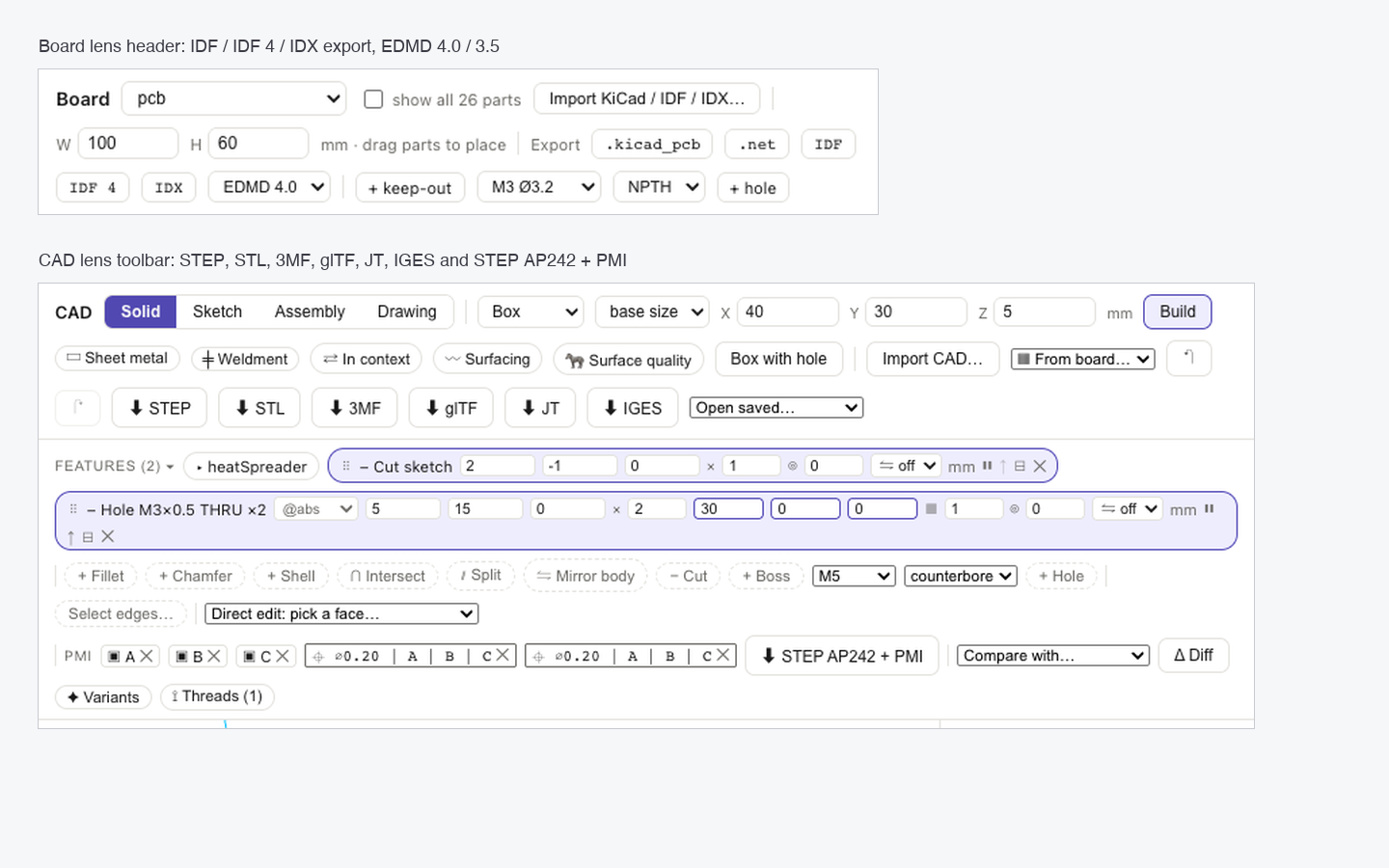
IDF
IDF exports an IDF 3.0 board and library pair (.emn / .emp); IDF 4 exports one IDF 4.0 file. Both import through Import KiCad / Altium / Eagle / EDIF / IDF / IDX…, with package heights, so the 3-D board can be built in the CAD lens.
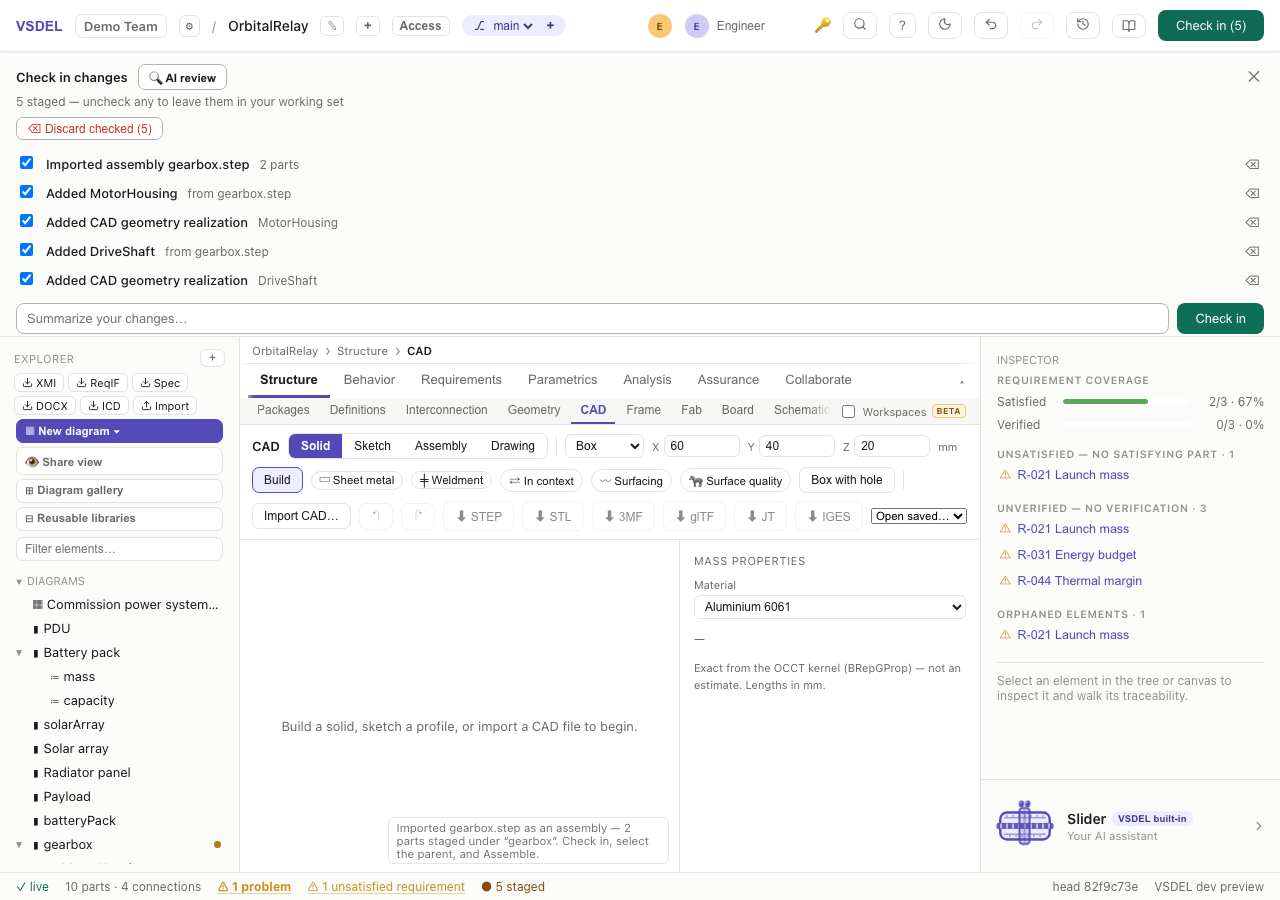
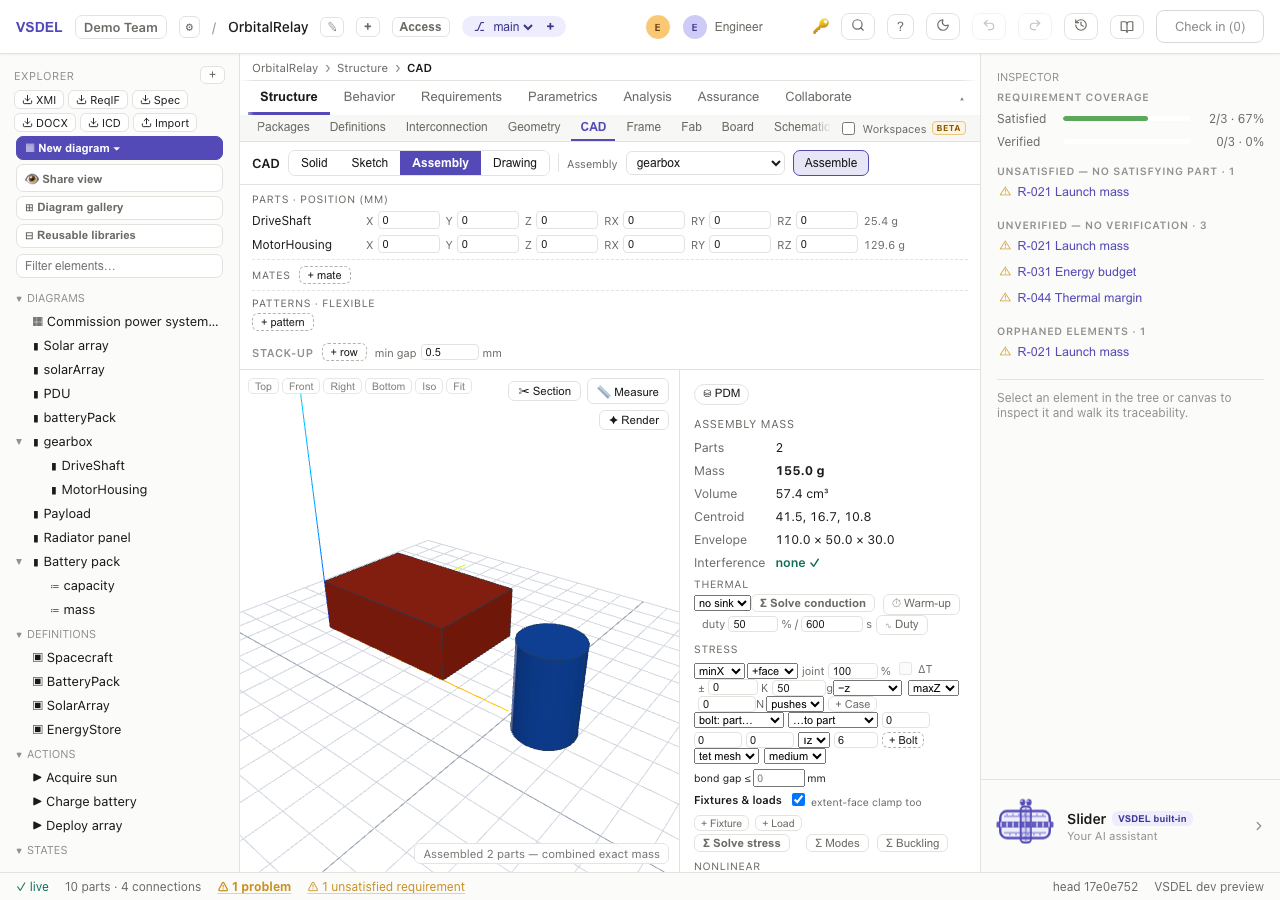
Limits. Other CAD systems' native part and assembly files aren't read, and there's no DWG; use STEP, IGES or JT from the source tool, and DXF for drawings. JT is export only. IDX change and response messages aren't available in the Board lens yet: exchange baselines, and re-import a new baseline after changes. IDX import hasn't yet been tried against every vendor's files; if a file reads wrong, the import note lists what was skipped.